
Introduction
The Bluefort Connection tab is where the environment’s licence is confirmed. Activating the environment tells ARVO Studio which entitlement this sandbox is running under, and it is the first thing to complete on Setup.
If the environment has not been activated yet, start with Activate an environment. This article covers the fields in the group, how the connection is verified, and how to look after the key.
Activation section
An environment entitlement binds one Business Central environment and one Microsoft Entra tenant to one end customer. Little else in Setup is worth completing until this group is done, because AI actions only become available on a licensed environment.
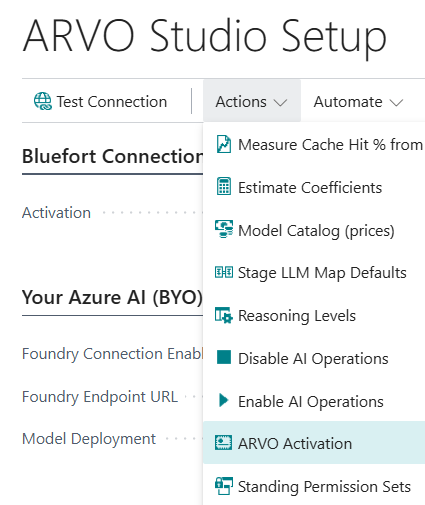
Complete the Activation process on ARVO Studio Setup, in the Actions > ARVO Activation page..
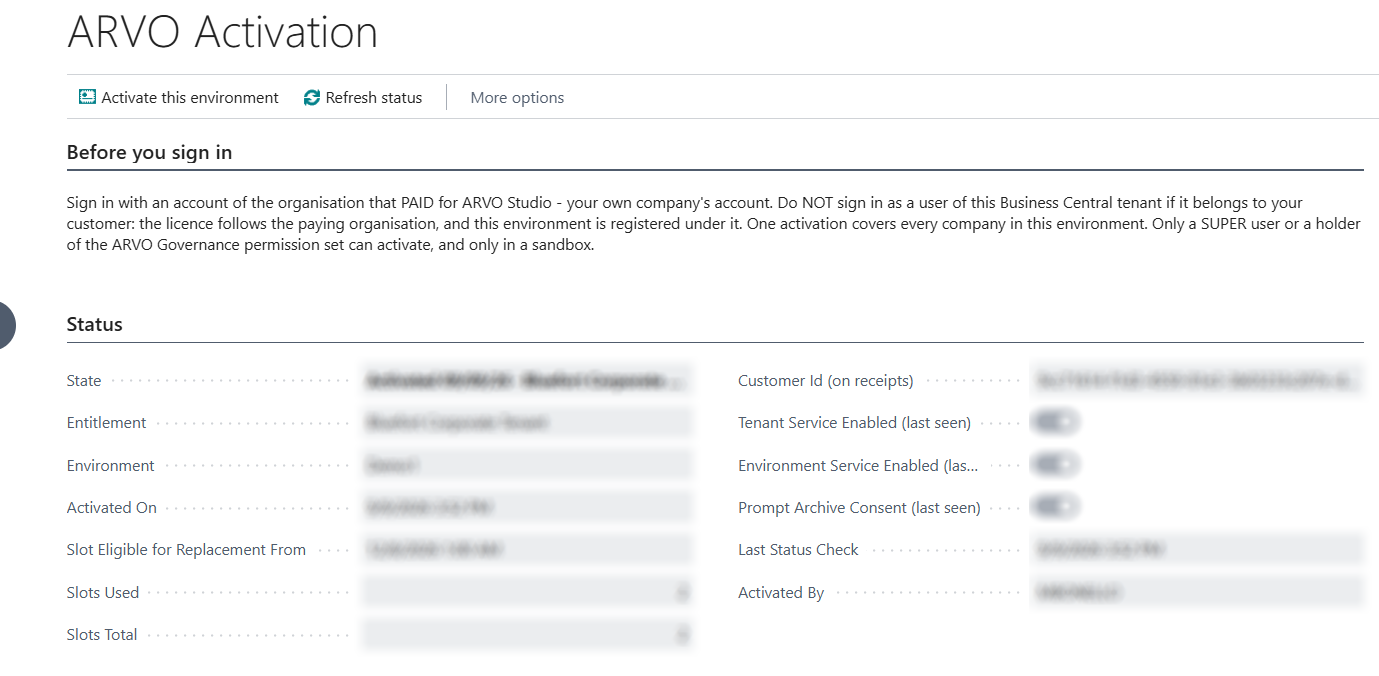
The Activation process starts by clicking the Activate this environment button on top and sign in with the correct account as instructed.
Test Bluefort Connection
Test Bluefort Connection is the verification step for this group, and it sits on the Setup page. A healthy result confirms two things: the key has been accepted, and the entitlement behind it is active. This should be run whenever the key is entered in the beginning or changed. Once this is run, the fields shown after activation change showing you the activation details only.

Where the check does not succeed it shows a reason, and that reason will be one of three kinds. The key may not be recognised, which usually means it has been mistyped or belongs to another environment. The entitlement may not be active, in which case the licence itself needs attention and your Bluefort contact person can confirm what it is bound to. Or the service may have been unreachable, which points at the network or a temporary outage rather than at anything in Setup.
Quick check
Choose Test Bluefort Connection and confirm a healthy result. Test Connection, described in Kill switches and Test Connection, is the wider check that also covers the AI connection and the identities.