
Introduction
ARVO Studio uses two identities, the Test Identity and the Orchestrator. This article explains what each one is for, how an administrator creates it in Microsoft Entra and in Business Central, and how both are wired into ARVO Studio Setup.
Both identities belong to the customer. They are created in the customer’s own Microsoft Entra tenant and used within the customer’s sandbox environment.
The two identities
The Test Identity executes the test suites and does nothing else. It holds only a minimal baseline of access. Before each test cycle ARVO assigns the role being tested to it and removes that role afterwards, so that tests genuinely run as the person in that role would experience them. Tests run in the sandbox only, so this identity is never needed in a Production environment.
The Orchestrator assigns and revokes those permissions on the test identity, resolves companies and collects results. It never executes a test itself. Like everything else in ARVO Studio, that work stays inside the sandbox: Production receives only the approved solution app through gated promotion.
Each identity is an application registration in Microsoft Entra, linked to a Business Central application user. Create the registration in Azure first, then the application user in Business Central, and repeat the whole sequence for the second identity. Create both registrations in the same Microsoft Entra tenant as the one that hosts the Business Central environment, and not in any other tenant the organisation uses.
Create the application registration in Microsoft Entra
- Sign in to the Microsoft Entra admin centre as an administrator of the Business Central tenant.
- Go to Identity, then Applications, then App registrations, and choose New registration.
- Enter a name for the identity, leave the account type set to this organisational directory only, leave the redirect URI empty, and choose Register.
- On the Overview page, copy the Application (client) ID and the Directory (tenant) ID. The tenant id is the same for both identities.
- Open API permissions, choose Add a permission, select Dynamics 365 Business Central, choose Application permissions, tick API.ReadWrite.All and add it.
- Grant admin consent for the tenant and confirm that the status column shows a green tick. Without admin consent the identity cannot call Business Central at all.
- Open Certificates and secrets and create a new client secret. Give it a description and an expiry, for which 180 days is a recommended default.
- Copy the secret value immediately, because it is shown only once, and set a reminder to rotate it before it expires.
Create the application user in Business Central
Each registration needs a matching application user in the sandbox. Repeat these steps once for each identity.
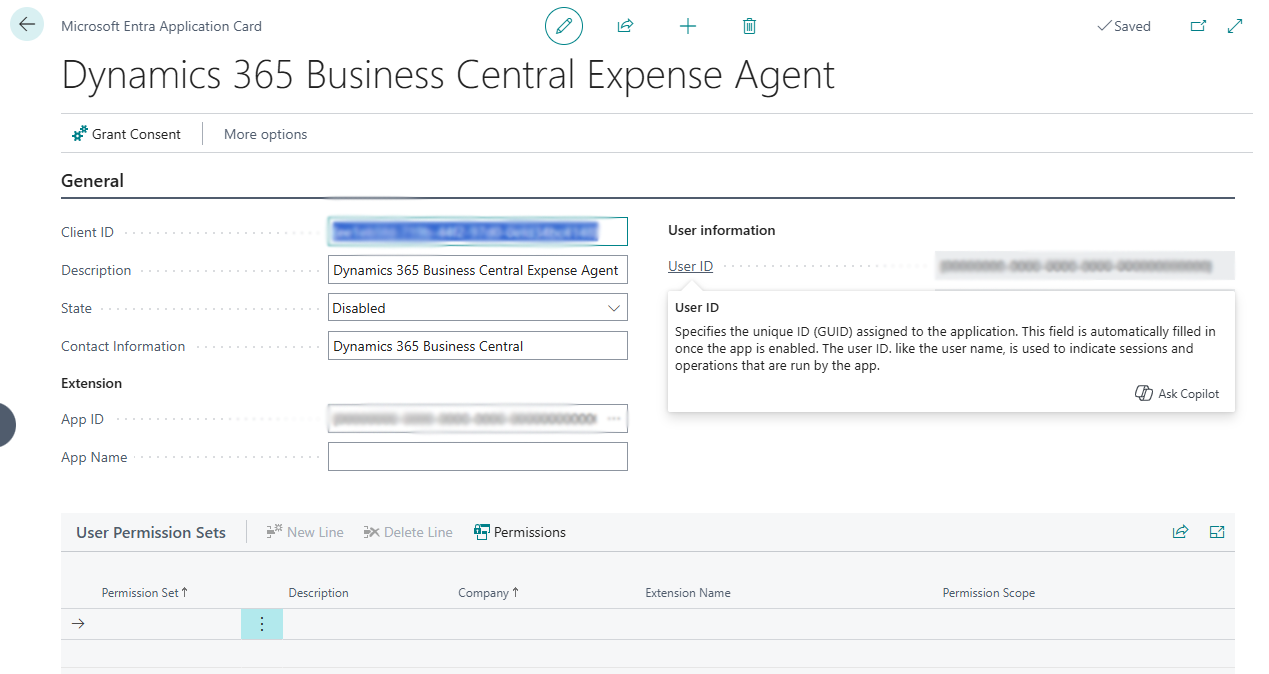
- In the sandbox, search for Microsoft Entra Applications, open the page and choose New.
- Paste the Application (client) ID into Client ID.
- Enter a Description, which becomes the user name, and set State to Enabled.
- Assign the permission sets that identity needs in the User Permission Sets part, then close the card.
The two identities are deliberately different in shape. The orchestrator needs a small fixed set of administrative permissions so that it can manage users and call the automation services. The test identity is kept minimal, often with nothing beyond what the environment requires for a session to open, because ARVO assigns and removes what a test needs with each run.
Wire both identities into ARVO Studio Setup
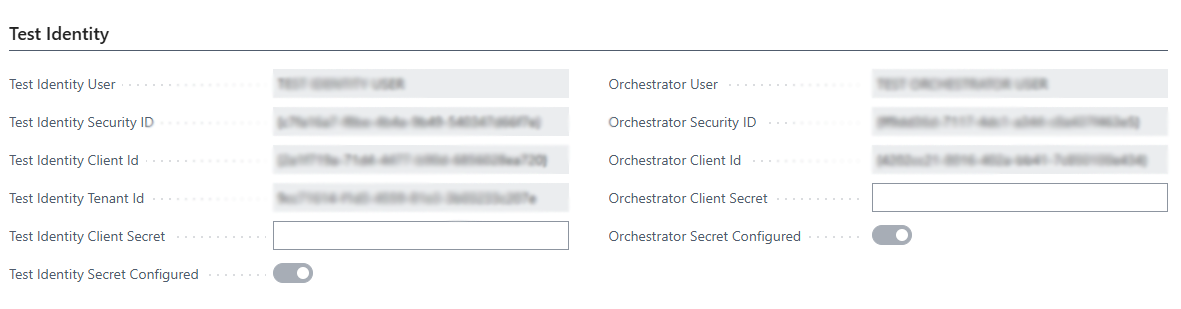
The remaining work is done in the Test Identity group on ARVO Studio Setup, using the values copied in Azure.
- In Test Identity User, pick the test identity’s application user from the lookup. The lookup offers application users only, and a human user is refused with an explanation.
- Check that Security ID and Client Id have resolved automatically from the Entra application record.
- Enter the Directory (tenant) ID you copied in Azure into Test Identity Tenant Id.
- Paste the client secret into Test Identity Client Secret. The field is masked and clears itself once saved, and a Secret Configured toggle confirms that the secret is stored.
- Repeat for the orchestrator, choosing Orchestrator User and pasting the Orchestrator Client Secret. The tenant field is shared, because both registrations are in the same tenant.
Secrets expire so it is important to note the expiry date when you create each one, rotate the secret before it lapses and enter the new value here, because an expired secret is a common cause of failure later on.
Quick check
This group is complete when each identity shows Secret Configured as on, and Test Connection reports that the required identities can authenticate. If authentication fails for one identity, enter its secret again first, then confirm that the identifiers were copied from the right registration and that admin consent was granted in the tenant that hosts the environment.