
Introduction
This article covers the controls at the end of the Setup card: the switch that governs whether AI operations can run in the environment at all, the Test Connection check that confirms the rest of the configuration holds together, and the smoke test that proves the testing setup of the environment works.
These are small actions with a good deal of weight behind them, so it is worth knowing exactly what each one does before you need it.
AI Operations Enabled
AI Operations Enabled is the switch for the whole environment. Turn it off and AI operations in that environment stop immediately. Nothing is uninstalled and nothing is deleted, however the environment stops carrying out AI work until the switch is turned back on.
The changed by and changed at fields record who made the change and when, so the action is available for auditing. Treat the switch as a normal governance control rather than only an emergency button. A customer may reasonably disable AI outside working sessions, or for the duration of a change freeze, and turn it back on when work resumes.

The customer also holds a control that sits outside ARVO Studio entirely. A customer can revoke the application’s consent in their own Microsoft Entra tenant, and Bluefort cannot override that decision.
Test Connection
Test Connection checks three things: that the entitlement can be reached and is valid, that the selected AI connection responds, and that the required identities can authenticate. It is the wider of the two connection checks. Test Bluefort Connection, in the Bluefort Connection group, proves only the entitlement and the access key, so use that one when the question is about the licence and Test Connection when the question is about the environment as a whole.
Run it after any change to the access key, to the AI connection, or to either identities.
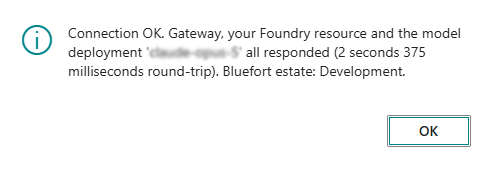
Messages and what to do first
The below section outlines the different possible messages which can be displayed following a test connection. Test Connection stops at the first check that fails, so you will see one message at a time rather than a list. Work through the message you are given, run the check again, and carry on until it passes. Where a message includes a CorrelationId, quote it in full if you contact Bluefort Support.
| Message | What it means | First action to take |
|---|---|---|
| Set the Model Deployment on the ARVO Setup page first. | The Model Deployment field is empty, so there is nothing to test. Nothing has been sent yet. | Enter the deployment name you chose when you deployed the model, then run the check again. |
| The Bluefort access key is not set. Enter it on the ARVO Setup page. | This environment holds no access key, so the entitlement cannot be proved. | Activate the environment. The key is issued by activation — see Activate an environment. |
| Set the Foundry Endpoint URL (your own Azure AI resource) on the ARVO Setup page first. | The Foundry Endpoint URL field is empty. | Enter the endpoint URL from your own Azure AI Foundry resource — see Set up Azure AI Foundry step by step. |
| Set the Foundry Key (your own Azure AI resource) on the ARVO Setup page first. | The Foundry Key field is empty. | Enter the key from your own Foundry resource. The field is write-only, so it must be entered again after any rotation. |
| Could not reach the Bluefort service. Check your network connection and try again. | No response came back at all. This is usually a network, firewall or DNS problem rather than a configuration error. | Ask whoever manages outbound access from the environment to confirm it is permitted, then retry. |
| The model deployment ‘…’ was not found on your Azure AI Foundry resource. Check the deployment name (ARVO Setup page or Model Catalog row), and verify the model is deployed on your Foundry resource — availability depends on your Foundry region. (CorrelationId: …) | The deployment name does not match anything on your Foundry resource, or the model is not deployed in the region you are using. | Check the deployment name matches exactly, then confirm the model is deployed on your Foundry resource. |
| The Bluefort gateway does not recognise this environment’s key. Most likely this environment is not activated, or its slot was replaced by another environment. Open ARVO Activation and activate this environment. (CorrelationId: …) | The access key is not recognised. Usually the environment has not been activated, or its entitlement has since been taken by another environment. | Open ARVO Activation and activate, or re-activate, this environment. |
| ARVO Studio is disabled for THIS environment by Bluefort licensing. Other environments under the same entitlement are unaffected. Contact Bluefort. (CorrelationId: …) | This one environment has been disabled under your entitlement. Your other environments are not affected. | Contact Bluefort, quoting the CorrelationId. |
| This environment is not activated for ARVO Studio. Open ARVO Activation in Business Central and activate it. (CorrelationId: …) | There is no entitlement recorded for this environment. | Activate the environment — see Activate an environment. |
| ARVO service is suspended for this tenant by Bluefort (entitlement switch). All operations are unavailable — contact your account manager. (CorrelationId: …) | The entitlement is suspended for the whole tenant, so no operations will run in any environment. | Contact your Bluefort account manager. |
| Your Azure AI Foundry resource rejected the Foundry Key. Verify the key and the Foundry Endpoint URL on the ARVO Setup page. (CorrelationId: …) | Your own Foundry resource refused the key. Either the key or the endpoint is wrong, or the key has been rotated in Azure and not entered here again. | Copy the key and the endpoint from Foundry again and re-enter both. |
| The LLM Gateway returned … Response: … (CorrelationId: …) | Something outside the cases above went wrong, and the response is shown to you as it was received. A quota or rate-limit refusal from your own AI account appears here. | Read the text shown. For a quota or rate-limit message, wait and retry, then raise the limit on your own AI account if it recurs. Otherwise contact Bluefort with the CorrelationId. |
| Connection OK. Gateway, your Foundry resource and the model deployment ‘…’ all responded (… round-trip). | Everything responded. The entitlement, your AI connection and the model deployment are all proved. | Nothing. Continue to Run Smoke Test to confirm the testing setup. |
Run Smoke Test
Test Connection proves that ARVO Studio can reach what it depends on. Run Smoke Test goes one step further and proves that the testing setup of the environment actually works. Open the Testing menu, choose Test Runs, and choose Run Smoke Test.
This process takes roughly 30 to 60 seconds and much of that is deliberate waiting, because ARVO confirms that permission changes have genuinely taken effect before it goes any further.
A pass reports two tests passed and none failed, and the new row in Test Runs shows the status Passed. The testing setup of the environment is then confirmed.
If something is misconfigured the run does not fail silently. It lands with the status Parked, and the reason is named on the run card, typically an expired secret, a missing permission or a wrong tenant id. Correct the item named on the card, then run the smoke test again.

Quick check
Setup is finished when AI Operations Enabled is on, Test Connection completes without reporting an action for you to take, and the smoke test comes back Passed. If a message points at the entitlement, start with Bluefort Connection. If it points at the AI connection, start with Your Azure AI (BYO) or Your Anthropic API (BYO). If it points at an identity, start with Test Identity and Orchestrator.