
Introduction
These two groups on the Setup card control where generated objects sit and how ARVO Studio estimates AI consumption before a build. Neither takes long to complete, and both are worth agreeing with the customer rather than accepting without discussion.
Object Generation sets the boundaries and the naming of what a project produces while token estimation feeds the estimate a user sees before a build is approved.
Object Generation
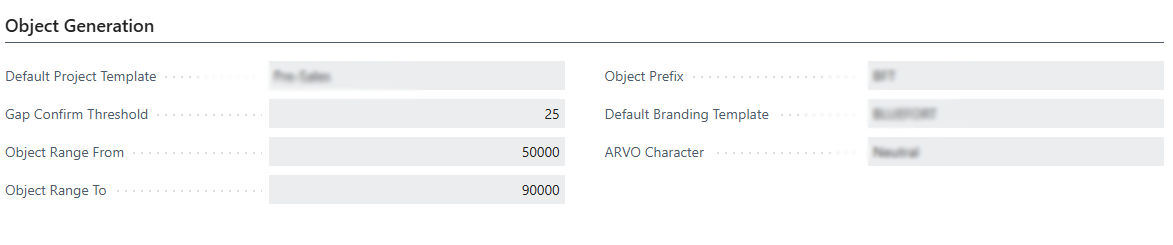
The object range and prefix keep generated objects inside the space reserved for that environment, so that they do not collide with existing customisations or with another publisher’s work. The other fields in the group set a scope guardrail, the default template used for generated documents, and the assistant persona shown in the workspace.
Complete the following on ARVO Studio Setup, in the Object Generation group.
| Field | What to enter | Notes |
| Gap Confirm Threshold | The gap count at which ARVO Studio asks the user to confirm before continuing | Treat this as a scope guardrail. If the gap count is unusually high, the design document may be too broad and should be split. |
| Object Range From and To | The object-ID range ARVO Studio may use for generated objects | It must match the range reserved for that environment. Check for conflicts with existing customisations first. |
| Object Prefix | The prefix applied to generated objects | Keep it consistent for the same publisher. |
| Default Branding Template | The template used for generated documents | [ Editorial note — link to the branding-template guide once that article exists. ] |
| ARVO Character | The assistant persona shown in the ARVO Studio workspace | Cosmetic setting only. |
Token Estimation
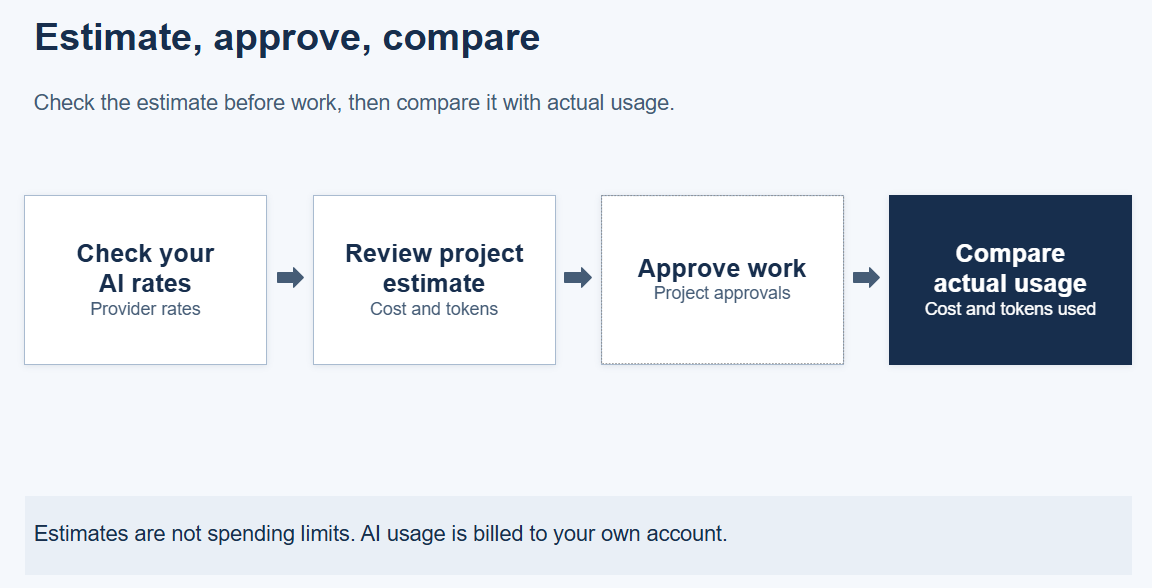
Before generation starts, ARVO Studio shows a three-point estimate beside the generation approval: a minimum, an expected and a maximum figure. The customer can therefore see the likely consumption on their own AI account, and the spread around it, before deciding to proceed. Once the work has run, actual consumption is reconciled against that envelope. The fields in this group are what the estimate is built from.
Treat the defaults as calibrated starting values. Change them only when the customer’s actual consumption shows a consistent difference from the estimate, and change one value at a time so that the effect of the change is clear.
The following values are set on ARVO Studio Setup, in the Token Estimation group.
| Field | What it affects |
| Chars per Token | How input text is converted into an estimated token count |
| Generation Tokens per Gap | Expected generation usage for each analysed gap |
| Repair Tokens per Loop | Expected usage for each repair attempt |
| Analysis Output Tokens | Expected token allowance for analysis output |
| Test Loop Tokens | Expected usage for each test-and-repair cycle |
Note: The minimum, expected and maximum figures appear beside the generation approval, and actual consumption is reconciled against them afterwards. All AI consumption is charged to the customer’s own Azure AI Foundry deployment or Anthropic account.

Quick check
Confirm that the object range matches the range reserved for the environment and that the prefix is the one used for that publisher. Then open a project card and compare the expected figure with the tokens actually consumed, checking that the actual figure fell between the minimum and the maximum. If actuals sit consistently above or below the expected figure, adjust the token-estimation values; if they are close, leave them as they are.