Introduction
This article walks you through creating the Azure AI Foundry deployment that ARVO Studio will use. This is specifically written for somebody who has not used Azure AI Foundry before. The deployment is the end users’ responsibility, not Bluefort’s and it sits in your own Azure subscription, and Microsoft bills you for what it uses.
Before you start you will need
- An active Azure subscription which details can be confirmed by your IT administrator.
- Permission to create resources in that subscription. If you are not sure, your IT administrator can help. Ask the team who manages Azure subscription to either do it with you or grant you the access.
- A decision about which region to use as each organisation may have a policy about where data is processed, it is ideal to check before you choose.
- Somewhere safe to store a key, such as your organisation’s password manager. Do not plan to email it or save it in a document.
Step 1: Sign in to Azure AI Foundry
Go to the Azure AI Foundry portal at ai.azure.com and sign in with your account, the same one you use for Microsoft 365. If you are offered a choice of directory or tenant, choose the one that holds the Azure subscription you intend to use.
Step 2: Create a project
A project is the container that holds your deployment so choose the option to create a new project, give it a name, such as your company name followed by ARVO, and select the Azure subscription you want the usage billed to.
When you are asked for a region, choose one that suits your organisation’s data policy and that supports the model for you. Region availability changes over time and is controlled by Microsoft, so check the supported list before committing.
Azure takes a minute or two to create the project. When it finishes, you will land on the project’s overview page.
Step 3: Deploy a model
Deploying a model means switching on a specific model for your project and giving it a name. Open the deployments area of your project, choose to deploy a model, and pick one from the supported list.
You will be asked for a deployment name. Whatever you enter here is the value ARVO Studio needs in its Model Deployment field, so keep it simple and write it down as you go. As a recommendation we recommend avoiding spaces and special characters.
Step 4: Check you have enough capacity
Azure assigns each deployment a capacity limit, usually shown as tokens per minute. If that limit is too low, ARVO Studio’s work will be slowed or refused once it is busy, and the error you see will come from Microsoft rather than from Bluefort.
Check the capacity assigned to your deployment before you go further, and raise it if it is at the minimum. If you cannot raise it, your subscription may have a quota limit, which is requested from Microsoft rather than from Bluefort.
Note: Quota, throttling and regional availability are controlled by Microsoft, not by Bluefort. If a request is refused because a quota has been reached, it is resolved in your own Azure subscription.
Step 5: Copy the endpoint URL and the key
Open your deployment and look for the section showing its endpoint details. You need two things from this page.
- The endpoint URL is a web address beginning with https, specific to your resource. Copy the whole URL.
- The key is a long string of letters and numbers. Copy it and place it into your password manager.
Treat the key exactly as a password. Anyone holding it can use your account so ideally this is not emailed, not pasted into any chat message and not stored in a shared document.
Step 6: Enter the values in ARVO Studio
Go back to Business Central, open ARVO Studio Setup and find the Your Azure AI (BYO) group. The table below shows where each value goes.
The remaining three fields in that group are set as follows. Model Deployment takes the deployment name you chose in step 3. Foundry Key takes the key you copied in step 5; the field is write-only, so once you save it the value is never shown again and the Key Set indicator confirms it is stored. LLM Max Tokens should be left at its default unless your deployment enforces a lower limit, because a value set too low can truncate output and cause validations to fail.
Step 7: Check that everything works
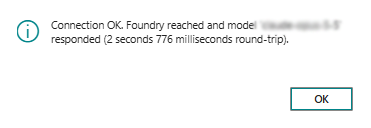
Save the Setup page, then run Test Connection. A clean result confirms that the foundry account can be reached, that the AI connection responds and that the required ID can authenticate. If the AI connection is the part that fails, the cause is almost always one of three things: the endpoint URL was not copied in full, the deployment name does not match exactly, or the key was entered incorrectly.
If you need to change the key later, generate the new one in Azure first, then enter it in Setup. ARVO Studio cannot show you the stored key, so there is no way to check the old one.