
Field Mappings define how data is synchronized between Business Central and Dataverse within the BC–Dataverse Integrator. They establish the relationship between fields in both systems and control how records are transferred.
The integrator supports flexible mapping configurations:
- A single Business Central field can be mapped to one or multiple Dataverse fields within the same entity.
- A single Dataverse field can also be mapped to one or multiple Business Central fields within the same table.
This flexibility allows the integration to adapt to varying data models and business requirements.
Configure Field Mappings
To configure Field Mappings, follow these steps:
- Navigate to the Integration Foundation Setup page.
- Open the Mappings menu tab and select Table Mappings.
- Locate the relevant table mapping and click Field Mappings.
- Enter the Business Central Field No. (the field number to be mapped).
- Enter the Dataverse Field Logical Name (the corresponding Dataverse field).
- Select the data flow direction:
- BC → Dataverse
- Dataverse → BC
- Bidirectional
- For lookup fields, specify the Target (the Dataverse entity used to resolve the related record).
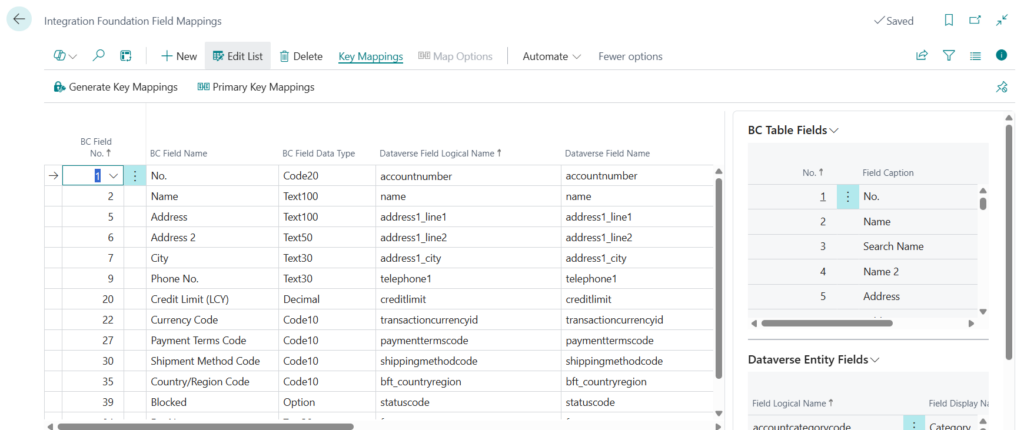
Identifying the Business Central Field Number
When selecting the Business Central Field No. for mapping, the dropdown displays only the field IDs, which may not always be easily recognizable.
To identify the correct field ID, you can:
- Refer to the Fields list available in the FactBox pane on the same page.
- Use the Schema Dictionary page to look up field details, including their corresponding IDs.
Additional Field Mapping Settings
- Min. Required Field
Enable this option if the field must be populated before a record is sent from Business Central to Dataverse. - Include in Post Operation
Some Business Central fields are populated after a record is created or updated due to system or custom logic.
If such fields need to be synchronized back to Dataverse, enable this option to include them in post-operation synchronization.
Refer to Post Operation Syncs for further details. - Skip Table Relation
Certain fields in Business Central have table relations that do not correspond to actual related records (e.g., text-based fields like Description in Sales Line).
In such cases, enable this option to ignore the table relation during mapping. - Disable
Enable this option to deactivate the field mapping without deleting it.
Field Mapping Processing Order
Field Mappings can be assigned a Processing Order, which determines the sequence in which fields are processed during record creation or updates in Business Central.
- Fields that are part of the primary key are automatically assigned a processing order of 1.
- A processing order of 0 has the lowest priority and will be processed last.
Setting the correct processing order ensures that fields are handled in a sequence that aligns with Business Central’s processing logic.
Option Mappings (Enum and Lookup Fields)
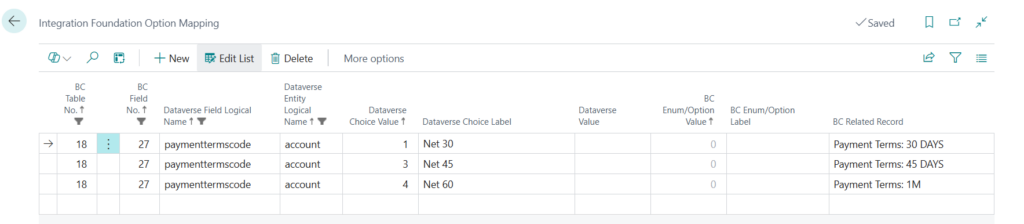
When mapping Business Central Enum or lookup fields to Dataverse picklists (choices), the individual option values from each system can be aligned with one another.
Example:
Map Business Central Payment Terms values to the corresponding Dataverse Payment Terms choice values.
Configuring Option Mappings
Follow these steps to define option mappings:
- Locate and select the relevant Field Mapping.
- Click Map Options.
- Select the appropriate Dataverse Choice Value.
- Depending on the Business Central field type:
- Enum/Option field: Select the corresponding Business Central Enum/Option value.
- Field with a table relation: Select the appropriate Business Central related record.
Key Mappings
When mapping a Dataverse field to a Business Central Field that does not have a direct one-to-one mapping between the two and requires to locate a record in Business Central to fill the Business Central field, Key Mappings are required.
Example: Syncing Sales Order Lines from Dataverse to Business Central
The Document No. field in the Sales Line table in Business Central has a table relation to the Sales Header table. Mapping the salesorderid unique identifier field from Dataverse to the Document No. field in Business Central does not contain enough information for Business Central to locate the record as the Sales Header requires also the Document Type and therefore the primary key mappings are to be created.
Configure Key Mappings
Follow these steps to define key mappings:
- Locate and select the relevant Field Mapping.
- Under the Key Mappings menu, click Generate Key Mappings – this will auto-generate the Key Mappings related to the Field Mapping
- Click on Primary Key Mappings to complete the key mappings
- If the field should have a default value, fill in the Default Value field
- If the field should get information from another mapped field, fill in the Mapped Field No.
