
The BC–Dataverse Integrator in Microsoft Dynamics 365 Business Central allows users to configure default values for Dataverse fields when records are created through the integration.
This feature is particularly useful when certain fields:
- Must always contain a value
- Do not require dynamic mapping from Business Central
- Need consistent data without adding unnecessary field mappings
Instead of creating a field mapping, you can define a default value that is automatically applied during record creation in Microsoft Dataverse.
Default Value Types Overview
The integrator supports four different methods for setting default values:
- Static Dataverse Default Value – used when a static value is to be sent
- Send Mapped Record – used when the default value to be sent is a mapped record from the current table
- Send From Related Record – used when the default value to be sent is a mapped record from a related table
- Get From Dataverse – used when a record is to be first retrieved from Dataverse using the specified searching criteria by querying the entity’s primary column.
Setting Dataverse Default Values
- Navigate to Integration Foundation Setup
- Open the Mappings menu tab
- Select Table Mappings
- Locate and open the required table mapping
- Click Dataverse Default Values
- Select the Dataverse Field Logical Name to configure
Depending on the type of default value to set, follow the steps under one of the options below.
Option 1: Static Dataverse Default Value
Use this option when a fixed value should always be sent.
- Select the required Dataverse field
- Enter the value in the Dataverse Default Value column
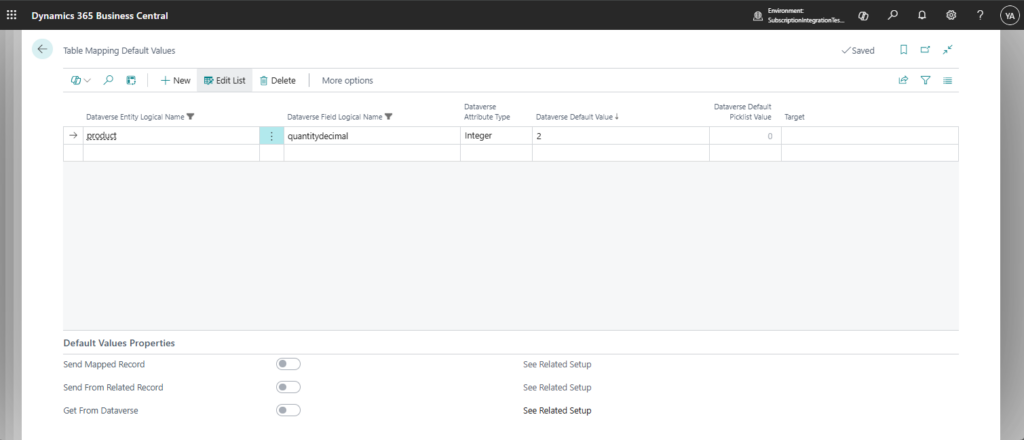
Option 2: Send Mapped Record
Use this option to send a record from the current table based on existing mappings.
- At the bottom of the Dataverse Default Value page, switch on the Send Mapped Record option
- Click on See Related Setup
- Insert the Field ID No. to be sent
- Click on See Related Primary Key Mappings
- Click on Generate Primary Key Mappings – this will generate a record for each primary key of the related table of the selected field
- For each Primary Key field, select the mapped field from the current record
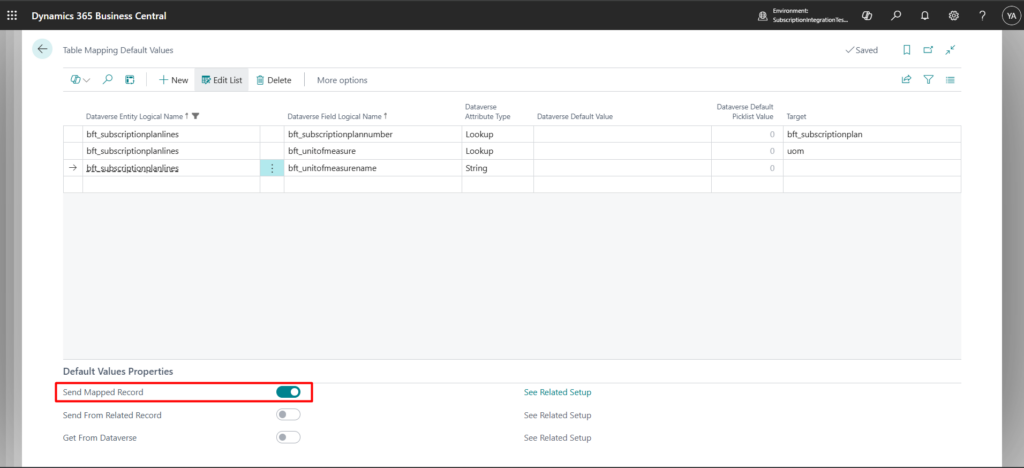
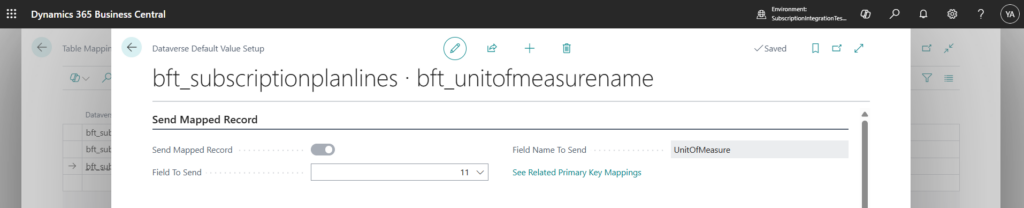

Option 3: Send From Related Mapped Record
Use this option to send a value from a related table.
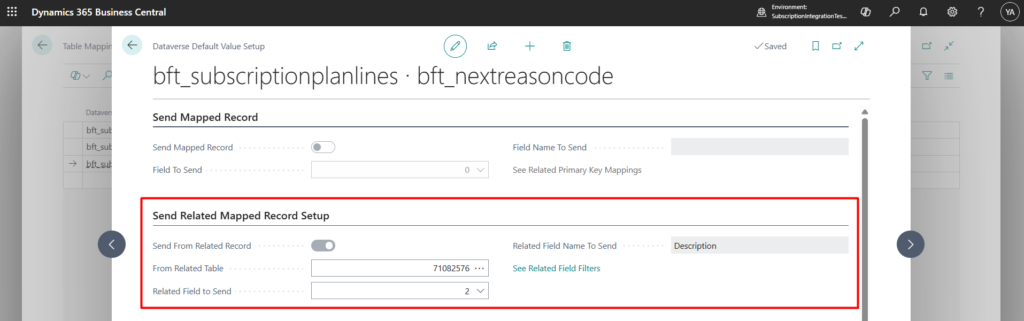
- At the bottom of the Dataverse Default Value page, enable the Send From Related Record option
- Click on See Related Setup
- Fill in the From Related Table field – use the Assisted Setup to show the tables related to the current table
- Fill in the related Field to Send – the drop down will show the list of fields of the related table selected in the previous step
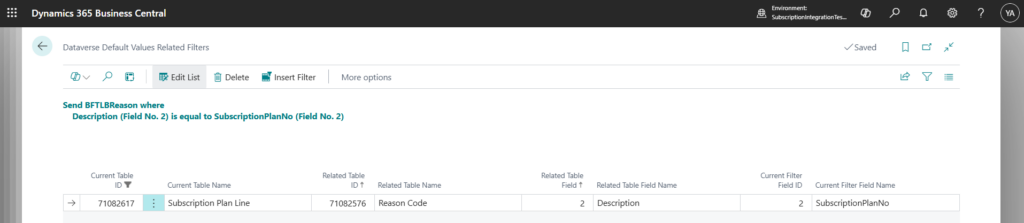
- Click on See Related Field Filters
- Click on Insert Filter
- Fill in the Related Table Field – this is the field to filter on from the related table
- Fill in the Current Filter Field ID – this is the field to filter with from the current record
- Repeat steps 5-7 for each filter needed to be set
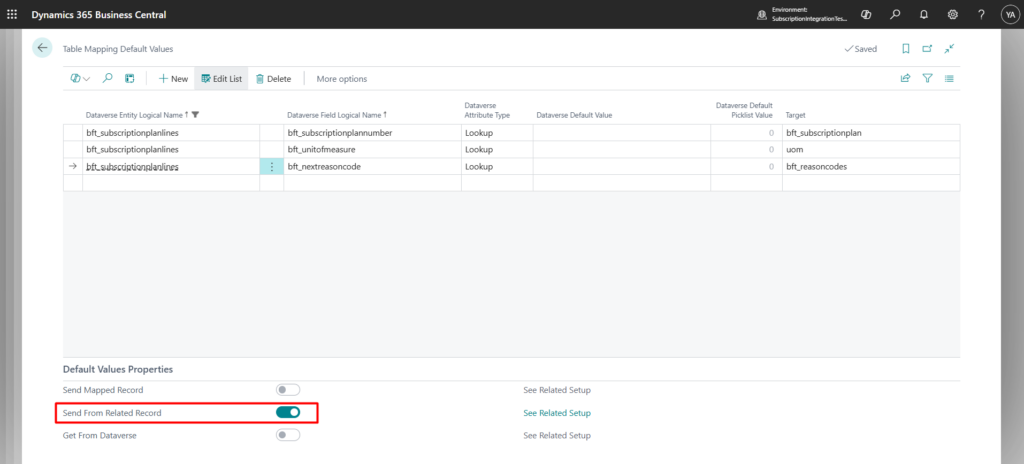
Option 4: Get From Dataverse
Use this option to retrieve a record from Dataverse dynamically using search criteria.
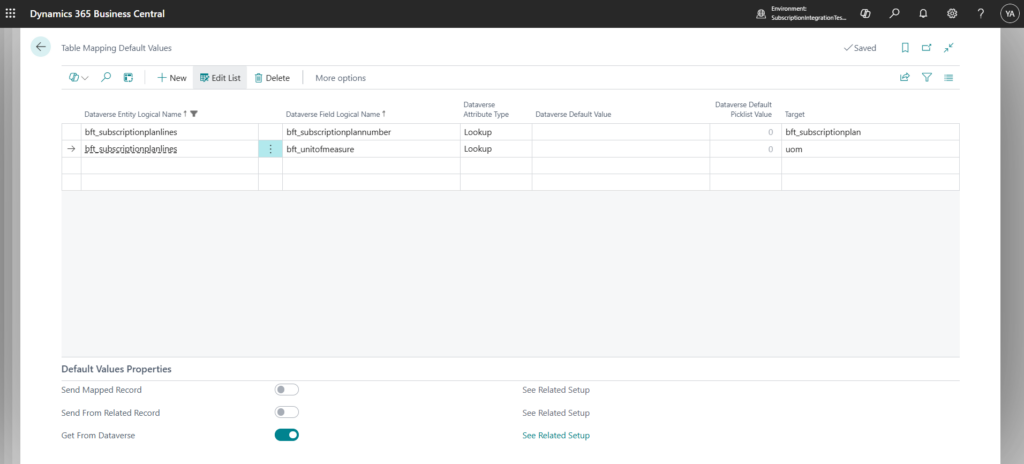
- At the bottom of the Dataverse Default Value page, switch on the Get From Dataverse option
- Click on See Related Setup
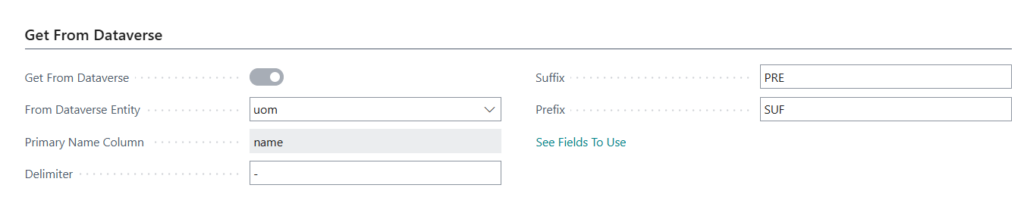
- Fill in the From Dataverse Entity with the entity name from which the record is to be retrieved
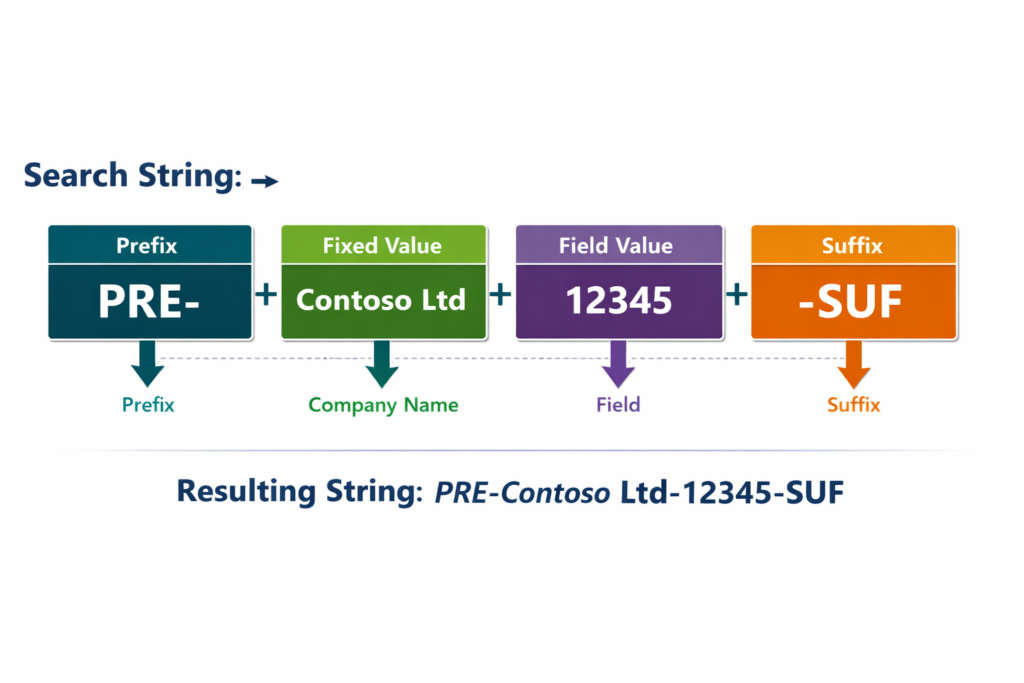
- If required, fill in the Delimiter
- If required, fill in the Prefix
- If required, fill in the Suffix
- Click on See Fields to Use to set up the fields that will be used to query Dataverse
- Select the type of value
- Fixed Value – currently the only option available in Company Name that automatically translates in the current Business Central company name
- Field – select a field from the current Business Central Table from which the value to filter with will be taken

Example:
| Delimiter | – |
| Prefix | PRE |
| Suffix | SUF |
| Fields | Sequence 1: Fixed Value (Company Name) Sequence 2: Field |
Best Practices & Notes
- Use default values to simplify configuration and reduce mappings
- Avoid duplicating logic between mappings and defaults
- Always verify required Dataverse fields are satisfied
- Use Get From Dataverse carefully to avoid incorrect matches