
The BC–Dataverse Integrator supports Dataverse Virtual Entities, enabling data stored in Business Central to be surfaced in Dataverse without physically replicating the data into Dataverse tables.
This approach allows users to view and interact with Business Central data from within Dataverse while maintaining a single source of truth.
Prerequisites
Dataverse Prerequisites
The following solutions must be installed in the target Dataverse environment:
- Bluefort Integration VE Infrastructure
- Bluefort Integration Virtual Entities
- Bluefort Integration Foundation
Environment Variables
When importing the Bluefort Integration VE Infrastructure solution, the following Environment Variables must be configured:
| Environment Variable | Description |
|---|---|
| BC Client ID | The Client ID of the App Registration used to access Business Central. |
| BC Client Secret | The Client Secret of the App Registration used to access Business Central. |
| BC Tenant ID | The Microsoft Entra tenant ID where Business Central is hosted. |
Business Central Prerequisites
The Bluefort BC–Dataverse Integrator must be installed and fully configured.
Creating Virtual Entities in Dataverse
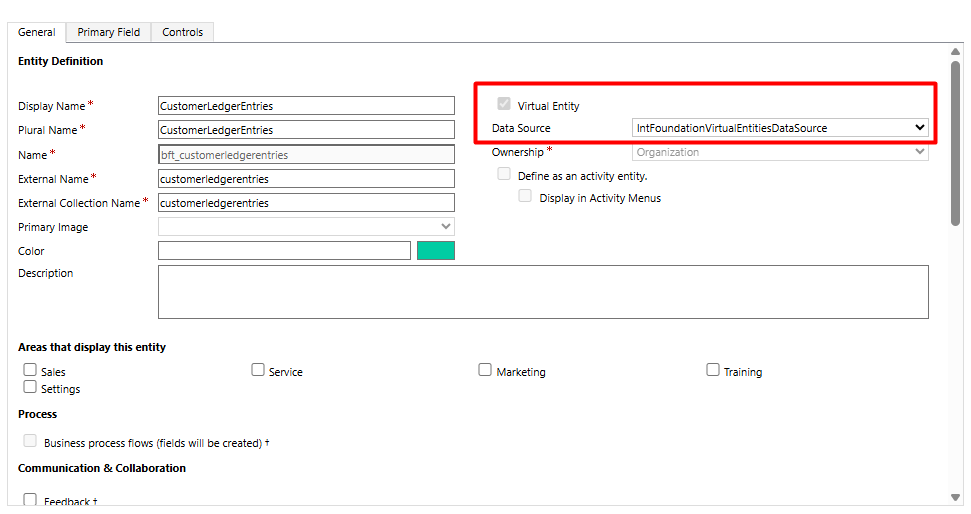
Virtual Entities should be created using the standard Dataverse Virtual Entity creation process. We recommend creating these entities within your own solution.
When creating a Virtual Entity, set the Data Source to: IntFoundationVirtualEntitiesDataSource
Configuring Virtual Entities in Business Central
The Virtual Entities Setup page in Business Central is the central location for configuring Virtual Entity integrations.
Prerequisites
You will require the Client ID and Client Secret of an App Registration with access to Business Central.
Configuration Steps
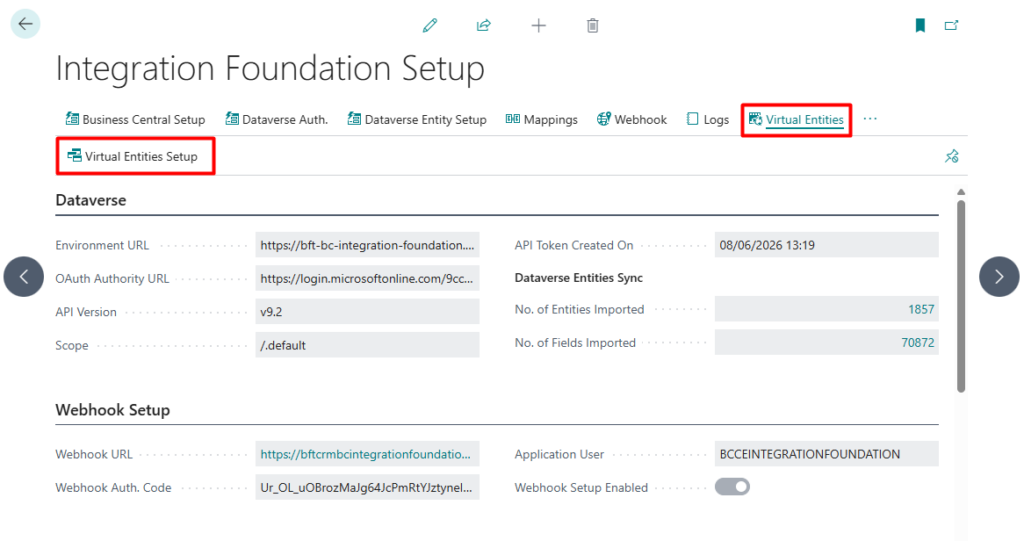
- Navigate to Integration Foundation Setup.
- Select Virtual Entities from the menu and then choose Virtual Entities Setup.
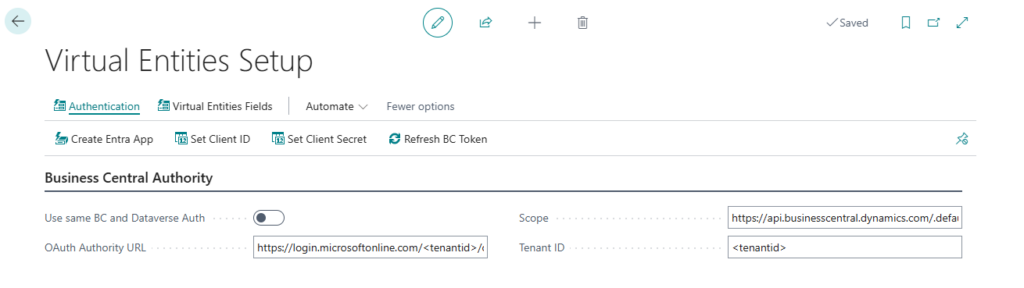
- Complete the fields as follows:
| Field | Value |
| OAuth Authority URL | https://login.microsoftonline.com/<tenantid>/oauth2/v2.0/token |
| Scope | https://api.businesscentral.dynamics.com/.default |
| Tenant ID | <your Business Central tenant ID> |
| Use same BC and Dataverse Auth | Enable only if both Business Central and Dataverse reside in the same Microsoft Entra tenant |
If Use Same BC and Dataverse Auth is enabled, no additional authentication setup is required and you can skip to the next section in this document.
If Use Same BC and Dataverse Auth is not enabled
- Select Set Client ID and enter the Client ID of the Business Central App Registration.
- Select Set Client Secret and enter the corresponding Client Secret.
- Select Refresh BC Token to verify that authentication is successful.
Configuring Virtual Entity Fields
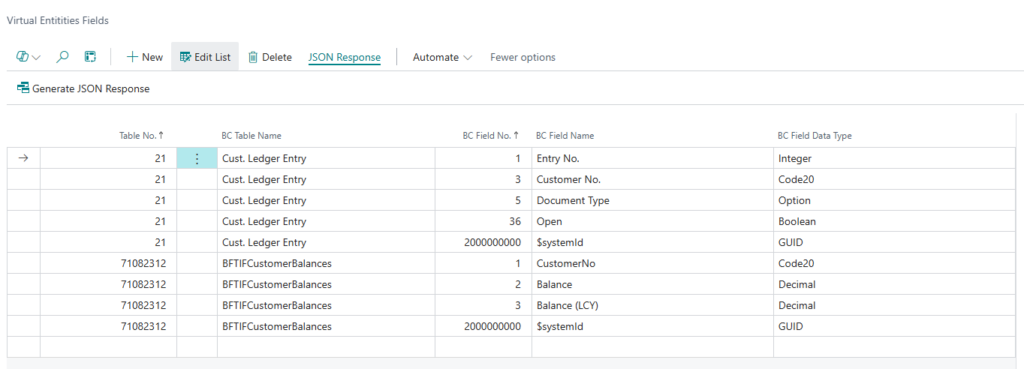
Business Central must be configured to expose the fields that Dataverse Virtual Entities will retrieve.
Setup Steps
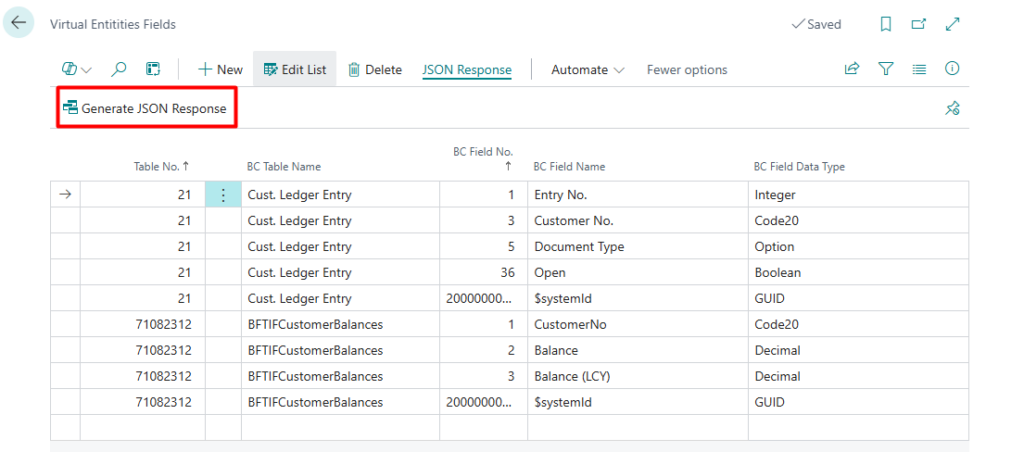
- Open the Virtual Entity Setup page.
- Select Virtual Entity Fields.
- Create a record for each field that should be returned to Dataverse.
| Field | Description |
| Table No. | The Business Central table number from which data will be retrieved. |
| BC Field No. | The Business Central field number to include in the response returned to Dataverse. |
Configuring Virtual Entities in Dataverse
The model-driven app Bluefort Integration Virtual Entities serves as the primary configuration area within Dataverse.
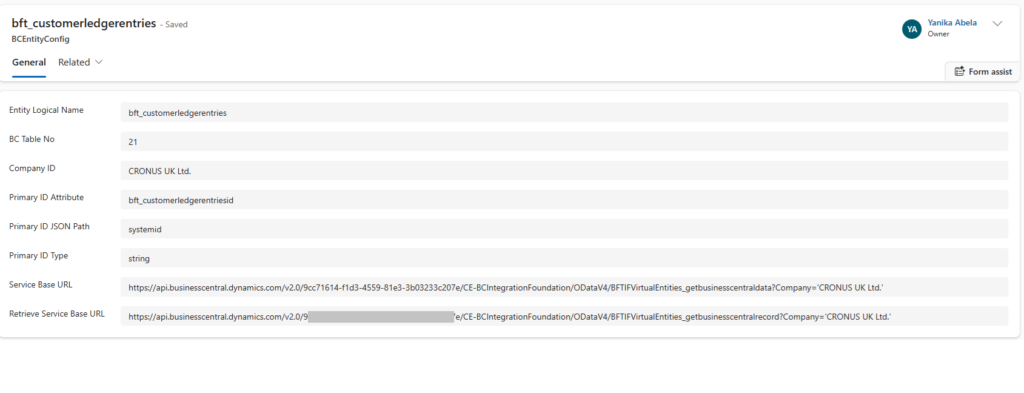
BC Entity Configurations
BC Entity Configurations define the relationship between a Dataverse Virtual Entity and a Business Central table.
Setup Steps
- Create a new record.
- Populate the fields as follows:
| Field | Description |
| Entity Logical Name | Logical name of the Dataverse Virtual Entity. |
| BC Table No. | Business Central table number from which data will be retrieved. |
| Company ID | Business Central company from which data will be retrieved. |
| Primary ID Attribute | Logical name of the Virtual Entity’s primary identifier field. |
| Primary ID JSON Path | JSON property containing the unique identifier returned by Business Central. Using the Business Central System ID is recommended. See Retrieve BC JSON Response Sample. |
| Primary ID Type | Data type of the primary identifier. String is recommended. |
| Service Base URL | https://api.businesscentral.dynamics.com/v2.0/<tenantid>/<environment>/ODataV4/BFTIFVirtualEntities_getbusinesscentraldata?Company='<CompanyName>’ |
| Record Service Base URL | https://api.businesscentral.dynamics.com/v2.0/<tenantid>/<environment>/ODataV4/BFTIFVirtualEntities_getbusinesscentralrecord?Company='<CompanyName>’ |
- Repeat for each Virtual Entity required.
BC Field Mappings
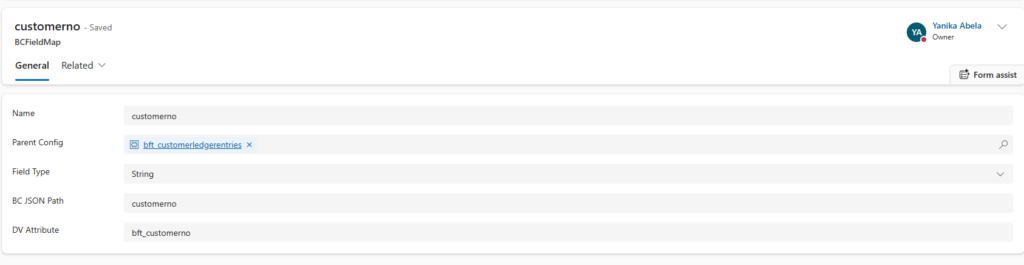
BC Field Mappings define how fields returned from Business Central are mapped to fields in the Dataverse Virtual Entity.
Setup Steps
- Create a new record.
- Populate the fields as follows:
| Field | Description |
| Name | Descriptive name for the mapping. |
| Parent Config | The BC Entity Configuration this mapping belongs to. |
| Field Type | Data type of the field being mapped. |
| BC JSON Path | JSON property name returned by Business Central. See Retrieve BC JSON Response Sample. |
| DV Attribute | Logical name of the corresponding field in the Dataverse Virtual Entity. |
- Repeat for all required fields.
BC Field Filters
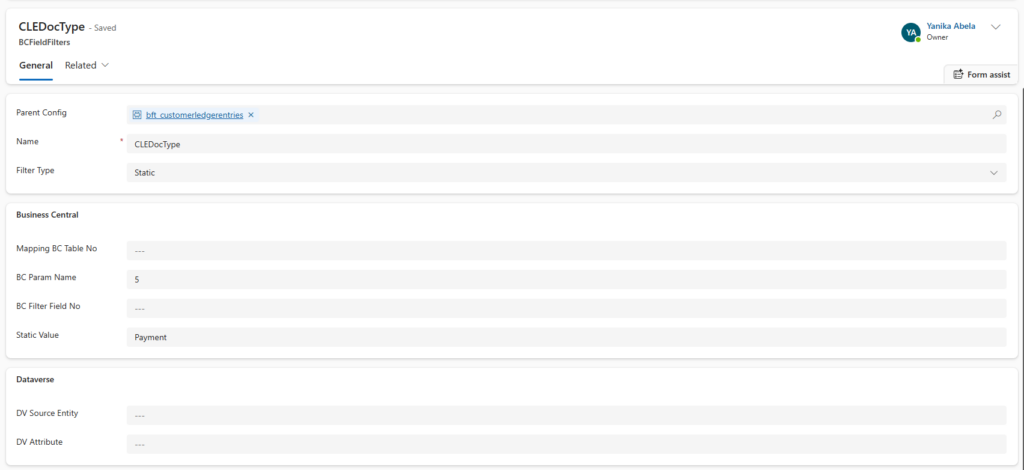
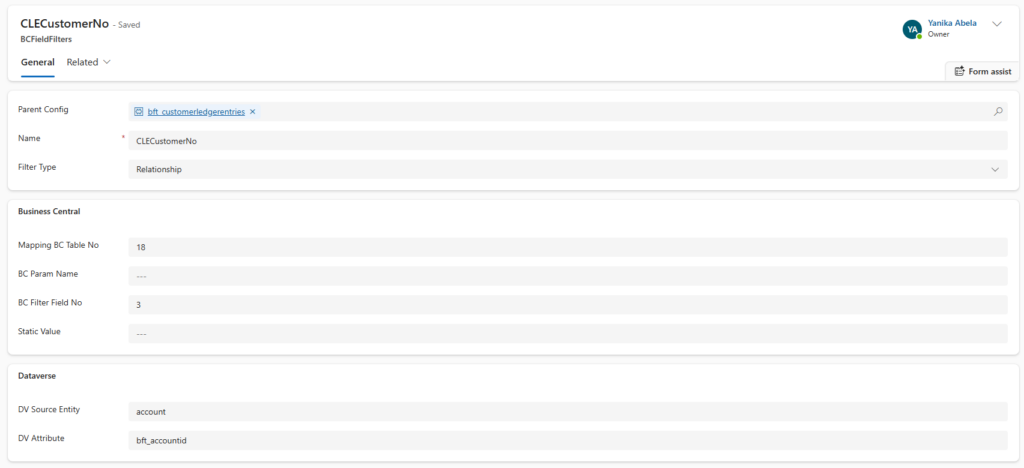
BC Field Filters allow the data returned from Business Central to be filtered before being surfaced through the Virtual Entity.
Setup Steps
- Create a new record.
- Populate the fields as follows:
| Field | Description |
| Parent Config | The BC Entity Configuration this filter belongs to. |
| Name | Descriptive name for the filter. |
| Filter Type | Select Static for fixed Business Central filters, or Relationship when filtering based on related Dataverse records. |
| Mapping BC Table No. | Business Central table number used to retrieve the related record for relationship filters. |
| BC Param Name | Business Central field number used as a filter parameter. |
| BC Filter Field No. | Business Central field number to filter against. |
| Static Value | Value used for static filters. |
| DV Source Entity | Logical name of the Dataverse entity containing the related record. |
| DV Attribute | Logical name of the Dataverse field used to link the Dataverse record with the Business Central record. This is typically the entity’s unique identifier. |
- Repeat for all required fields.
Retrieve a Business Central JSON Response Sample
When configuring mappings, users may not know the JSON property names returned by Business Central.
To assist with configuration, a sample JSON response can be generated directly from Business Central.
Generate a Sample Response
- Navigate to Virtual Entity Setup.
- Open Virtual Entity Fields.
- Select a field record belonging to the table for which you want to generate a sample.
- Select Generate JSON Response from the action menu.
- Save and open the downloaded file.
The sample response can be used to identify the JSON property names required for:
- Primary ID JSON Path
- BC JSON Path values in Field Mappings
- Filter configuration