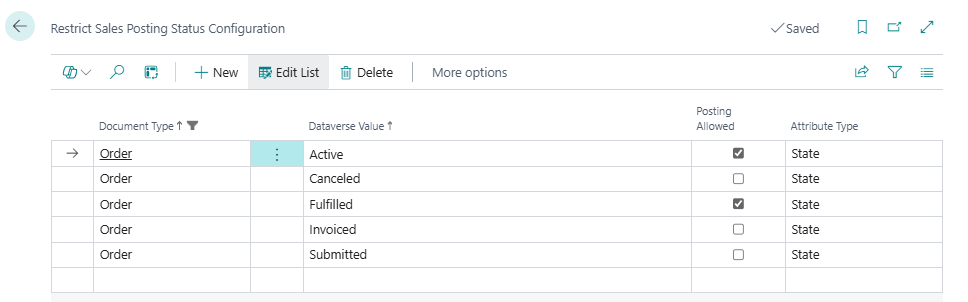
By default, the connector synchronizes data from Microsoft Dataverse to Microsoft Dynamics 365 Business Central whenever a CRUD (Create, Read, Update, Delete) operation occurs.
For Sales Documents, this may result in a scenario where a Sales Document in Dataverse is synced to Business Central and this is processed in the latter before the Sales Document lifecycle process is completed in Dataverse.
To prevent this, the connector provides Document Posting Restrictions, allowing you to control when documents can be posted in Business Central based on conditions in Dataverse.
Example
Only allow posting of a Sales Document in Business Central when the corresponding Dataverse document is in a specific defined status.
Enabling Document Posting Restrictions
To activate this feature:
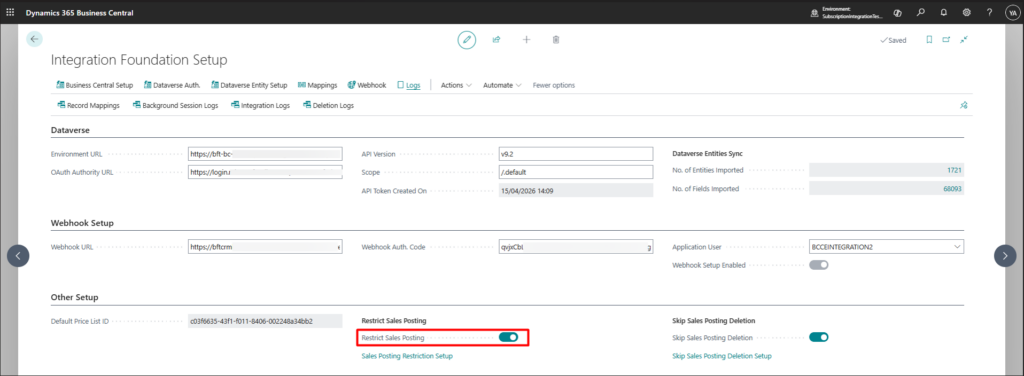
- Navigate to Integration Foundation Setup
- Expand the Other Setup FastTab
- Enable Restrict Sales Posting
Configuring Posting Restrictions per Document Type
To define restrictions for specific document types:
- Within the Integration Foundation Setup, click on the Sales Posting Restriction Setup (under the Restrict Sales Posting option)
- Select the Document Type
- Select the Dataverse Entity Logical Name (source entity)
- Select the Field Logical Name to evaluate (e.g. status field)

Defining Posting Conditions
Once the setup is created:
- Click Setup from the menu
- Enter the Dataverse Value to apply the restriction on
- For State, Status, or Lookup fields, use the Assist Edit (drill-down) to view available values
- For each Value, enable or disable posting.