
Before a customer can be charged through Stripe, they must first be onboarded to Stripe and provide a payment method.
TAPP Stripe for Microsoft Dynamics 365 Business Central allows this entire onboarding process to be initiated directly from Business Central. A single secure onboarding link can be generated that both creates the Stripe customer and captures their payment method in one step, with the result synchronized back to Business Central and made available for processing payments and transactions.
Note: The customer does not need to already exist in Stripe before you send them an onboarding link. If they aren’t yet registered, Stripe creates their customer profile automatically as part of the onboarding process, and Business Central registers the corresponding Stripe customer record automatically once it’s created.
Onboarding a Customer’s Payment Method
Follow these steps to onboard a customer and capture their payment method directly from Business Central.
- Open the Customer Card.
- From the Stripe menu, select Onboard Payment Method.
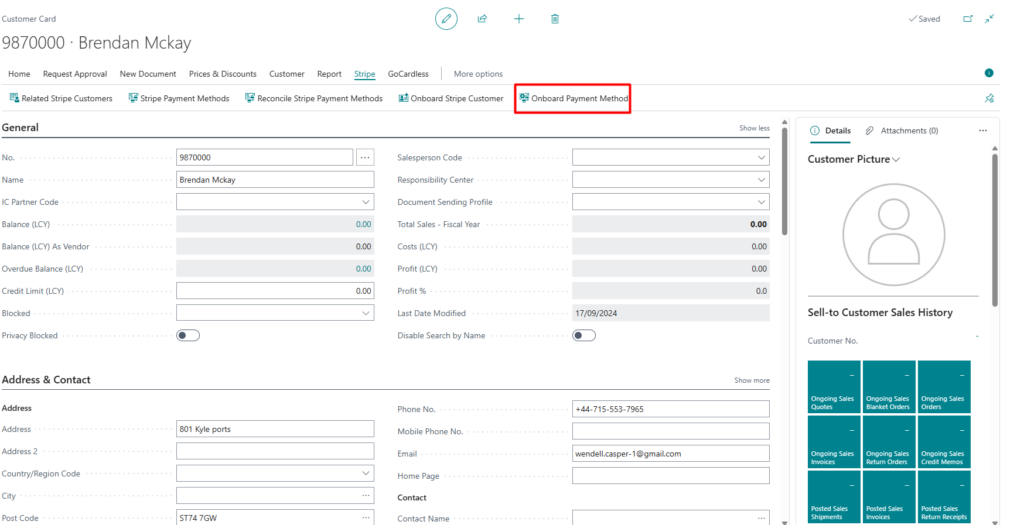
- Customer Card with the Onboard Payment Method action highlighted on the Stripe menu
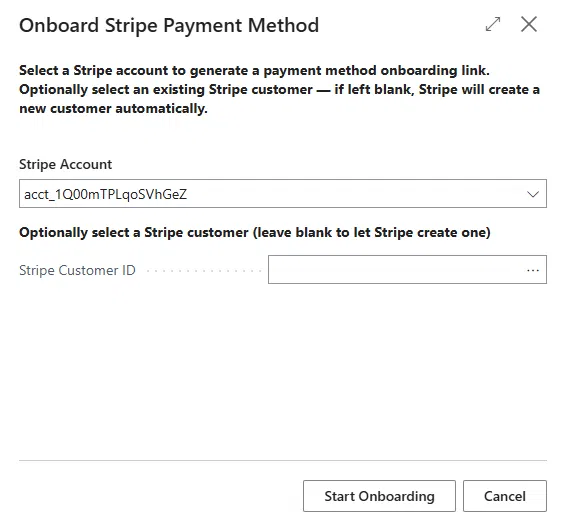
- In the Onboard Stripe Payment Method wizard that opens:
- Stripe Account — this defaults automatically to your default Stripe account.Stripe Customer ID (optional) — if the customer is already registered in Stripe, you can select their existing record here. If you leave this blank, Stripe creates a new customer automatically when the customer completes the onboarding link.
- Choose Start Onboarding.
- A Stripe Payment Method Onboarding window displays the generated Payment Method Onboarding URL, along with the session status and expiry date/time. Choose Copy to Clipboard to copy the link.
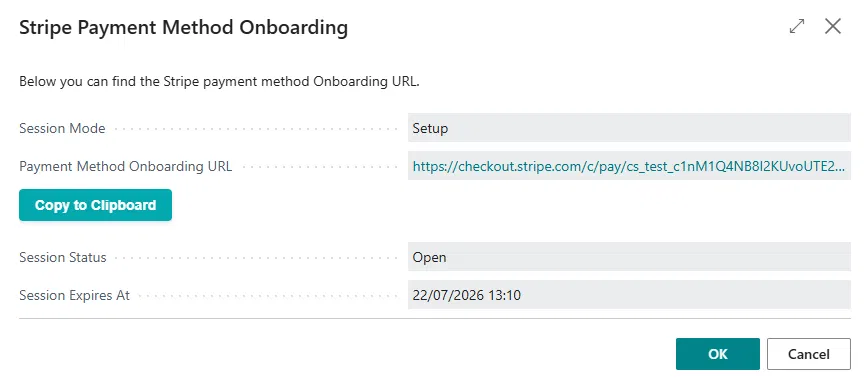
- Stripe Payment Method Onboarding window showing the generated onboarding URL, session status, and expiry
- Send this link to the customer so they can securely enter their card details.
When the customer opens the link and submits their card details, Stripe creates their customer profile (if one didn’t already exist) and saves the payment method in a single step.
Stripe Customer Records Are Created Automatically
You do not need to take any manual action in Business Central to register a customer who was created automatically by Stripe.
Whenever a customer completes a payment or onboarding link and Stripe creates their customer profile as part of that process, Business Central automatically creates the corresponding Stripe customer record. This applies whether the customer:
- Completes a payment method onboarding link (see above), or
- Pays a Sales Invoice or Order via a one-time payment link (see below).
Once created, the customer is immediately available in Business Central as a linked Stripe customer, ready to be used for future recurring payments or one-time charges — no reconciliation or manual sync step is required to register the customer record itself.
One-Time Payments Without Prior Stripe Setup
One-time payments can be sent to any customer who has an email address on their BC Customer Card, even if the customer has never been set up in Stripe before.
This applies to Sales Invoices and Sales Orders where Stripe One-Time Payment is enabled on the document. A Stripe customer no longer needs to be linked to the document in advance — if none is linked, Stripe creates one automatically once the customer pays via the link.
What is validated when posting
| Payment type | What is checked |
|---|---|
| One-Time Payment | A Stripe account is selected on the document, and the customer has an email address. |
| Recurring Payment | A Stripe account, Stripe customer, and saved payment method are all selected on the document. |
Synchronizing Customer Payment Methods
Once a customer has completed a payment method onboarding link, their payment method is synchronized back to Business Central.
There are two ways this happens:
1. Automatic Synchronization
The Stripe Customer Payment Method Reconciliation process runs automatically according to its configured schedule and retrieves any newly created payment methods from Stripe.
2. Manual Synchronization
If you do not wish to wait for the scheduled reconciliation, you can synchronize the payment methods manually.
- Open the Customer Card.
- From the Stripe menu, select Reconcile Stripe Payment Methods.
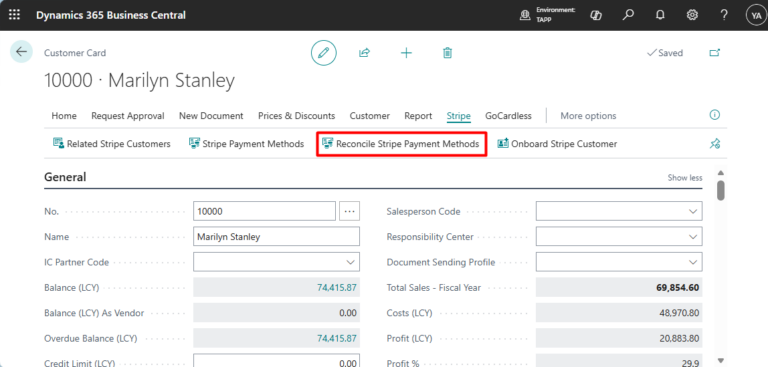
Business Central immediately retrieves the latest payment methods associated with the customer from Stripe.
Once reconciliation has completed, the customer’s payment methods become available in Business Central and can be used when processing Stripe payments and transactions.
End-to-End Example: Onboarding a Brand-New Customer
The following walks through getting a customer with no prior Stripe configuration fully set up with a saved payment method.
- Open the BC Customer Card for the customer.
- Ensure the customer has an email address on their card.
- From the Stripe menu, select Onboard Payment Method.
- In the wizard, confirm the Stripe account (defaults automatically) and leave the Stripe Customer ID field blank.
- Choose Start Onboarding. A secure Stripe-hosted link is displayed.
- Copy the link and send it to your customer by email or any other method.
- The customer opens the link, enters their card details, and submits.
- Stripe creates their customer profile and saves the payment method.
- Business Central automatically registers the new Stripe customer and their saved card, ready for use on future transactions.