Introduction
This article will guide you through the process to synchronize Stripe Payment Intents and the related Stripe Event.
Payment Intents represent your intent to collect payment(s) from a customer and automatically handles all the required authentication steps. The lifecycle of a Payment Intent is made up of multiple statuses that it goes through such as created, succeeded, failed etc… Such status changes are represented by Payment Intent Events.
Set up Automated Payment Intents Reconciliation
Automated Payment Intents reconciliation can be set up through the use of Job Queues.
Job Queues are automatically initialized upon installation of Stripe for Dynamics 365 Business Central – TAPP but can also be manually created.
The Job Queue that reconciles Payment Intents is the one set up as follows;
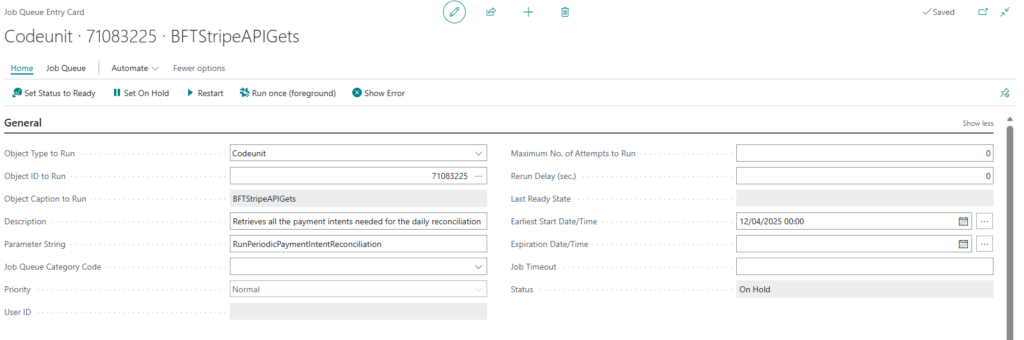
Make sure that the Parameter String is set to exactly RunPeriodicPaymentIntentReconciliation
The reconciliation period taken in consideration is calculated according to the value set for the Payment Intent Reconciliation Date within the Stripe Parameters.
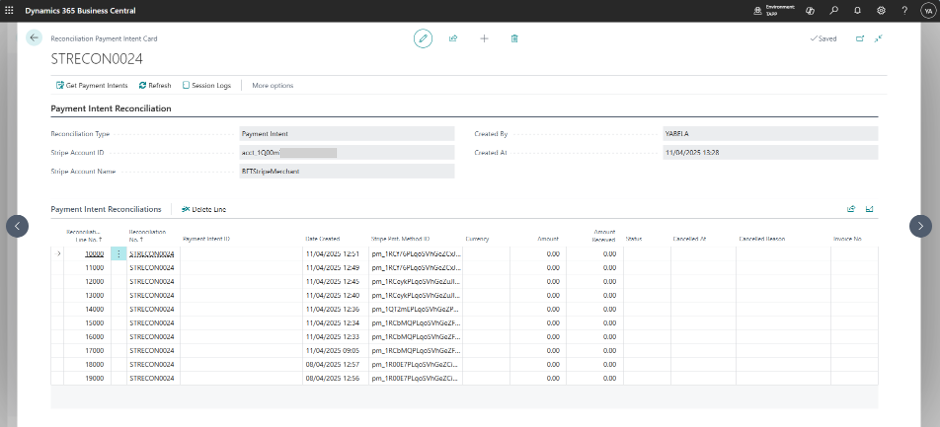
Each reconciliation run creates a Payment Intent Reconciliation in which the reconciled payment intents can be viewed.
Set up Automated Payment Intents Events Reconciliation
Automated Payment Intents Events reconciliation can be set up through the use of Job Queues.
The Job Queue that reconciles Payment Intent Events is the one set up as follows;
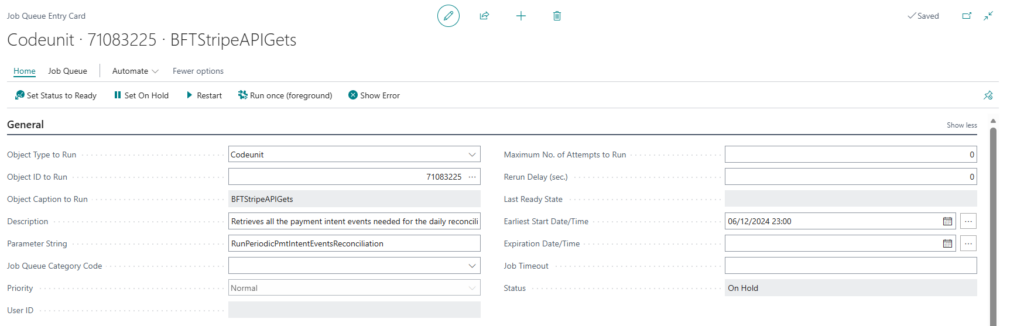
Make sure that the Parameter String is set to exactly RunPeriodicPmtIntentEventsReconciliation
The reconciliation period taken in consideration is calculated according to the value set for the Payment Intent Reconciliation Date within the Stripe Parameters.
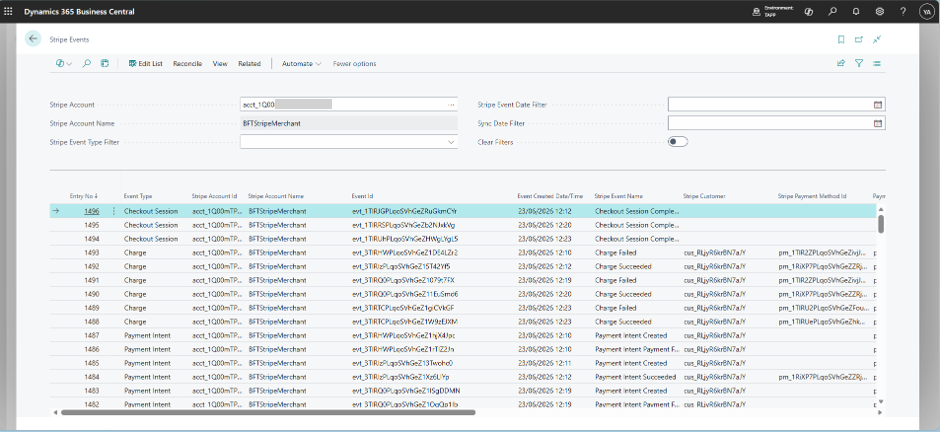
All the reconciled Stripe Events are visible by navigating to the Stripe Events page