
Overview
Purchasing and Reselling Subscriptions in LISA Business allows you to manage vendor purchases alongside customer subscriptions. You can use a subscription plan to sell to a customer, purchase from a vendor, or purchase and resell items within the same plan.
The Subscription Buy and/or Sell setting determines how the plan operates.
| Option | Description |
|---|---|
| Sell Only | Manages customer subscriptions using the existing sales process. No purchasing is involved. |
| Buy Only | Manages purchases from a vendor. No customer, sales documents, or sales actions are involved. |
| Buy and Sell | Manages customer subscriptions and generates purchase actions for the lines configured for purchasing. |
Sales and purchase billing cycles are independent. For example, you can bill a customer monthly while managing the corresponding vendor purchase on a quarterly cycle.
Note: Although the setting is called Create Purchase Order, the purchasing process described in this article generates Generate Purchase Invoice actions. Firming these actions creates purchase invoices.
Business Value
This feature brings subscription purchasing and reselling into a single operational process. Teams can manage the customer and vendor sides of a subscription while maintaining separate billing schedules, prices, costs, and discounts.
Line-level purchasing settings support mixed arrangements. A single Buy and Sell plan can contain items purchased from vendors alongside items that only generate sales actions.
Vendor document grouping also allows multiple purchase actions to be combined into one purchase invoice. Default deferral templates reduce manual entry by applying deferral codes when a matching configuration is available.
Configure Program Types
The Create PO setting on the Program Type determines the default purchasing behaviour when a new subscription plan is created.
| Setting | Default behaviour |
|---|---|
| Create PO enabled | The plan is created as Buy and Sell, with Create Purchase Order enabled on the plan header. |
| Create PO disabled | The plan remains Sell Only. |
Review this setting for the Program Types used by subscriptions that require purchasing.
Configure Default Deferral Templates
Use Default Deferral Templates to define the deferral codes applied to subscription invoice lines.
Default Deferral Template Buy and/or Sell
Select whether the template applies to Sell Only, Buy Only, or Buy and Sell.
This setting controls which posting group fields are available.
| Field | Available for |
|---|---|
| Customer Posting Group | Sell Only and Buy and Sell |
| Vendor Posting Group | Buy Only and Buy and Sell |
Template Matching
When a subscription sales or purchase invoice line is created, the system looks for a matching active template using:
- The customer posting group for sales, or vendor posting group for purchases.
- The billing time unit: Days or Months.
- The number of billing cycles matching the line’s from/to date range.
When a match is found, the system populates the line’s Deferral Code automatically.
This lookup also applies to lines created by firming subscription actions and to manually entered purchase invoice lines for subscription items.
Note: If no matching active template is found, the line is left without a deferral code and normal Business Central posting rules apply.
Configure Vendors and Items
Before using an item in a subscription purchasing process, review the following setup.
Vendor No.
Set Vendor No. on the Item Card.
The item’s vendor is used to default the vendor on subscription plan lines and sales lines configured to create a purchase order.
Currency Code
Review the vendor’s Currency Code. This is copied to the subscription plan line’s Purchase Currency.
Purchase Pricing
Configure the normal Business Central purchase pricing or price lists for the item and vendor.
Purchase prices continue to be determined through standard Business Central pricing.
Create Buy and Sell Subscriptions from a Sales Order
Subscription sales order lines include a Create Purchase Order field alongside the existing subscription dates, pricing, and discount fields.
The value defaults from the item’s Program Type and can be changed for each sales line.
- Create the sales order and add the subscription items.
- Review the subscription dates, prices, and discounts.
- Enable Create Purchase Order on each line that requires purchasing.
- Review the item vendor and vendor currency setup.
- Post the sales order to create the subscription plan.
When the subscription plan is created, the system uses the purchasing settings on the sales lines being grouped into that plan.
| Sales line configuration | Result |
|---|---|
| At least one grouped line has Create Purchase Order enabled | The resulting plan is created as Buy and Sell. |
| A line has Create Purchase Order enabled | Its Purchase Start Date is set to the sales line’s Subscription From Date. Its vendor and purchase currency default from the item’s vendor setup. |
| A line has Create Purchase Order disabled | Only sales fields are populated. Purchase fields are not required, and no purchase actions are generated for that line. |
A single sales order and its resulting plan can therefore contain a mix of purchasing and sales-only lines.
Configure Subscription Plans
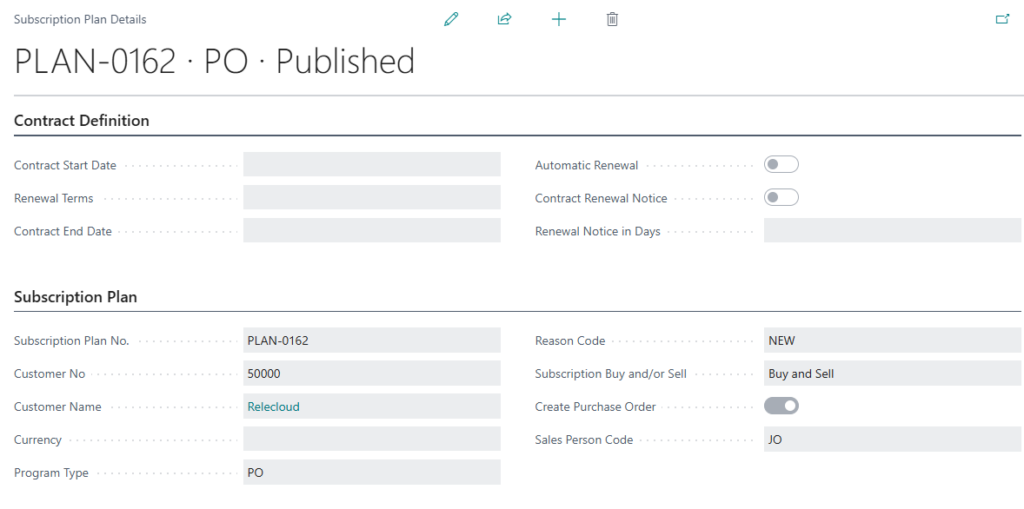
Subscription Buy and/or Sell
On the Subscription Plan card, locate Subscription Buy and/or Sell in the Subscription Plan section.
Select the required operating mode before adding plan lines.
Important: Once the plan contains lines, Subscription Buy and/or Sell can no longer be changed.
The selected mode controls the fields and sections available on the plan.
| Mode | Available information |
|---|---|
| Sell Only | Customer details, Sales Details, and standard sales fields. Purchase Details is hidden. |
| Buy Only | Vendor details and Purchase Details. Customer No. and Sales Details are hidden. A header vendor is required to publish the plan. |
| Buy and Sell | Both Sales Details and Purchase Details. Create Purchase Order is available on the plan header. |
Create Purchase Order
The header-level Create Purchase Order setting applies to Buy and Sell plans.
When enabled, the purchase cycle fields initially copy the corresponding values from Sales Details:
- Purchase Billing Time Unit
- Purchase Cycle Type
- Purchase Billing Cycle Type
- Purchase Cycle Length
- Purchase Pre-Invoicing (Days)
You can then change the purchase settings independently.
New plan lines also default their Create Purchase Order value from the header. You can switch purchasing on or off for individual lines.
Vendor No.
The header Vendor No. field applies to Buy Only plans and is required before the plan can be published.
It identifies the vendor used for all lines on the plan. Selecting the vendor also defaults the plan’s Currency from the vendor.
For Buy and Sell plans, vendors are specified on the purchasing lines.
Purchase Details
Configure the following fields for Buy Only and Buy and Sell plans.
| Field | Description |
|---|---|
| Billing Time Unit | Select Days or Months for the purchase cycle. |
| Cycle Type | Select Rolling or Calendar. |
| Billing Cycle Type | Select Monthly, Quarterly, Half-Yearly, Yearly, or Other. |
| Cycle Length | Enter the number of billing time units in each purchase cycle. |
| Pre-Invoicing (Days) | Enter how many days before the purchase start date purchase actions should be generated. A negative value schedules generation after the purchase start date. |
These settings operate independently of the sales cycle.
Manage Buy Only Subscription Plans
Use the Vendor Subscription Cockpit to manage Buy Only plans.
The page lists only purchase-only subscription plans. Creating a plan from this cockpit automatically sets Subscription Buy and/or Sell to Buy Only.
The existing Subscription Cockpit continues to display Sell Only and Buy and Sell plans.
To configure a purchase-only plan:
- Open Vendor Subscription Cockpit and create a plan.
- Select the header Vendor No. and review the currency.
- Configure the purchase billing cycle in Purchase Details.
- Add the subscription plan lines.
- Review the purchase dates, costs, quantities, and discounts before publishing.
Configure Subscription Plan Lines
Create Purchase Order
Each line on a Buy and Sell plan has its own Create Purchase Order setting.
The value defaults from the plan header but can be changed for each line. Enabled lines generate purchase actions in addition to their sales actions.
Add-on, or child, lines automatically follow their parent line’s Create Purchase Order value and dates.
Purchase Details
Purchase fields are displayed for:
- Lines on Buy Only plans.
- Lines on Buy and Sell plans where Create Purchase Order is enabled.
Review the following information.
| Field | Description |
|---|---|
| Vendor No. and Vendor Name | Identify the vendor for a purchasing line on a Buy and Sell plan. A vendor is required before publishing. On Buy Only plans, the vendor is specified on the header instead. |
| Purchase Currency | Defaults from the vendor and can be overridden. |
| Start Date / End Date | Define the purchase period. The end date is calculated using the plan’s purchase cycle settings, independently of the sales dates. |
| Unit Cost per Month/Days | Specifies the purchase unit cost for the applicable time unit. |
| Unit of Measure | Specifies the purchase unit of measure. |
| Discount % / Discount Amount per Month | Define the purchase discount. The percentage and amount are kept in sync. |
| Billing Period Amount Excl. Discount | Shows the calculated purchase billing period amount before discount. |
| Pro Rata Amount Excl. Discount | Shows the calculated pro rata purchase amount before discount. |
| Billing Period Amount | Shows the calculated purchase billing period amount including the discount. |
| Pro Rata Amount | Shows the calculated pro rata purchase amount including the discount. |
Purchase amounts use the same calculation approach as the equivalent sales amounts, based on the purchase quantity, unit cost, and purchase cycle.
Note: Fields are grouped under Purchase Details and Sales Details. Individual field captions within these groups do not repeat “Purchase” or “Sales”.
Generate Subscription Actions
Run the Subscription Processor to generate actions according to the plan’s operating mode.
| Plan mode | Actions generated |
|---|---|
| Sell Only | Generate Sales Order, and Generate Sales Credit Memo where applicable. |
| Buy Only | Generate Purchase Invoice actions only. |
| Buy and Sell | Sales actions for each enabled line, plus Generate Purchase Invoice actions for purchasing lines whose purchase start date is due. |
The sales and purchase sides each maintain and advance their own Current Billing Cycle, start date, and end date.
A line may therefore become due for a sales action before its purchase action, or vice versa.
Example: Monthly Sales and Quarterly Purchases
A Buy and Sell plan can use a monthly sales cycle and a quarterly purchase cycle.
The Subscription Processor generates the customer’s sales actions according to the monthly schedule. It generates purchase actions for eligible purchasing lines according to the separate quarterly schedule.
Review Purchase Action Details
Before firming purchase actions, review the vendor document information.
| Field | Description |
|---|---|
| Vendor No. | Populated automatically from the plan header for Buy Only, or from the plan line for Buy and Sell. |
| Vendor Document No. | Enter the vendor’s document number on the unfirmed purchase action. This groups actions from the same vendor onto one purchase invoice. |
| Vendor Document Date | Enter the vendor’s invoice date. |
| Posting Date | Optionally specify the resulting document’s posting date. If blank, the system uses the action date. |
Group Actions by Vendor Document
Unfirmed purchase actions with the same Vendor No. and Vendor Document No. are grouped onto a single purchase invoice when firmed.
The system also synchronises Vendor Document Date and Posting Date across those actions. Changing either date on one action updates the other unfirmed actions in the same vendor document group.
Important: Review the vendor document number carefully before firming. It determines which purchase actions are combined into the same invoice.
Firm Purchase Actions
Firming converts Generate Purchase Invoice actions into purchase invoices.
Before firming, populate:
- Vendor No.
- Vendor Document No.
- Vendor Document Date
If a required value is missing, firming stops and displays a message identifying the missing information.
When the actions are firmed:
- Unfirmed purchase actions with the same vendor and vendor document number are grouped onto one purchase invoice.
- The invoice’s Document Date is set from Vendor Document Date.
- The invoice’s Posting Date uses the action’s posting date override, when supplied; otherwise, it uses the action date.
- Invoice lines are created using the action’s item, variant, quantity, unit of measure, unit cost, discount, subscription from/to dates, and reason code.
- Each line’s Deferral Code is populated when a matching active default deferral template is found.
Post Purchase Invoices
You can post generated purchase invoices using either:
- The normal Business Central Purchase Invoice posting process.
- The subscription Post Actions routine.
Both methods update the linked subscription actions:
- Their status is set to Posted.
- Posted Document No. is populated with the posted invoice number.
Delete Generated Purchase Documents
Purchase lines and documents generated from subscription actions require a Cancel Reason Code before they can be deleted.
Enter the cancel reason code on the generated purchase line before deleting it. For a document with multiple generated lines, ensure the required cancel reason codes have been entered before deleting the document.
Deleting the generated line cancels its linked subscription action. This follows the same cancellation approach used for subscription-generated sales documents.
Checks Before Firming and Posting
Before firming purchase actions, confirm that:
- The plan has the correct Subscription Buy and/or Sell setting.
- The correct vendor is specified on the header or purchasing lines.
- Create Purchase Order is enabled on the intended Buy and Sell lines.
- Purchase dates and billing cycles reflect the vendor arrangement.
- Purchase currencies, quantities, unit costs, and discounts are correct.
- Vendor Document No. and Vendor Document Date are populated.
- Actions intended for the same invoice share the same vendor and vendor document number.
- Any posting date override is correct.
Before posting, review the generated purchase invoice, including its lines, dates, amounts, and deferral codes.
Troubleshooting
Subscription Buy and/or Sell Cannot Be Changed
The setting is locked once the subscription plan contains lines.
Select the required mode before adding plan lines.
A Buy Only Plan Does Not Appear in the Subscription Cockpit
Open Vendor Subscription Cockpit.
The standard Subscription Cockpit displays only Sell Only and Buy and Sell plans.
A Plan Cannot Be Published Because a Vendor Is Missing
For a Buy Only plan, enter Vendor No. on the plan header.
For a Buy and Sell plan, ensure a vendor is specified on each line configured for purchasing.
A Buy and Sell Line Does Not Generate Purchase Actions
Check that Create Purchase Order is enabled on the line and that its purchase start date is due, taking the purchase pre-invoicing setting into account.
Sales and purchase schedules are independent, so a sales action becoming due does not necessarily mean a purchase action is also due.
Firming Fails Because Vendor Information Is Missing
Review Vendor No., Vendor Document No., and Vendor Document Date on the purchase action.
All three fields are required to firm a Generate Purchase Invoice action.
Multiple Actions Are Combined into One Purchase Invoice
This is expected when unfirmed purchase actions share the same Vendor No. and Vendor Document No.
Review those values before firming to ensure they reflect the intended vendor invoice grouping.
Changing a Date Updates Other Purchase Actions
The system synchronises Vendor Document Date and Posting Date across unfirmed actions with the same vendor and vendor document number.
Check whether the affected actions belong to the same vendor document group.
No Deferral Code Is Applied
Check that an active default deferral template applies to the transaction type and matches the relevant posting group, billing time unit, and billing cycles for the line’s date range.
If no match is found, the line remains without a deferral code.
A Generated Purchase Line or Document Cannot Be Deleted
Enter a Cancel Reason Code on the generated purchase line before deleting it.
The deletion cancels the linked subscription action.