
Overview
Multi Element Revenue Reallocation in LISA Business allows you to allocate revenue across the individual elements of a sales order using standalone selling prices.
Use this feature when a sales order represents a multiple element arrangement (MEA) and the revenue posted for each element needs to differ from its sales line amount.
Each line contributes an allocation value based on its standalone selling price settings. The system calculates each line’s proportion of the total allocation basis and uses that proportion to determine the revenue to post. Where applicable, the allocation also adjusts discounts, deferrals, VAT, and source currency amounts.
You can review the resulting amounts in posting preview before posting the sales order.
Business Value
Revenue reallocation provides a consistent way to distribute revenue across bundled items or services. It allows the posted revenue split to reflect the configured standalone selling prices, even when the commercial prices on the sales order differ.
Item-specific settings and default parameters reduce repeated setup. The Revenue Reallocation page also makes the calculation visible, helping users understand how each line contributes to the final posting amounts.
For sales lines with deferrals, the system adjusts the deferral amounts to follow the allocated revenue.
Use standard Business Central posting when revenue should follow the original sales line amounts without reallocation.
Configure MEA Templates
MEA Templates identify the arrangements used for revenue reallocation.
Open MEA Templates, create a template, and complete the following fields.
Multiple Element Arrangement No
Enter an identifier for the arrangement template. This identifies the arrangement applied to the sales order.
Description
Enter a description that helps users recognise the arrangement and select the appropriate template.
Deferred Contract Revenue Account
Select the G/L account used for deferred contract revenue.
Configure Subscription Parameters
Open Subscription Parameters and locate the Multiple Element Revenue Reallocation Parameters section.
Review the following settings before creating sales order lines.
Standalone Selling Price Origin
Select the default origin to use when an item does not have its own standalone selling price setup.
The default is applied when the sales order line is created.
Account for Revenue Allocation Rounding Differences
Select the G/L account used for revenue allocation rounding differences, where applicable.
Configure Standalone Selling Prices
Open Item Standalone Selling Price to define the allocation settings for each subscription item.
Item No
Select the subscription item to which the settings apply.
Standalone Selling Price Origin
Select how the item’s allocation value is determined.
| Option | Description |
|---|---|
| Base Price | Uses the line’s base price as the allocation value. For foreign currency orders, the stored LCY unit price is used in the allocation calculation. |
| Amount | Uses a manually specified standalone selling price. On the revenue allocation line, this is entered in Standalone Selling Price LCY. |
| None | Sets the allocation basis to zero, so the line does not contribute to the total allocation basis. |
Standalone Selling Price
Enter the amount to use when Standalone Selling Price Origin is set to Amount.
If an item has no item-specific setup, the system uses the default Standalone Selling Price Origin from Subscription Parameters when the sales order line is created.
Note: LCY means local currency. On the Revenue Reallocation page, Standalone Selling Price LCY is editable only when the origin is Amount.
Create a Sales Order with Revenue Reallocation
Select the arrangement template before adding lines to the sales order.
- Create a sales order.
- On the sales order header, select the required MEA Template.
- Add the sales order lines. The system automatically creates the corresponding revenue allocation lines.
- Open Revenue Reallocation from the sales order action menu.
- Review the arrangement details in the header.
- Review the allocation settings and calculated amounts for each line.
Important: You must select the MEA Template before adding sales lines. Once the sales order contains lines, the system prevents you from changing the template.
The Revenue Reallocation header displays the following information.
| Field | Description |
|---|---|
| Multiple Element Arrangement No | Identifies the arrangement selected through the sales order’s MEA Template. |
| Multiple Element Arrangement Type | Is set automatically. In the current behaviour, a populated MEA Template creates a Single arrangement type. |
| Order No | Identifies the sales order being allocated. |
Review Revenue Allocation Lines
The Revenue Reallocation page displays the source sales line information, the editable allocation settings, and the calculated revenue amounts.
Sales Line Information
The following fields provide context for each allocation line and cannot be edited directly on the Revenue Reallocation page:
- Order Line No
- Item No
- Quantity
- Unit Price
- Unit Price LCY
- Line Amount
- Gen. Prod Posting Grp
- Multiple Element Arrangement No
Allocation Settings
Use the following fields to control the allocation basis for each line.
| Field | Description |
|---|---|
| Standalone Selling Price Origin | Determines whether the allocation uses the base price, a manually entered amount, or a zero allocation basis. |
| Standalone Selling Price LCY | Specifies the manual standalone selling price in local currency. Editable only when the origin is Amount. |
Calculated Amounts
Review these fields to understand the revenue split before posting.
| Field | Description |
|---|---|
| Allocated Revenue Amount | The standalone revenue amount used as the line’s allocation basis. |
| Percentage Ratio | The line’s percentage share of the total allocation basis. |
| Posting Revenue Amount | The amount to be posted for the line before discount allocation. |
| Line Discount | The line’s allocated share of the total sales line discount. |
| Discounted Revenue Amount | The posting revenue amount after discount allocation. |
Note: Allocated Revenue Amount is the basis used to calculate the split. Review Posting Revenue Amount and Discounted Revenue Amount to see the resulting revenue amounts.
Understand the Allocation Calculation
The system adds together the allocation basis of all revenue allocation lines on the sales order.
It then divides each line’s allocation basis by the total to calculate that line’s Percentage Ratio. The ratio is applied to the sales order total to determine the line’s Posting Revenue Amount.
If sales line discounts exist, the total discount is distributed using the same ratios. The resulting Discounted Revenue Amount is used where discount allocation applies.
A line with Standalone Selling Price Origin set to None has a zero allocation basis.
Example: Allocate Revenue Across Two Items
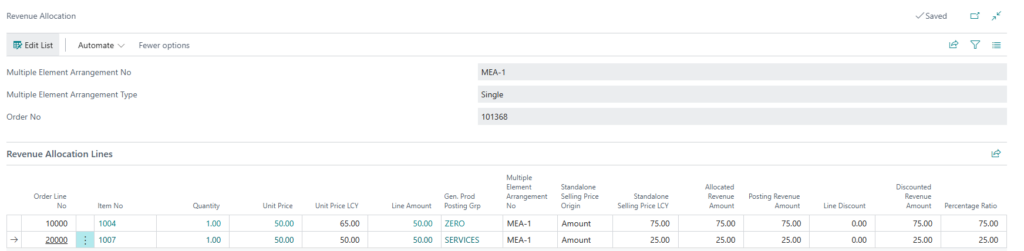
In sales order 101368, both sales lines have a line amount of 50.00. Their standalone selling price origins are set to Amount, with standalone selling prices of 75.00 and 25.00.
These values result in allocation ratios of 75% and 25%. The total revenue of 100.00 is therefore allocated as 75.00 to item 1004 and 25.00 to item 1007.
No line discounts apply, so Posting Revenue Amount and Discounted Revenue Amount are the same for each line.
Revenue allocation using manually specified standalone selling prices.
Preview and Post the Sales Order
Before posting, use posting preview to review the accounting impact of the allocation.
Revenue reallocation adjusts posting amounts before the G/L entries are created. Posting preview reflects these adjustments, including:
- Revenue G/L entry amounts.
- Deferral amounts, where applicable.
- VAT amounts for revenue allocation lines.
- Source currency amounts.
- Source currency VAT amounts.
Example: Review the Allocated Revenue in Posting Preview
For sales order 101368, posting preview shows the revenue split calculated in the previous example:
- A credit of 75.00 to revenue account 10110.
- A credit of 25.00 to revenue account 10210.
- A customer debit of 100.00 to account 75110.
The negative revenue amounts represent credits. The preview also includes separate direct cost entries.
G/L entries preview showing the 75.00/25.00 revenue allocation.

If the allocation produces a zero LCY journal amount, the system suppresses the corresponding zero-value G/L account entry.
Once the allocation and posting preview match the intended result, post the sales order using the normal posting process.
Deferrals
When a sales line uses a deferral code, revenue reallocation adjusts the deferral header and deferral lines so that the deferral schedule follows the allocated revenue amount.
The deferral amount is split across the generated deferral lines according to the deferral schedule count.
Review the deferral amounts in posting preview to confirm that they reflect the expected allocation.
Foreign Currency Orders
For foreign currency orders, the system calculates allocation values in local currency where required, using the sales header currency factor and currency rounding precision.
When the standalone selling price origin is Base Price, the stored LCY unit price is used for the allocation calculation.
Posting and posting preview show the LCY posting amounts together with the relevant source currency amounts.
Checks Before Posting
Before posting a sales order with revenue reallocation, confirm that:
- The correct MEA Template is selected on the sales order.
- Each sales line has a corresponding revenue allocation line.
- Each line has the intended Standalone Selling Price Origin.
- Standalone Selling Price LCY is populated where the origin is Amount.
- The Percentage Ratio values reflect the intended revenue split.
- Posting Revenue Amount and Discounted Revenue Amount match the expected allocation.
- Posting preview shows the expected G/L entry, VAT, deferral, and source currency amounts.
Troubleshooting
The Revenue Reallocation page has no lines
Confirm that an MEA Template was selected before the sales order lines were added. Revenue allocation lines are created when sales lines are inserted on an order that has an MEA Template.
The MEA Template cannot be changed
The system prevents changes to the MEA Template when the sales order already contains lines.
If the template must be changed, the existing sales lines need to be removed, the template changed, and the lines recreated. Record the line details before removing them so they can be entered again accurately.
Standalone Selling Price LCY is not editable
Set Standalone Selling Price Origin to Amount.
The field is read-only when the origin is Base Price or None.
A Line Receives No Allocated Revenue
Check the line’s Standalone Selling Price Origin and allocation basis.
An origin of None, or a standalone selling price basis of zero, gives the line a zero allocation basis.
Posting Preview Does Not Match the Expected Result
Review the following fields on the Revenue Reallocation page:
- Percentage Ratio
- Posting Revenue Amount
- Line Discount
- Discounted Revenue Amount
These values show how the final posting amounts are derived. Check the standalone selling price settings for each line and confirm that the resulting ratios reflect the intended allocation.