
Introduction
Activation is the step that turns ARVO Studio into a licensed and usable tool. This article explains what the activation process does and how it is completed in relation to each buying route, and it will also show how to confirm that it has worked successfully.
If you have not installed ARVO Studio yet, start with installing ARVO Studio from AppSource. Installing the app is free and does not activate anything. It is also important to remember that ARVO Studio can only be installed on sandbox environements.
One entitlement, one environment, one end customer
Activation binds one environment entitlement to one Business Central environment and one Microsoft Entra tenant. An entitlement activated against a customer’s sandbox is consumed by that customer’s sandbox and is not available for another one at the same time.
Because the binding includes the tenant as well as the environment, choose the target sandbox deliberately. Moving an entitlement afterwards is possible, but it is governed by the reassignment rules described in Deactivate and reassign article.
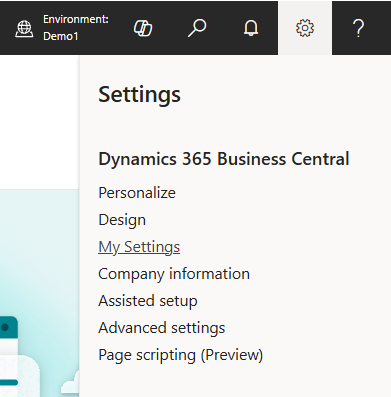
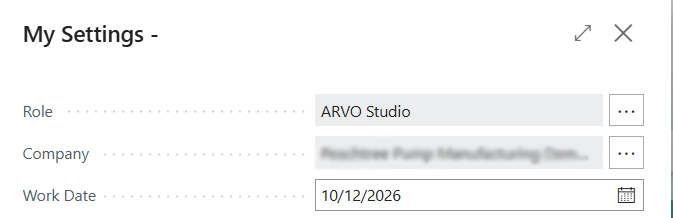
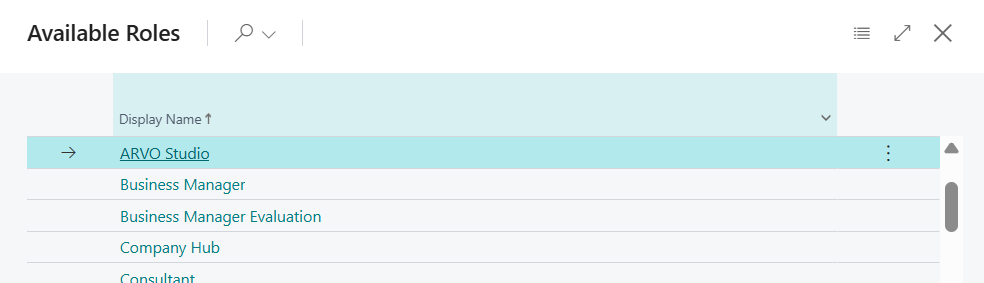
It is also important to remember to switch Roles to enter the ARVO Studio role center. This can be done by following the below steps:
- Go to your Gear icon on your specific company and choose My Settings.
- Then select the role field and change to ARVO Studio role from the available list.
Activating a Partner Edition entitlement
On Partner Edition, Bluefort provisions the entitlement first and you complete activation inside the product.
- Your assigned Bluefort contact person provisions the environment entitlement against the named end customer’s Business Central environment and Microsoft Entra tenant.
- In the target sandbox, you or the partner will need to open ARVO Studio Setup and go Actions > ARVO Activation
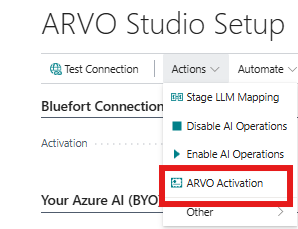
- Click on Activate this environment button to verify and then click on Sign in with the organisation that paid for ARVO button at the bottom in the Sign in Group.
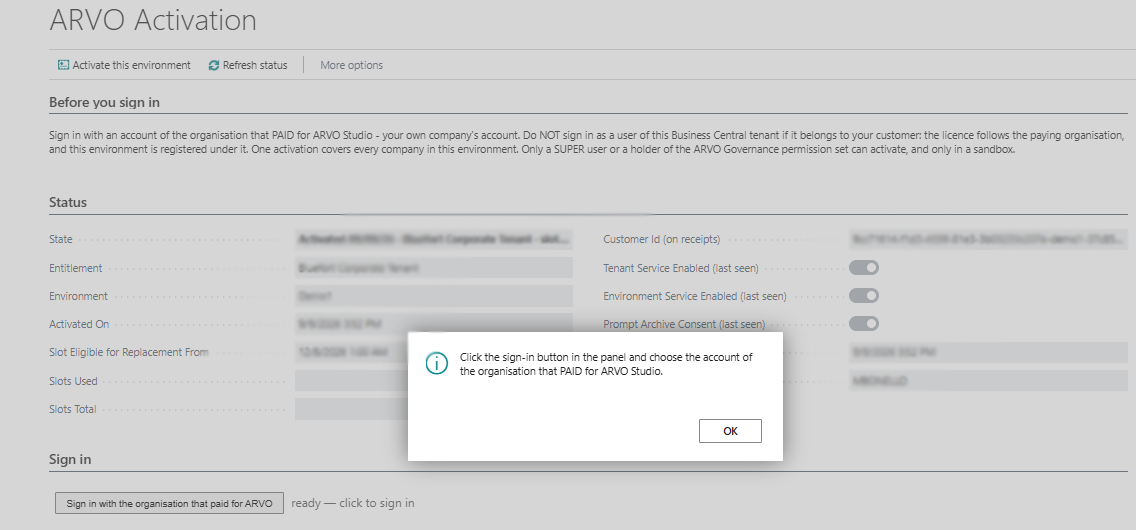
- Make sure to sign in with the correct account for that environment within the tenant.
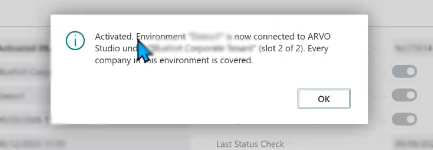
- Once you sign in you will receive an activated message as below:
Activating a direct subscription
On a direct subscription, the process is practically the same and you as the end customer will perform all the steps.
- Your assigned Bluefort contact person provisions the environment entitlement against the named end customer’s Business Central environment and Microsoft Entra tenant.
- In the target sandbox, you will need to open ARVO Studio Setup and go Actions > ARVO Activation
- Click on Activate this environment button to verify and then click on Sign in with the organisation that paid for ARVO button at the bottom in the Sign in Group.
- Make sure to sign in with the correct account for that environment within the tenant.
- Once you sign in you will receive an activated message as below:
What success looks like
Activation has worked when all of the following are true.
- The Activation field shows as Activated and the specified date is displayed alongside with the slots used.

- AI actions become available in the product. This happens once the customer’s own AI connection has been configured, because AI runs on the customer’s own Azure AI Foundry deployment or Anthropic account.
- Test Connection reports that the entitlement can be reached and is valid.
Ongoing verification
ARVO Studio periodically verifies the entitlement against the same environment and tenant it was activated against. This is normal operation and requires nothing from the end user’s side.
If activation does not complete
If a licensed environment doesn’t show activation, run the Test Connection process and use the message table in that article to identify the first action to take. If the message points to the entitlement rather than the AI connection or the identities, contact your Bluefort contact person and confirm which environment and tenant the entitlement was provisioned against.