
Introduction
This page provides step by step guidance on how to install ARVO Studio into a Microsoft Dynamics 365 Business Central sandbox environment. The listing on AppSource is free and installing it does not create a paid subscription, however if you have any questions or need assistance, please contact Bluefort Support at support@bluefort.io.
Before you start
Check the following before you begin. Getting these pre-requisites right saves time later.
- You have a Business Central SaaS sandbox environment available. On-premises deployments are not supported.
- You have permission to install applications into that environment.
- You know which sandbox is the intended target. One environment entitlement is later activated against that one environment, so install into the environment you intend to license.
Obtaining the app
- Find ARVO Studio on Microsoft AppSource.
- Choose Get it now and sign in with the account you use for Business Central.
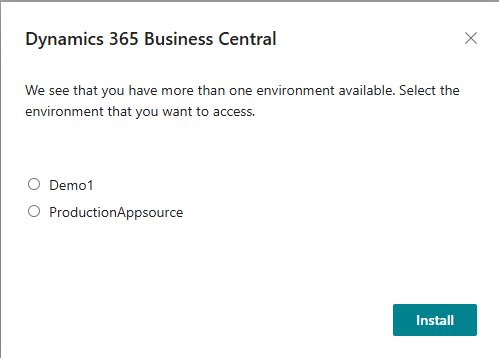
- Select the target sandbox environment when prompted.
- Confirm the installation and wait for Business Central to report that the extension has been installed.
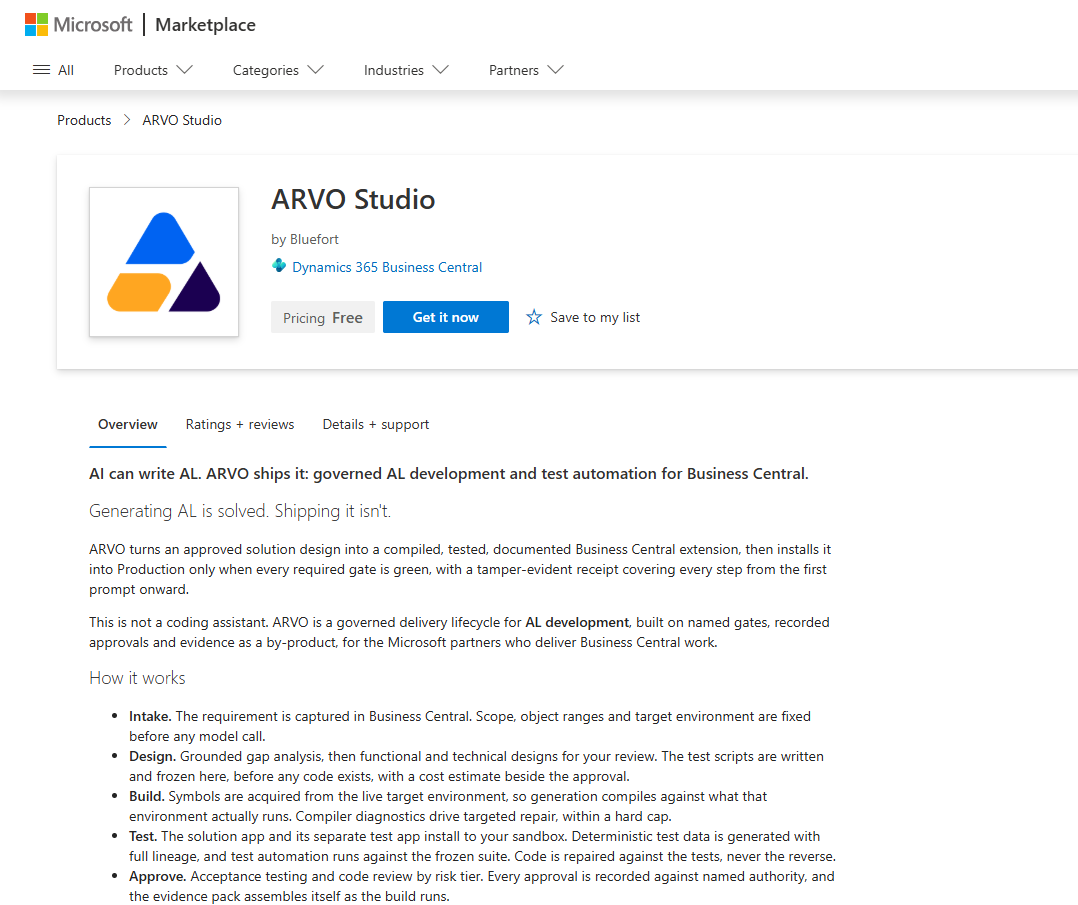
After the Get it now button is pressed the environment selection is shown to select one of the test environments to install on.
Install only into a sandbox environment
ARVO Studio installs and runs only in sandbox environments and Production is never a valid target. The product itself enforces this rule and ARVO Studio will refuse to install on a Production environment by design, so an attempt to target Production does not complete. Production receives only the approved solution app through gated promotion at the end of a project and ARVO Studio itself and the generated test app never go to Production. If the environment selection list offers a Production environment, do not choose it.
Installation is not activation
Installing the app deploys ARVO Studio into the environment, but it does not license it. The application remains inactive until an environment entitlement is activated against that sandbox. Until then you can open the pages and navigate within ARVO, but AI actions are not available.