
Introduction
Design exists to turn the Functional design document into a reviewed set of approved parts: the gaps, an agreed approach, the personas, functional and technical designs, training material, tests and a test data plan. Its governing gate is Designs Approved and Tests Frozen. The frozen tests are the contract the build must satisfy, not a description rewritten to fit whatever the code is intended to do. This article explains the steps in this stage in detail, what freezing the designs and tests means, and the gate that must be satisfied before any code is generated.
The stage produces the work that a consultant would otherwise write by hand and your job as the end user will ultimately be to review it and decide whether it is correct.
Design will turn the design document into a reviewed solution. Completed Compass steps are navigation signals, not a substitute for reading the artifacts and approval record. If you inherit a project whose steps are already checked, establish what was reviewed and by whom before treating that as approved in history.
Before you start
Have the design document and relevant attachments available, understand the target Business Central sandbox and installed apps, and agree who will review the business scope and technical approach. Check that acceptance criteria describe the relevant outcomes and that the intended users and permissions are understood.
You will also be required to confirm the project template which applies to your project first. More information on the project templates can found in the Create a Project article.
The nine steps
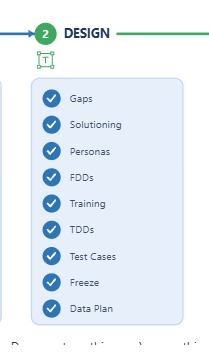
The Compass order is Gaps, Solutioning, Personas, FDDs, Training, TDDs, Test Cases, Freeze and Data Plan. Training therefore appears between the functional and technical designs in this project.
Gaps
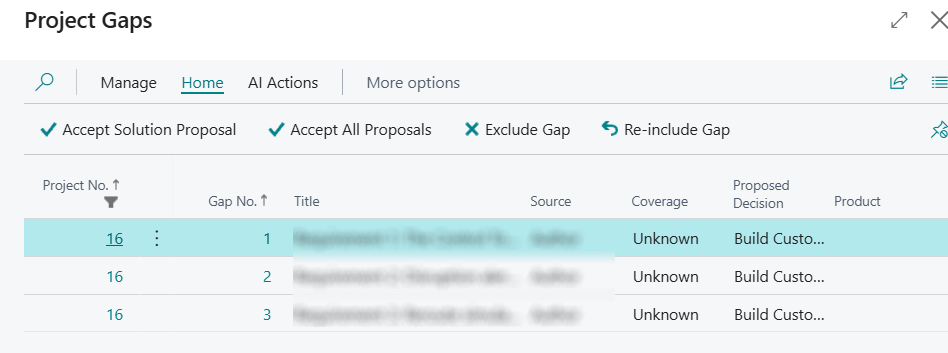
The goal is to analyse the design document against standard Business Central and the apps already installed, carrying forward unmet requirements rather than rebuilding available functionality. Review each gap against the original requirement and the actual environment. Distinguish a configuration or process change from an extension, and challenge a proposed gap when an installed capability already exists.
Check that the business impact and acceptance criteria are clear enough to support a decision and record corrections in Consultant Notes so they inform the next regeneration. Gaps can be excluded from scope, but they do need review. Excluding something is not evidence that the underlying business need has been solved.
Solutioning
Review how each gap should be handled, including whether an existing capability should be reused or procured instead of built. Useful reviewing assumptions revolve around and include: build, defer, reject, do manually or use existing IP. Make the rationale clear enough for another reviewer to understand the chosen scope and any residual limitation.
Solutioning produces Business Solution Architecture and Technical Solution Architecture documents alongside the gap designs. These architecture documents replace the earlier combined documents, not the individual FDDs and TDDs. The overall approach requires thorough reading as well as each gap decision must be verified. Checking that dependencies, shared processes and the procure vs build choices form one coherent solution.
Personas
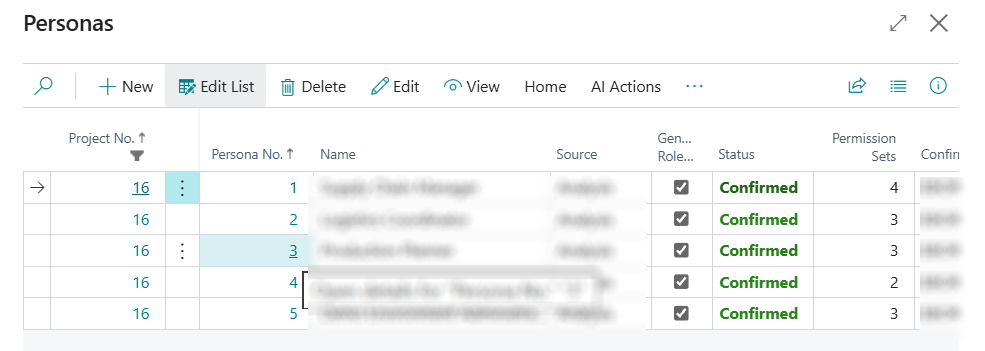
Confirm the proposed personas against the people who will operate, supervise and support the process. A persona should identify a meaningful role and its tasks, not just a job title. Check normal responsibilities, approvals, exceptions and separation of duties. For a proper analysis of personas, one needs to ask what each role must be prevented from doing, as well as what it must be able to do.
The outcome is a confirmed role model that the designs, training and tests can use consistently. Trace important requirements to the affected personas and look for missing users at hand offs. Negative permission scenarios belong in the review and a role without authority should not gain access simply because the process works.
FDDs
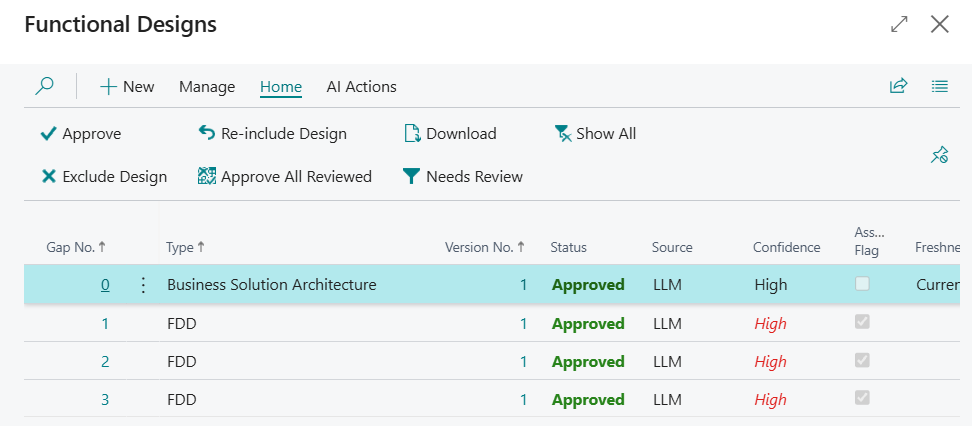
Functional Design Documents describe what the solution must do from the business user’s perspective. Review the included documents against the agreed gaps, architecture and personas. Follow the process from input to result, including validations, exceptions, approvals and recovery from issues. Check whether a business reviewer could recognize a correct outcome from the FDD alone without needing to inspect implementation code.
Acceptance criteria should be easily testable and reviewing success, failure, conditions, and checking role restrictions are done where they matter most. Remember to make use Consultant Notes to record corrections for the next regeneration. FDDs can be excluded from scope, but do not assume that exclusion automatically satisfies the FDD step or leaves every dependent artifact unchanged. One should verify the scope and ask when the project history is unclear.
The outcome is a functional baseline the business reviewers can stand behind. Generated content is not itself approval, and a checked Compass step does not explain the review that preceded it. Retain the relevant version and approval evidence rather than arriving at completion from the presence of an FDD.
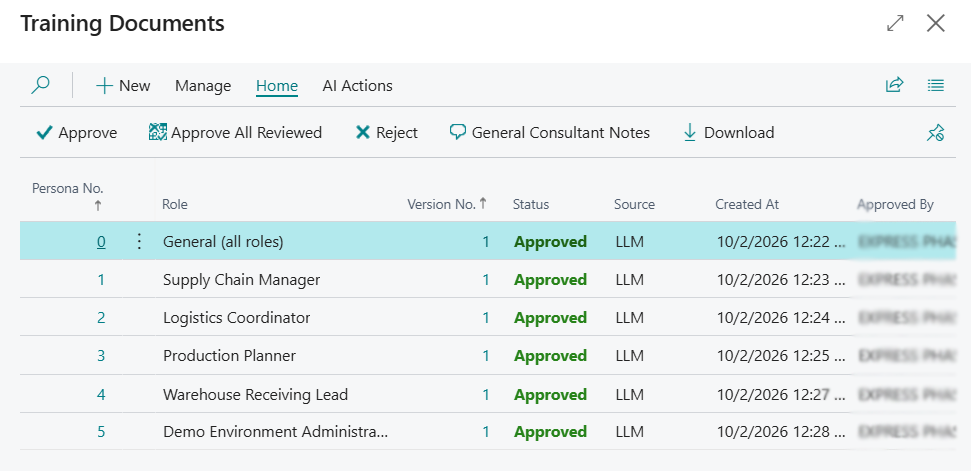
Training
One should review the training material for the confirmed personas and functional process and also check that the explained prerequisites, routine tasks, likely errors and escalation points are in a language for the intended user. A training document should not introduce a different workflow, promise accesses that the persona lacks or describe an excluded feature as available.
The outcome is training aligned with the agreed solution, ready to be checked against the eventual sandbox behaviour.
TDDs
Technical Design Documents describe how the agreed functional behaviour is intended to be implemented. One should have a suitably experienced Business Central technical reviewer assess the approach. They should check consistency with the FDDs, installed apps and Technical Solution Architecture, including dependencies, data handling, permissions and error handling. Technical detail should resolve the functional intent, not change it.
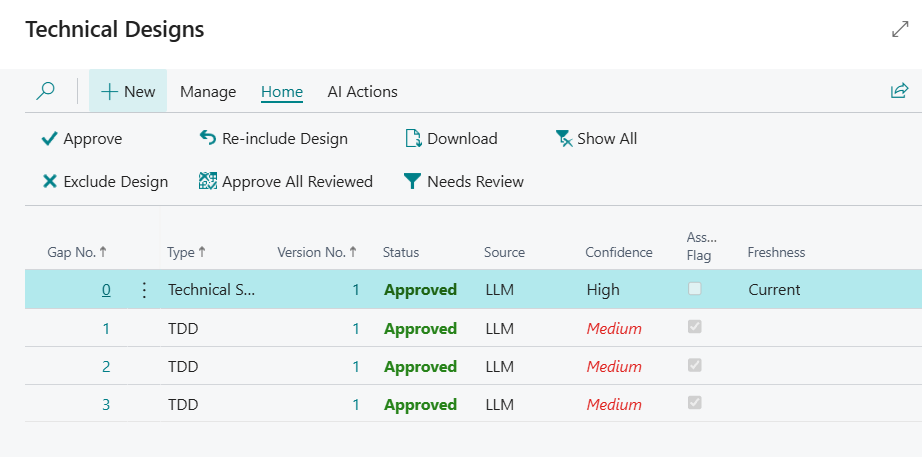
In Technical Designs, one must inspect the current rows and use Download to read the relevant documents. The recorded list shows Gap No., Type, Version No., Status, Source, Confidence, and Ass. Flag. Treat these columns as review information, and remember that a confidence value does not replace checking the document and its relationship to the approved scope.
Visible actions include Approve, Re-include Design, Exclude Design, Show All, Approve All Reviewed and Needs Review. Do not deduce the selection rules or effect of the bulk actions from their names alone. Remember that TDDs can be excluded from scope and Consultant Notes keep information on their next regeneration. The outcome is a technically reviewed baseline with any scope changes confirmed, rather than an assumption that every Approved row confirms the whole Design gate.
Test Cases
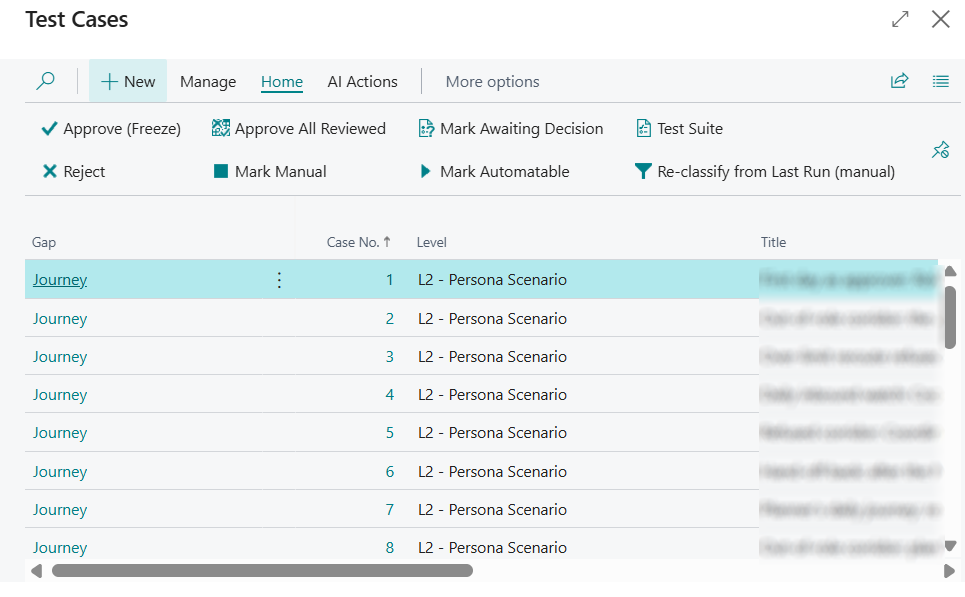
Test cases are derived from the designs and acceptance criteria before code is built. One must review whether each important criterion has meaningful coverage, with suitable personas and observable expected outcomes. Include invalid input, boundary conditions, denied permissions and recovery scenarios where the requirements need them. Coverage is not convincing if every case repeats the same successful route while leaving exceptions untested.
Use Test Cases from the Test Suite card to inspect the suite and check the meaning and resolution of any draft or rejected cases rather than overlooking them because other cases are frozen. The outcome is a reviewed set of cases tied to the intended behaviour, with outstanding review decisions addressed before confirming the contract.
Freeze
Frozen tests must never be regenerated or weakened merely to make failing code pass. If a test exposes an implementation defect, than it is important to change the code build. If on the other hand the business requirement genuinely changes, treat it as an authorised design change with recorded confirmations and review, not a shortcut to a green result.
Before treating a suite as ready to freeze, check the below:
- the included scope and design versions
- functional and technical review evidence
- persona and permissions
- acceptance criteria
Confirm that reviewers understand what the expected outcomes commit the build to delivering. This is a review checklist, not a claim that these are the product’s exact enforced prerequisites.
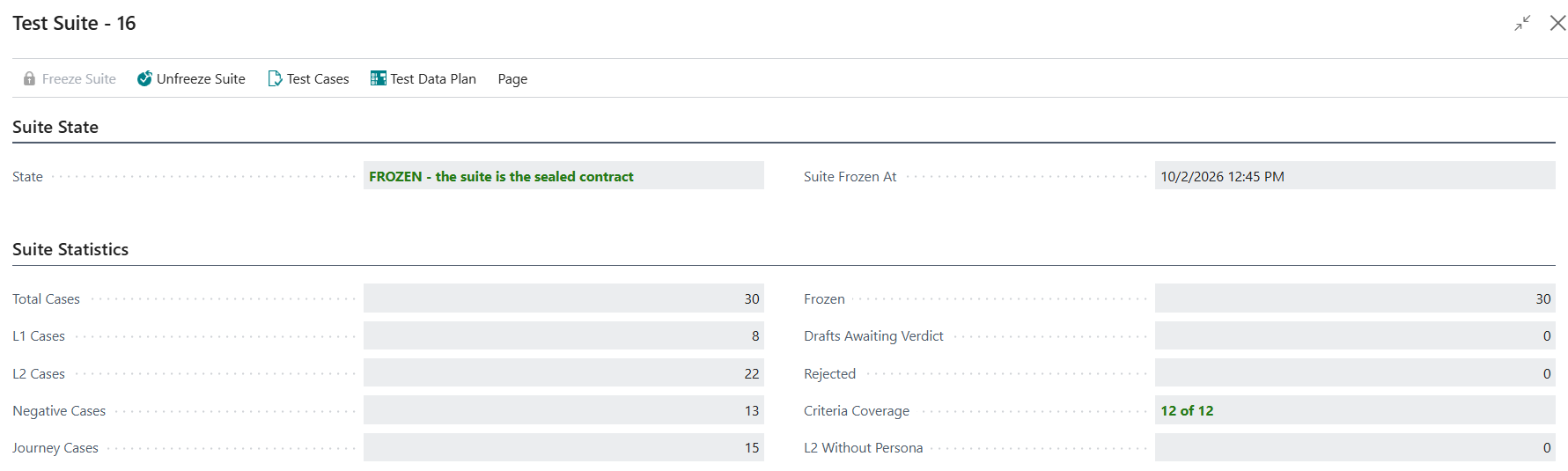
For an existing suite, inspect the state, Suite Frozen At and the statistics: Total Cases, Frozen, Drafts Awaiting Verdict, Rejected and Criteria Coverage. The recorded card states “FROZEN – the suite is the sealed contract”. Freeze Suite is disabled while already frozen, while Unfreeze Suite, Test Cases and Test Data Plan are visible.
Read Freeze History alongside the current state. Its visible columns are Event, At, By, Criteria Covered, Total Criteria, Cases Frozen, Cases Rejected and Reason. This helps distinguish the present suite from the event that sealed it. An automatic freeze event is not in any way evidence of human review, so a confirmation of the approval record should be made.
If a genuine design change requires unfreezing, establish the authorised change review and record the reason first. Clicking Unfreeze Suite with an empty Reason box produces: “Unfreezing is a recorded design-change event – write the reason in the Reason box first.”.
Data Plan
Review the test data plan against the source cases and frozen contract and check the seed and transactional data needed to exercise the process. This includes dependencies, roles, record quantities and values needed for negative and normal scenarios. Ensure the proposed data can be prepared safely in the sandbox and that test execution will not depend on unstated manual setup.
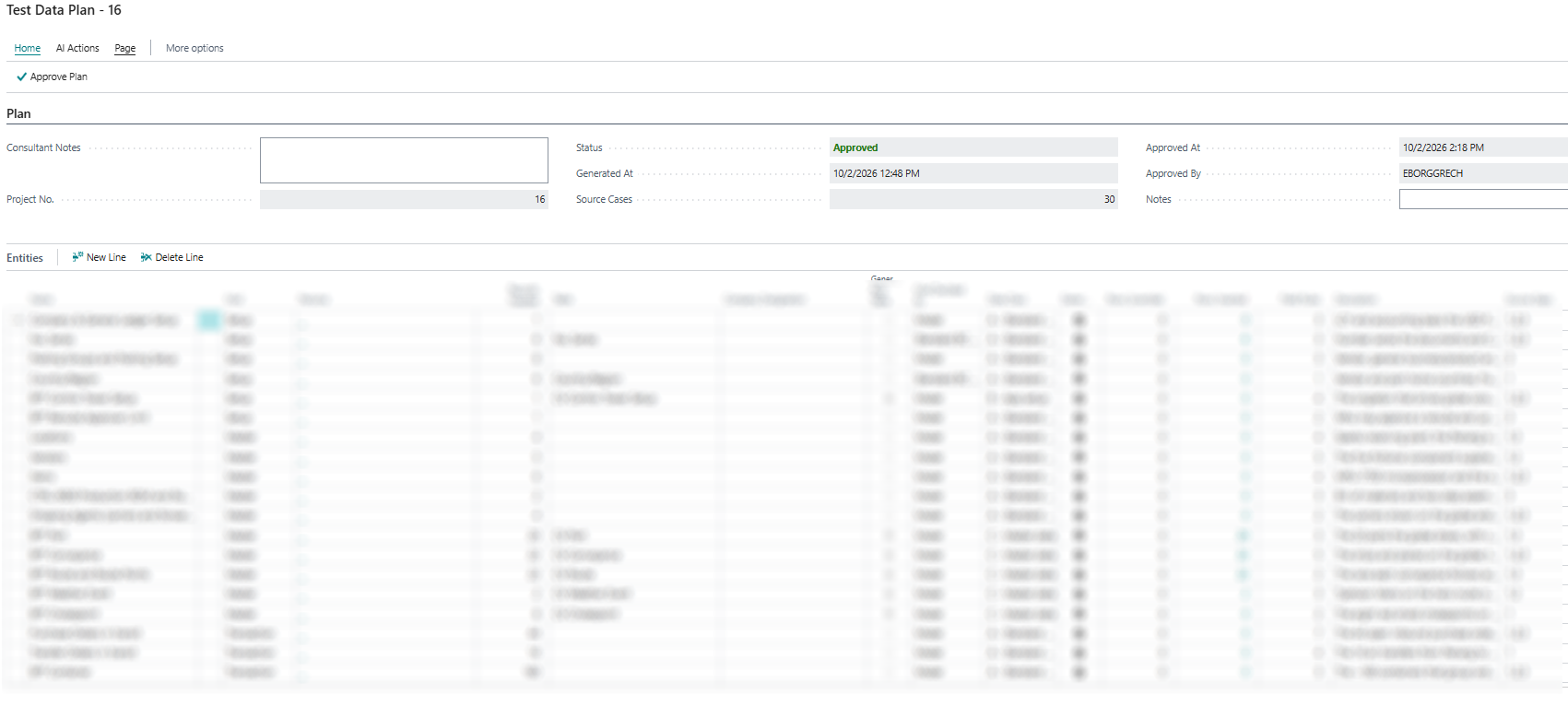
The Test Data Plan card shows Approve Plan and Consultant Notes, with Project No., Status, Generated At, Source Cases, Approved At, Approved By and Notes. The recorded plan is in the Approved state and its Entities list shows Name, Kind, Persona, Records Needed and Table. Review these together for consistency and do not assume that an approval label proves the data is already present.
New Line and Delete Line are visible, but treat entity changes as changes to the preparation plan and not something to be taken lightly. The outcome is a reviewed plan that supports repeatable test execution and the precise generation, approval and design rules need confirmation.
Before moving to Build, make sure the designs describe what the end user needs and the tests cover the agreed acceptance criteria. ARVO prepares the documents for you but you still need to review them and complete the approvals required for your project.
Check that:
- The gaps and included scope are correct. If you chose to build something instead of using an existing capability, record why.
- The personas reflect the people who will use the solution.
- The functional and technical designs are the versions you reviewed, and any corrections are included.
- The training documents match the agreed solution.
- The test cases cover the requirements, and the test data plan includes what is needed to run them.
If you added Consultant Notes, check the regenerated document before approving it. Adding a note does not mean the correction is already in the document.
The Design gate is Designs Approved and Tests Frozen. Once frozen, the test suite is the contract the build must meet. The tests must not be changed just to make failing code pass.
If something is still outstanding
If a document is missing, check whether it was excluded from scope initially. If Freeze Suite is unavailable, check whether the suite is already frozen and review any outstanding test cases or gaps in acceptance criteria coverage before continuing.
If an agreed requirement needs to change after freezing, this must be treated as a design change. Unfreeze Suite requires a reason and it is not a shortcut for getting a failed test to pass.
The approval steps depend on your project template, so follow the current Compass guidance rather than repeating actions simply to make the boxes tick. For an existing project, use the document statuses and Freeze History to check what has already happened.
The designs, decisions, approvals, training documents, test cases and data plan stay with the project. Together, they provide the record of what was agreed before the build started.