
Introduction
Use this process to create a customer payment link for an individual posted sales invoice. The available providers are Stripe and GoCardless Instant Bank Pay.
Setup Requirements
- Stripe Payment Provider – Onboard at least one Stripe account to the company before selecting Stripe on Sales Orders / Sales Invoices.
- GoCardless Payment Provider – Onboard at least one GoCardless merchant before selecting GoCardless on Sales Orders / Sales Invoices.
Generate Link
Step 1
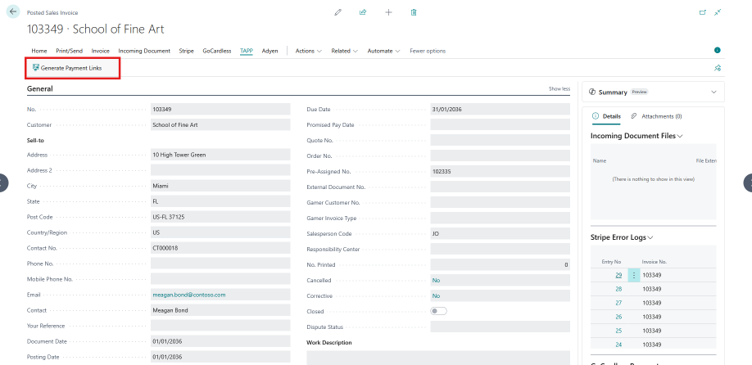
In Business Central, open Posted Sales Invoices and open the invoice that needs to be paid.
Step 2
Choose Generate Payment Links under TAPP actions.
Step 3
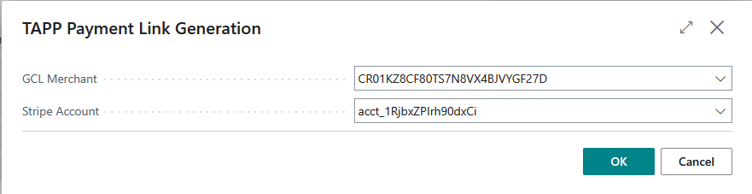
In TAPP Payment Link Generation, select the configured Stripe Account and/or GCL Merchant to use. Defaults are filled in when configured.
Step 4
Choose OK to generate the selected link or links.
Step 5
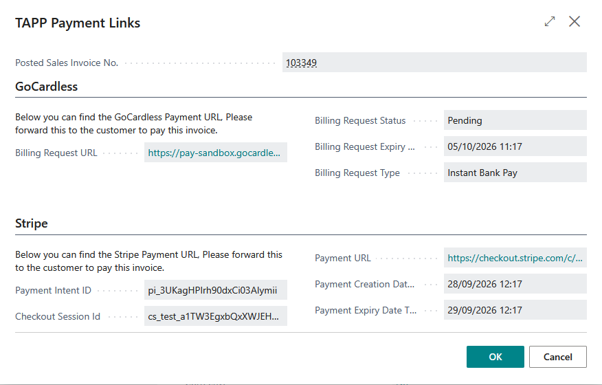
In TAPP Payment Links, find the URL for each provider and send the relevant link to the customer. The page also shows status and expiry details.
Generate Stripe Link Only
1. Open the posted sales invoice and choose Generate Payment Links.
2. In TAPP Payment Link Generation, select the Stripe Account.
3. Leave GCL Merchant blank. A blank provider field means no link will be generated for that provider.
4. Choose OK.
A Stripe one-time payment link is created for the invoice. The TAPP Payment Links page displays the Stripe Payment URL (or a Recovery URL if one is available), along with applicable payment and expiry details.
Generate GoCardless Link Only
1. Open the posted sales invoice and choose Generate Payment Links.
2. In TAPP Payment Link Generation, select the GCL Merchant.
3. Leave Stripe Account blank. A blank provider field means no link will be generated for that provider.
4. Choose OK.
A GoCardless Instant Bank Pay billing request is created for the invoice. The TAPP Payment Links page displays its Billing Request URL, status, type, and expiry details.