In this article, we walk through how to generate an Adyen payment request from Business Central. Payment requests are used to initiate payments with Adyen, using the selected merchant configuration and shopper information.
Adyen Sales Document Fields
| Field | Description |
|---|---|
| Enable for Adyen Payment | Enables the sales document for processing payments through Adyen. When enabled, Adyen payment actions such as Pay by Link become available. |
| Adyen Merchant | Specifies the Adyen merchant account that will be used to process the payment. This determines which Adyen configuration and credentials are applied. |
| Payment Type | Defines the Adyen payment flow used for the transaction, for example Payment or Pay by Link. |
| Adyen Shopper Details | Displays the shopper information that will be sent to Adyen as part of the payment request. |
| Payment Method Type | Specifies the type of payment method used by the shopper, for example Card or SEPA, depending on the selected payment type. |
| Adyen Shopper Reference | A unique identifier used to represent the shopper in Adyen. This reference is used for shopper recognition and for storing payment methods. |
| Payment Method | Displays the selected or stored payment method associated with the shopper, if available. |
Step 1: Create a sales document.
Step 2: Turn on the Enable for Adyen Payment.
If Use Default Merchant is enabled in the Adyen parameters, then the Adyen Merchant field will be automatically populated.
Step 3: Select a payment type (Payment or Pay by Link). In this example, Payment is selected. When a payment method is selected through an Adyen shopper, the payment method and shopper details are automatically populated if a card token exists for the Business Central customer.
Step 4: Enter the Shopper Reference, if required. This step can be skipped if the shopper details were automatically populated in Step 3 through the selected Adyen shopper.

Step 6 (Optional): Specify a Capture Delay, if required. The capture delay field allows you to define the exact date on which the payment will be captured. If no capture delay is specified, the payment is captured according to the default capture behavior configured for the Adyen merchant.
When the document is posted, the below dialog will appear
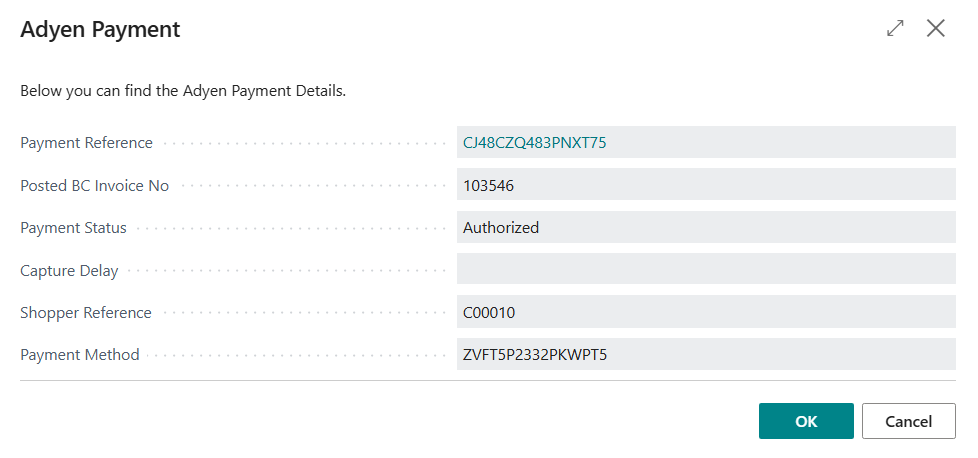
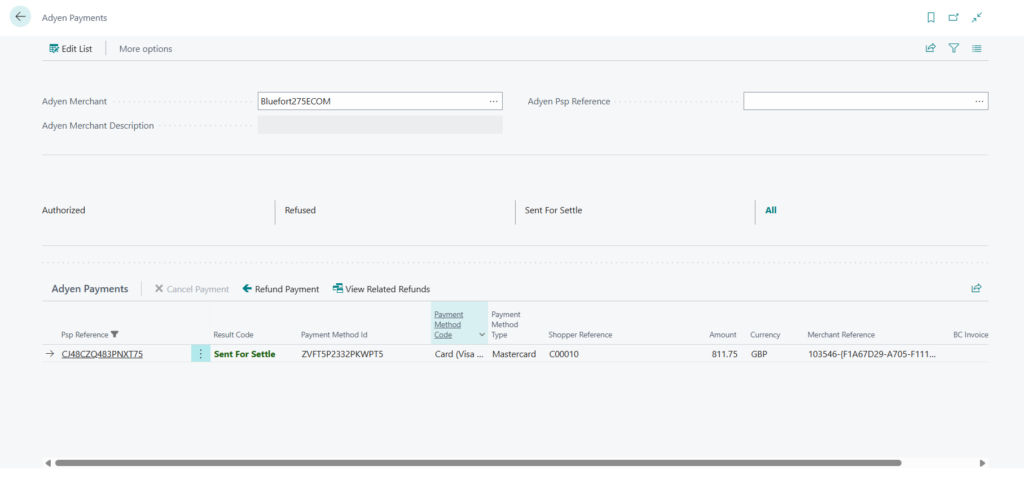
You can click on the Payment Reference to navigate to the Adyen payments list.