
Introduction
This article will guide you through the process to synchronize the payouts issued by Stripe to your Stripe Account(s) into Business Central.
Process Overview
- Navigate to the Stripe Payouts page accessible from the menu or the search bar.
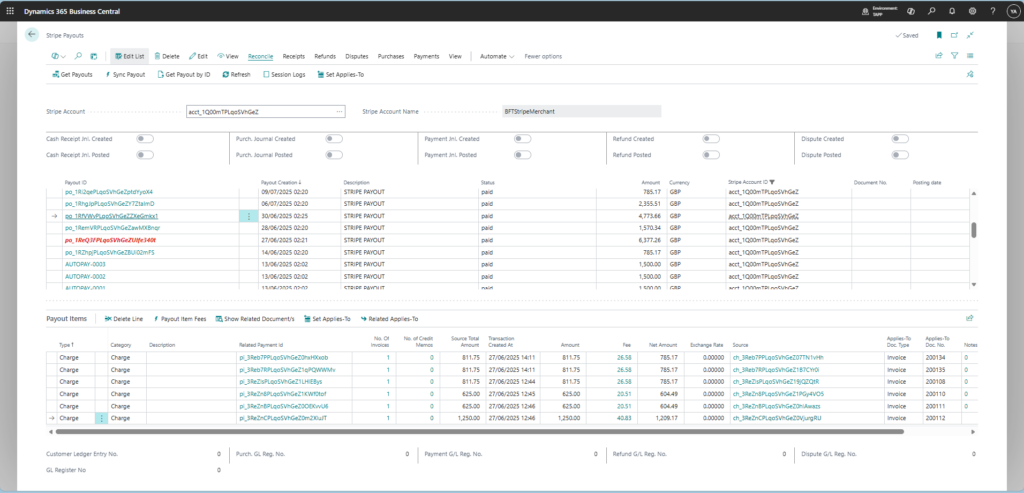
- Unless already selected by default, select the Stripe Account for which you want to sync payouts.
- Click on Get Payouts under the Reconcile tab.
- Once the process has finished running, the retrieved payouts are displayed in the page.
Set up Automated Payout Reconciliation
Automated Payout Reconciliation can be set up through the use of Job Queues.
Job Queues are automatically initialized upon installation of Stripe for Dynamics 365 Business Central – TAPP but can also be manually created.
The Job Queue that reconciles payouts is the one set up as follows;
