
In order to use Adyen for Dynamics 365 Business Central with your Adyen merchant, the latter should be onboarded on to the TAPP platform.
Make sure you have the below information available before proceeding:
- Azure Function Webhook URLs (saved from Deployment of Azure Functions)
Steps to onboard Adyen merchant
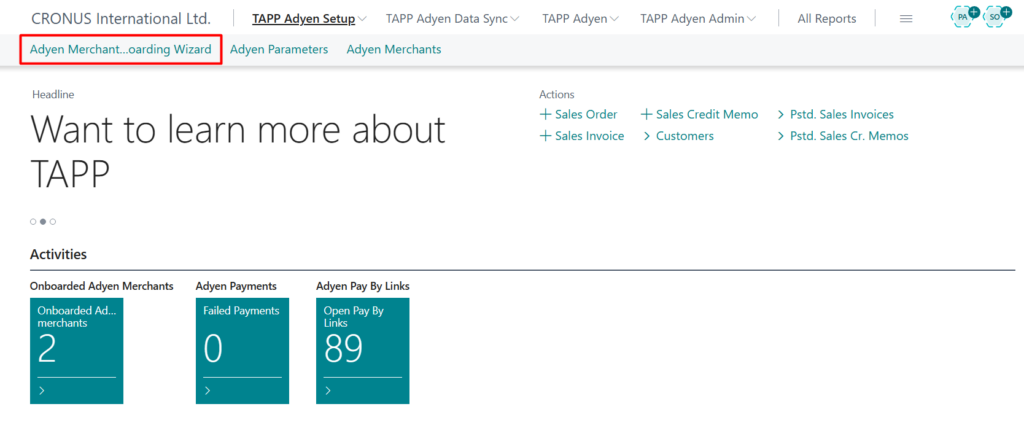
Step 1: Navigate to the Adyen merchant onboarding wizard.
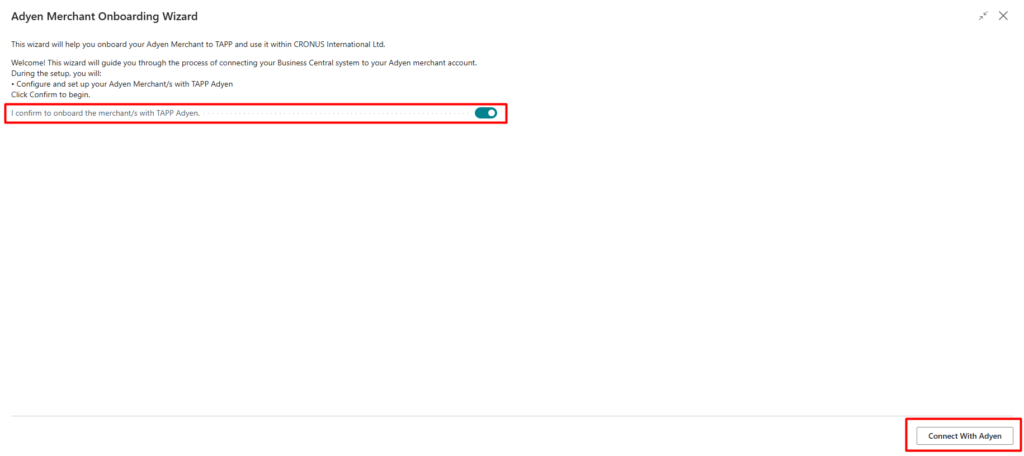
Step 2: Click the I confirm to onboard the merchant/s with TAPP Adyen and Click on Connect with Adyen
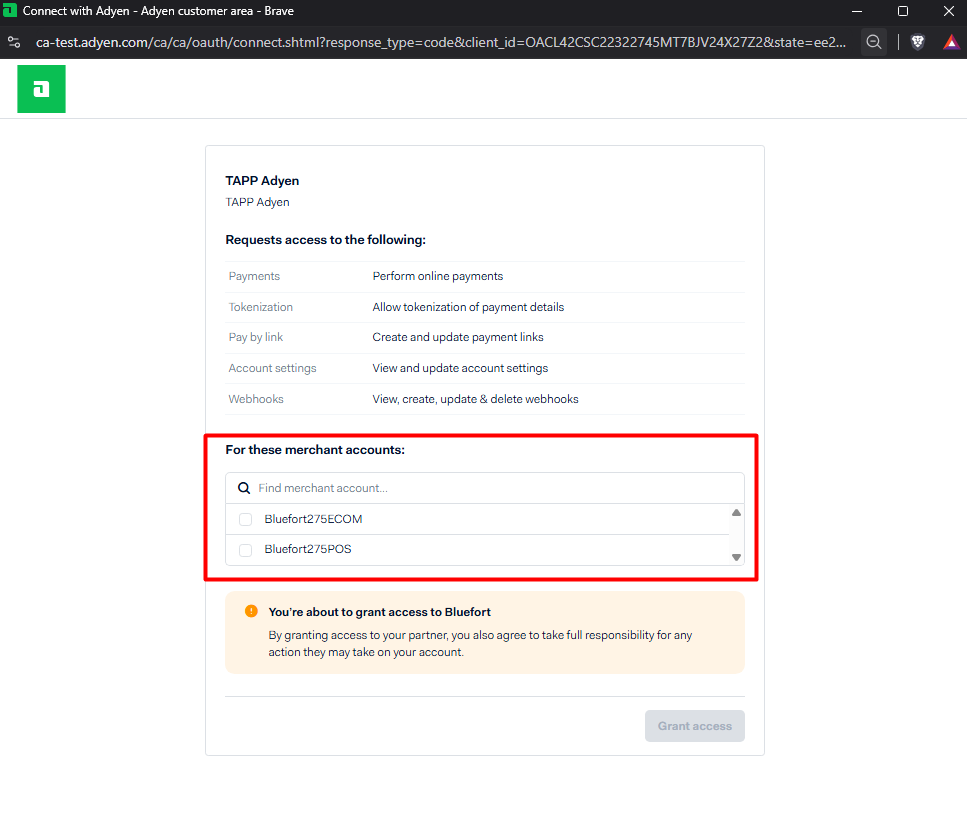
Step 3: Select the merchant/s that you wish to onboard.
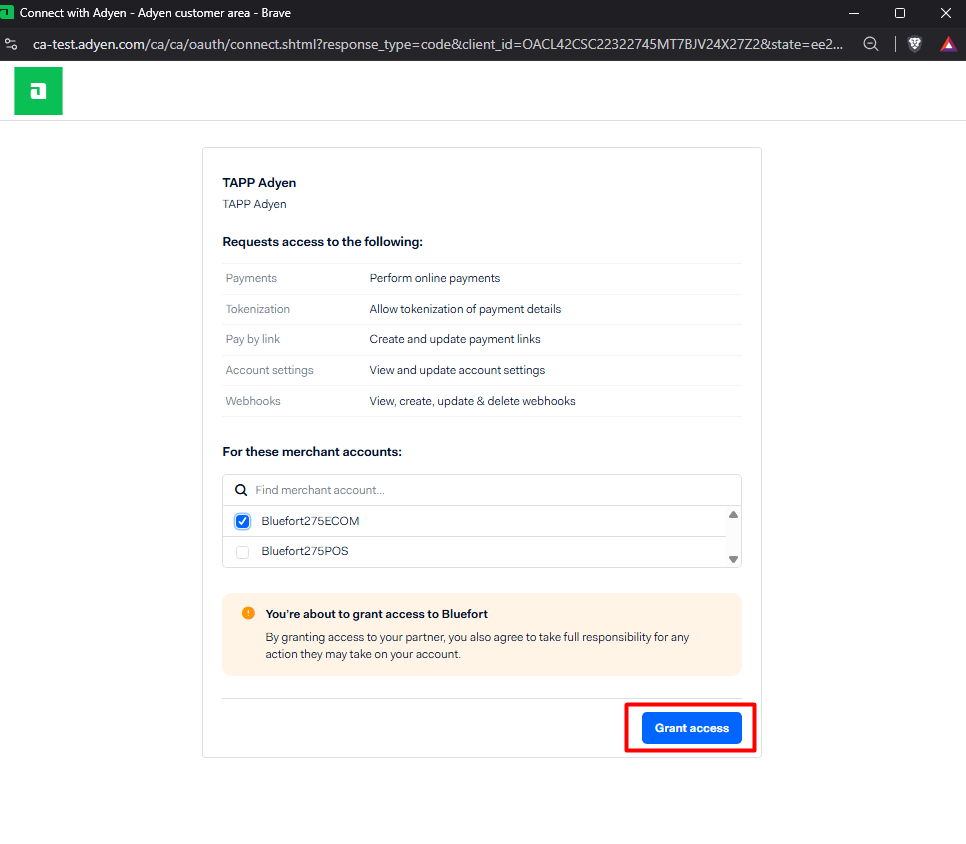
Step 4: Click on Grant Access
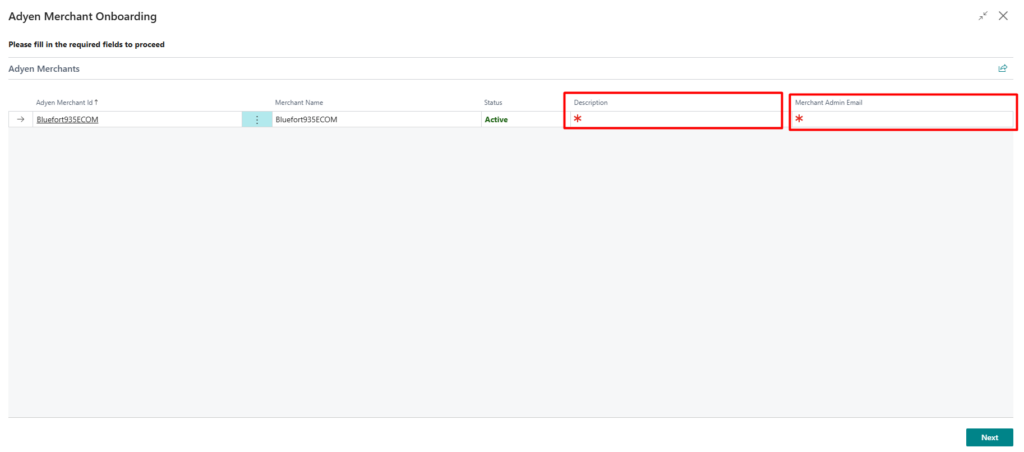
Step 5: You will then be redirected back to Business Central to continue with the onboarding wizard. Next, you need to fill in a Description and a Merchant Admin Email.
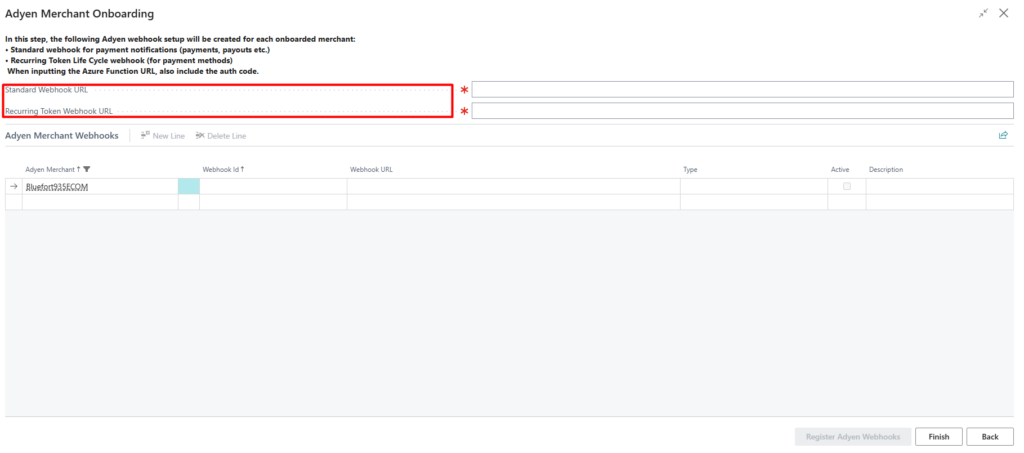
Step 6: In this step, you would need to use the Azure Function URLs created during the Azure Function Deployment. Note that in the below image, there are two fields:
- Standard Webhook URL – uses the URL from the AdyenWebhookFunction
- Recurring Token Webhook URL – uses the URL from the AdyenTokenEventsFunction
Step 7: Click on Finish
Step 8: Navigate to the Adyen Merchants
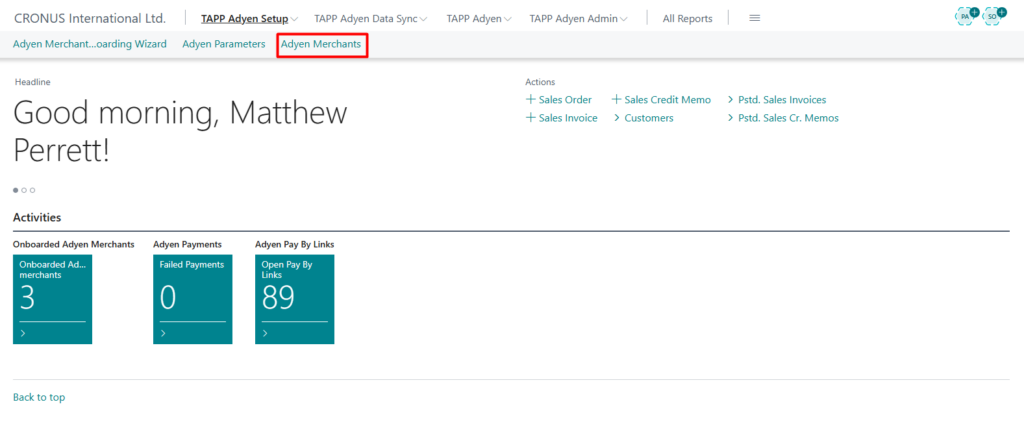
Step 9: Click on the newly onboarded Adyen Merchant to open the record.
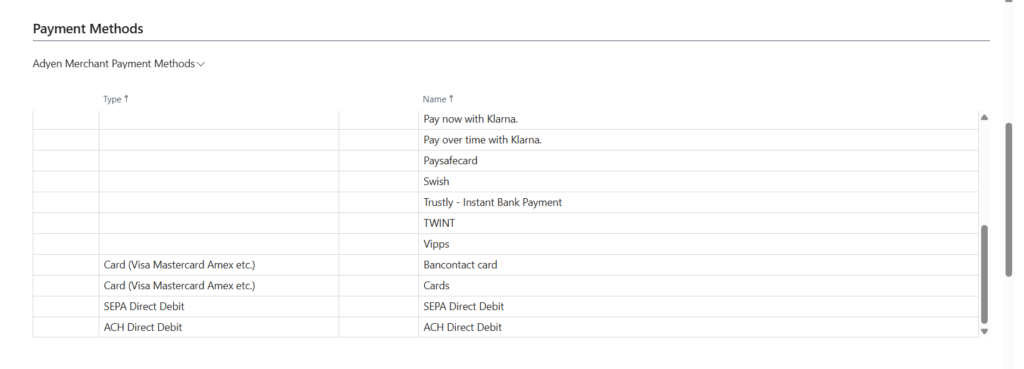
Step 10: Click on the Fetch Payment Methods action. This will fetch all available payment methods that are enabled on this merchant.
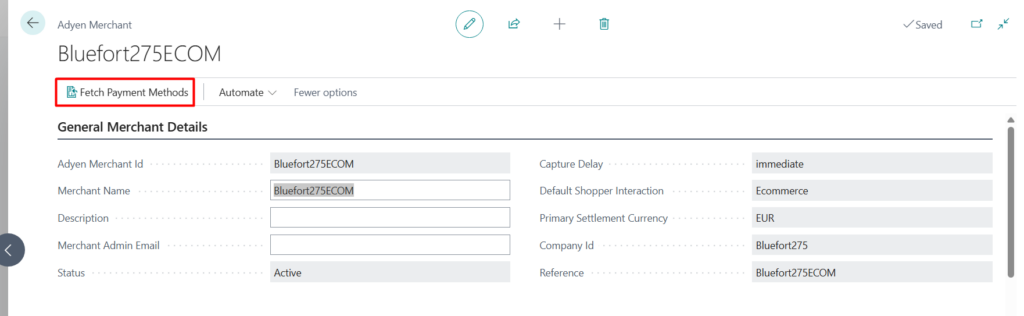
They should be populated under the payment methods tab
Merchant onboarding is now complete.