
Introduction
Sometimes a run stops and waits for a user rather than finishing on its own. This article explains what that means, where to look for the detail, and how the work continues once the review has been done.
What a parked run means
If ARVO cannot resolve an issue, it makes a number of repair attempts and then stops for human review. During Build, for example, a solution that does not compile is given a set number of repair attempts, and if it still cannot compile the run stops there. During Test, a failing test can lead to a limited number of code repair attempts, but the approved test suite itself does not change.
This is a governance feature of ARVO and nothing can be forced through a failing run, so a parked run is the product declining to progress work that has not met the standard, and it is asking the user to decide what happens next.
Where the limit is set
The number of attempts allowed before a run stops is Max Repair Loops, in the Self-Healing group on the project card. Raising or lowering it changes how much ARVO tries before handing the work back to you, and nothing else about the outcome.
What you can see
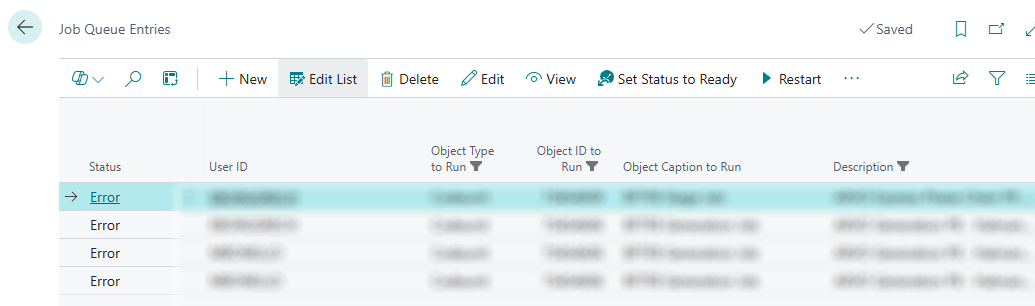
Background AI Jobs is the first place to look. It shows active background jobs, including their status, start time and the error message if something fails, which is what tells you why the run stopped. Completed jobs leave the active queue, so a job that is no longer listed there has not been lost and its results remain in Runs, which holds the project execution history.
Resuming after review
Nothing is discarded while a run is parked, and by reading the error message on Background AI Jobs, checking the run in the project’s execution history, and resolving the underlying condition first, the run can proceed. If the cause is a setup or connection problem, work through Setup and connection errors first while if it points tothe AI account, work through AI operation errors. Once the condition has been cleared, return to the project and use the Compass and the guidance line beneath it, which will tell you what the current required action is.