
Configure Program Types
Most companies run different subscription programs within their organisation. Some might re-sell licenses from a vendor on a subscription basis, some might sell rights to use their in-house built SaaS solution on a subscription basis while some other would like to entice customers to sign-up for a healthcare plan, a training plan or a support service. Program types help companies streamline their various subscriptions programs, make creation of subscription groups more efficient and provide the capability to filter subscription data based on the type of program which is useful in various areas such as filtering in the U.I., configured batch tasks and for data segregation for analysis, reporting or security reasons.
Program types can be accessed from the LISA Business Setup tab in the main menu of the Subscription Manager role.

Configure Subscription Reason Codes & Subscription Reason Code Types
LISA Business makes use of a reason code framework to identify the reasons that are to be used to create subscription plans, subscription plan lines and subscription actions. This setup is a mandatory setup as a reason will need to be specified with any subscription plan, plan line, and action that is created. This helps ensure that any data resulting from the LISA subscription engine is stamped with a reason code which can later be used for analysis and reporting. This is especially useful when making a change to a subscription contract and, for example, giving a credit note. Was a credit note given because of an upgrade (excellent scenario), a downgrade (negative scenario) or due to a customer complain or churn (worse scenario)? Reason codes help analyse these types of situations and help classify different reasons why an operation (such as issuing a credit note) was executed.
Subscription Reason Codes can be accessed from the LISA Business Setup tab in the main menu of the Subscription Manager role.
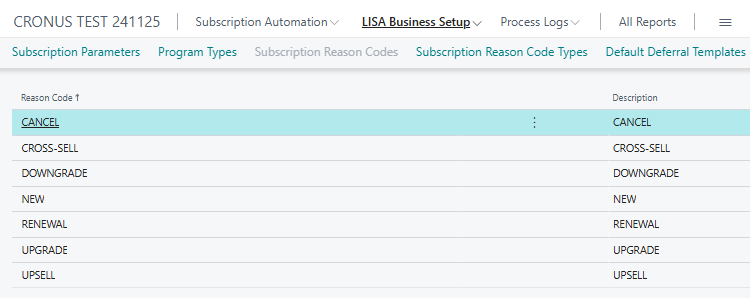
The reason framework in LISA is type based, meaning that a specific set of reasons is defined for each type of action that can be taken. The reason types which currently exist in LISA are:
- New
- Cancel,
- Upgrade,
- Downgrade
- Renewal
Subscription Reason Codes can be accessed from the LISA Business Setup tab in the main menu of the Subscription Manager role.
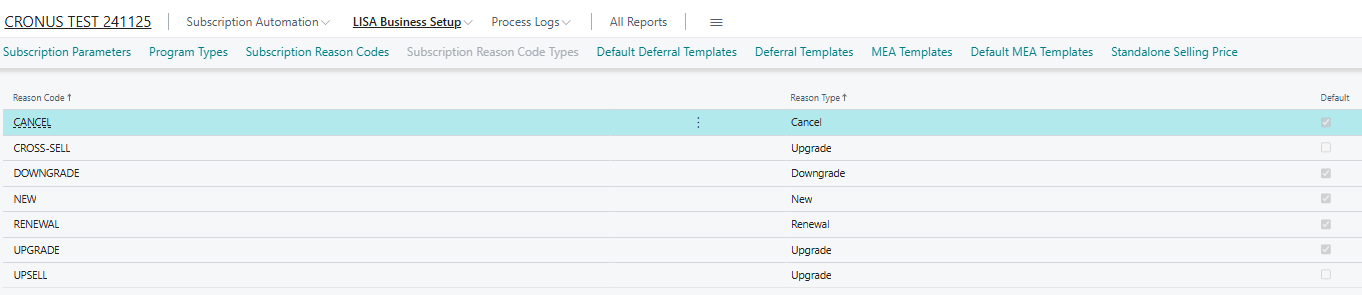
In this form, the user must specify the reason codes that will relate to the different types. For each type, the user is also able to specify a default reason. While defaults are useful, users should ensure they are select the right reason code that applies for the operation they are executing (especially during subscription contract changes) as reason codes help classify the data generated. It is also important to note that one reason can belong to different types.
Configure Subscription Parameters
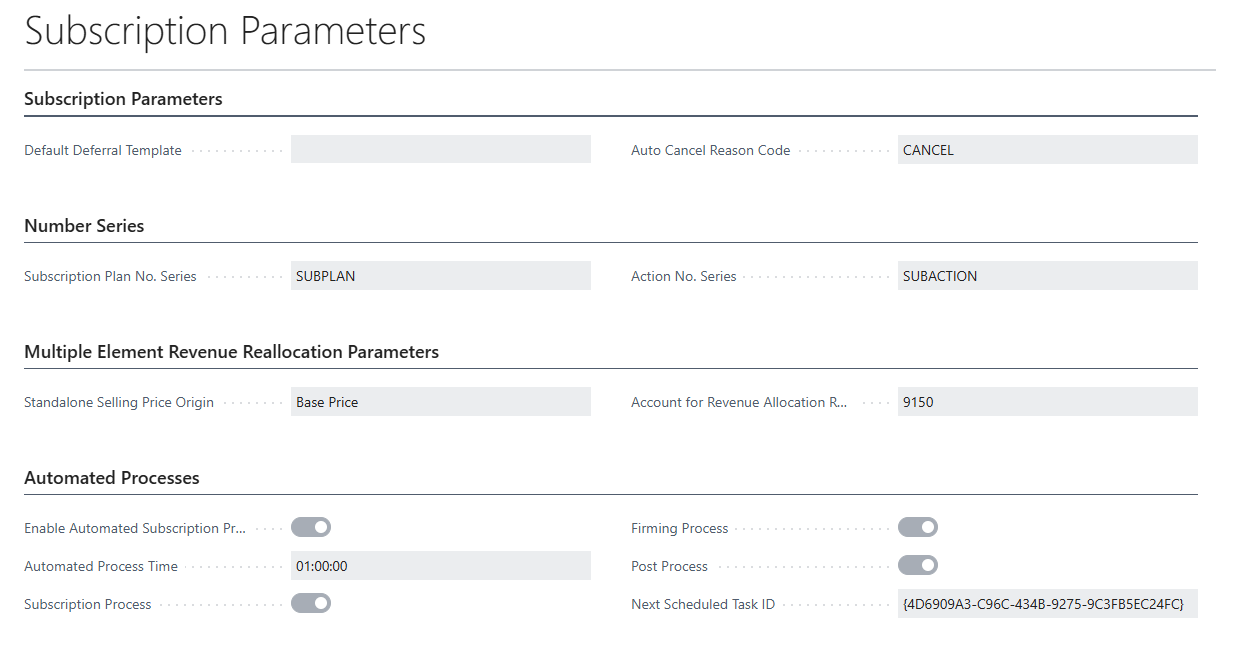
The Subscription Parameters page can be accessed from the LISA Business Setup tab in the main menu of the Subscription Manager role. An explanation of the parameter fields follows:
Default Deferral Template – This will be / has been deprecated in Q4 2025 and at some point it will disappear from the user interface. Leave this field empty and instead use the Default Deferral Templates functionality, described further down.
Auto Cancel Reason Code – The reason code used when a subscription plan is automatically cancelled by the system. For example, when a subscription is cancelled because the term of a subscription contract has expired. It is only possible to select reason codes of type Cancel in this field.
Subscription Plan No. Series – Create a number series to be used for new subscription plans.
Action No. Series – Create a number series to be used for new subscription actions.
Standalone Selling Price Origin – How is the original selling price (also known as list price) of an item calculated for the scope of revenue re-allocation. The options are:
- None – functionality won’t execute
- Base Sales Price – Base sales price from the item card
- Amount – A specific amount
Account for Revenue Allocation Rounding – The G/L ledger account to be used to post rounding differences when doing revenue re-allocations.
Enable Automated Subscription Processing – The subscription orchestrator is a master process which can be scheduled to run automatically once per day to run subscription action generation across all published subscription plans, run the action firming process and run the posting process. Setting this field to true will enable this process to run once per day.
Automated Process Time – The time of day of the daily run of the subscription orchestrator. This should be configured when there is minimal user activity in the system.
Subscription Process – Should the sub-process which generates actions across all published subscription plans run automatically as part of the automated subscription master process?
Firming Process – Should the action firming sub-process run automatically as part of the automated subscription master process? This process creates sales orders and/or purchase orders based on the generated un-firmed actions available in the company.
Posting Process – Should the action posting sub-process run automatically as part of the automated subscription master process? This process invoices sales orders and/or purchase orders based on the firmed ub-posted actions available in the company.
Configure Subscription Items
For items to be used with LISA Business, they must be flagged as subscription items. This marks a clear distinction between items that are sold/purchased on a one-off basis (such as stock items) and items that are sold on a recurring basis such as subscriptions, digital products, service items etc.
This configuration takes place in the Subscription Management tab of the item card, shown in the screenshot below.
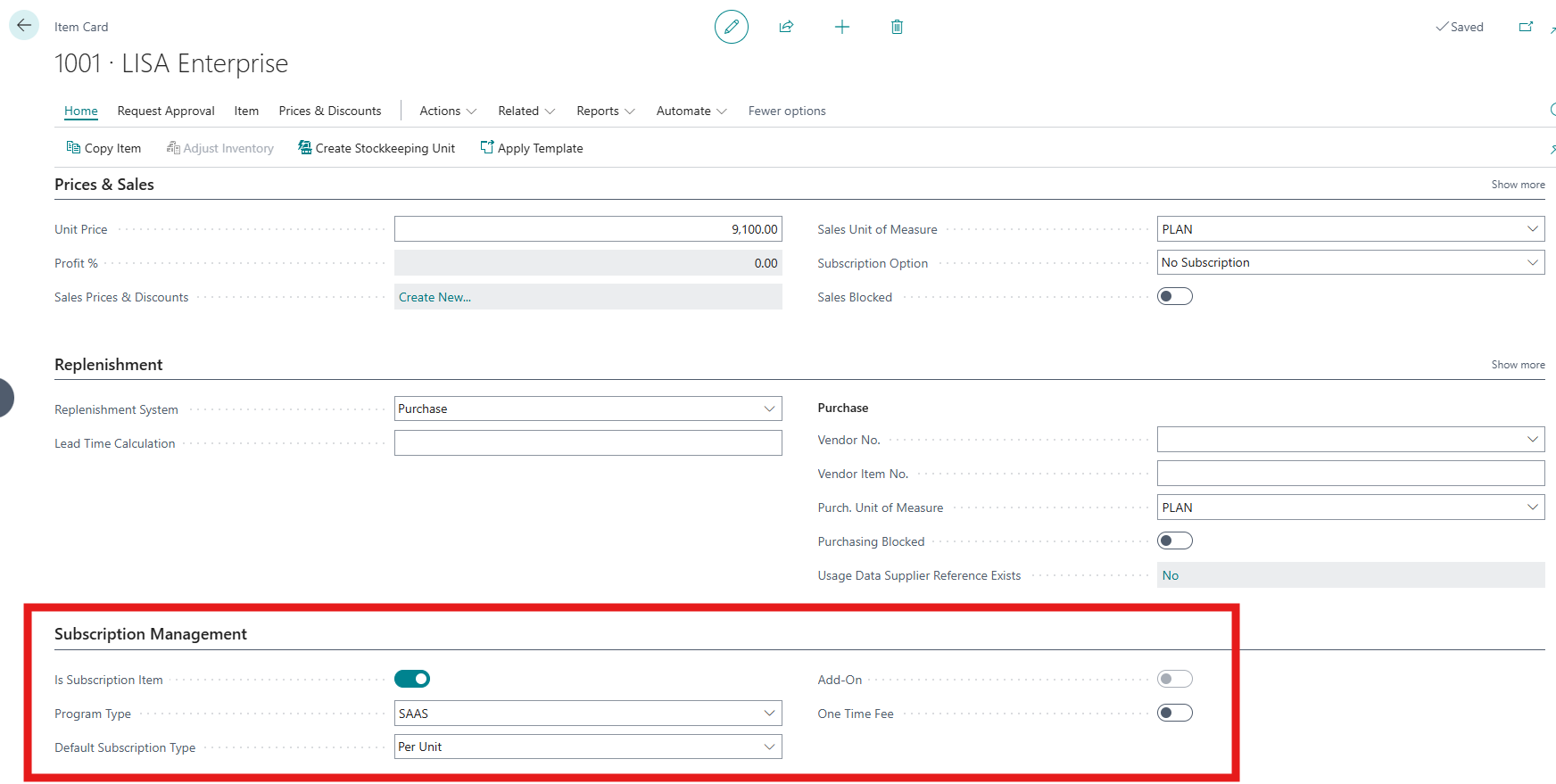
The fields are explained below:
- Is Subscription Item – defines whether this item is sold/purchased on a recurring basis and thus usable within LISA Business
- Program Type – The program type this item pertains to.
- Default Subscription Type – Configure whether this item is a Per Unit subscription (billed upfront) or a Consumption Subscription (billed in arrears).
- Add On – this field is read-only and only becomes true if a Parent add-on item is linked to this item.
- One Time Fee – specifies whether this item is a one time fee.
Configure Subscription Add-ons (optional)
Subscription Add-on Parent items can be configured from the top ribbon, as shown from the screenshot below.
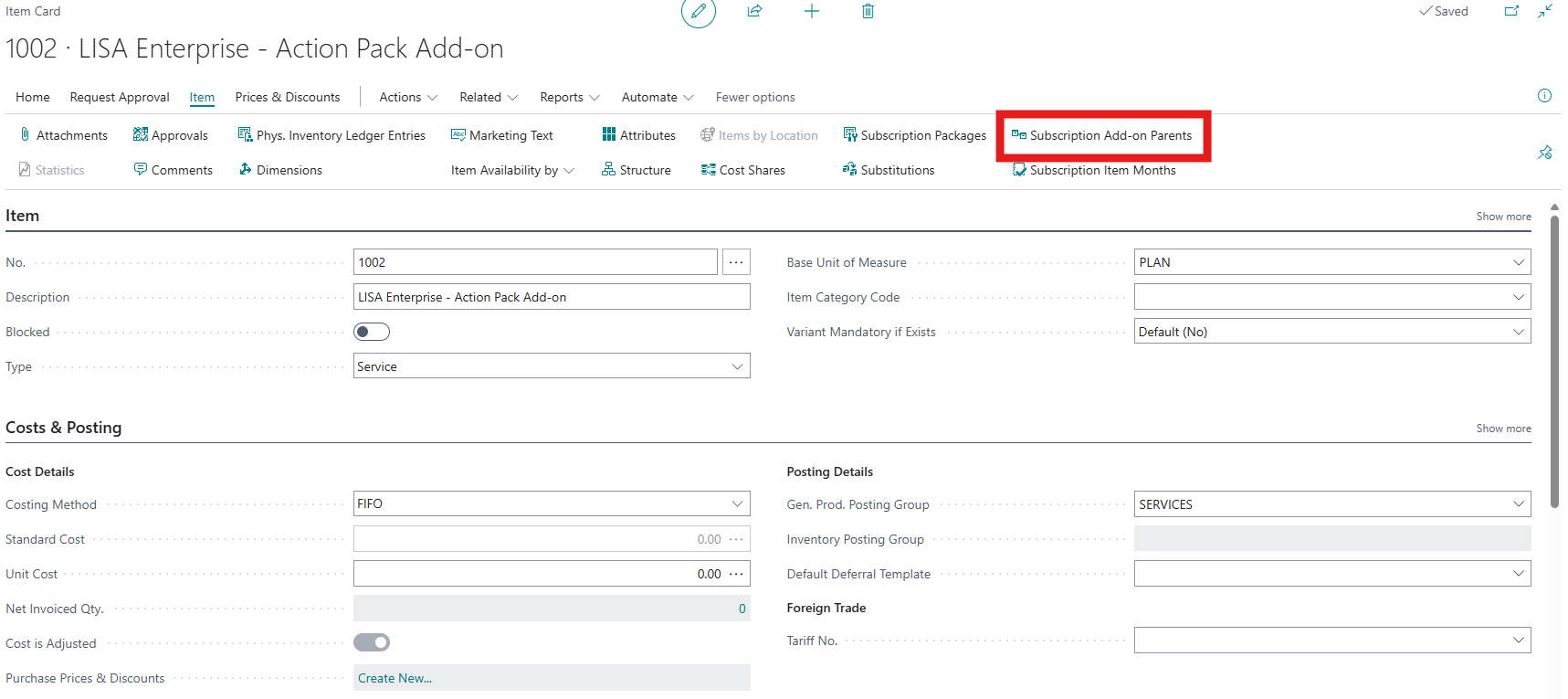

The fields are explained below:
- Child Id – The item which is the child add-on, auto-populated from the item in the caller form.
- Parent Id – The parent item to this item.
- Auto Add-On – If set to true, than this add-on is added automatically as an upsell item to the subscription sales order or subscription plan in the subscriptions cockpit when the parent item is added as a subscription plan line.
Configure Subscription Item Months (recommended)
This functionality allows you to choose for which cadences a specific item can sold and billed. You can also configure a default cadence which is the most popular with your sellers or customers. Subscription Item Months can be configured from the top ribbon, as shown from the screenshot below.
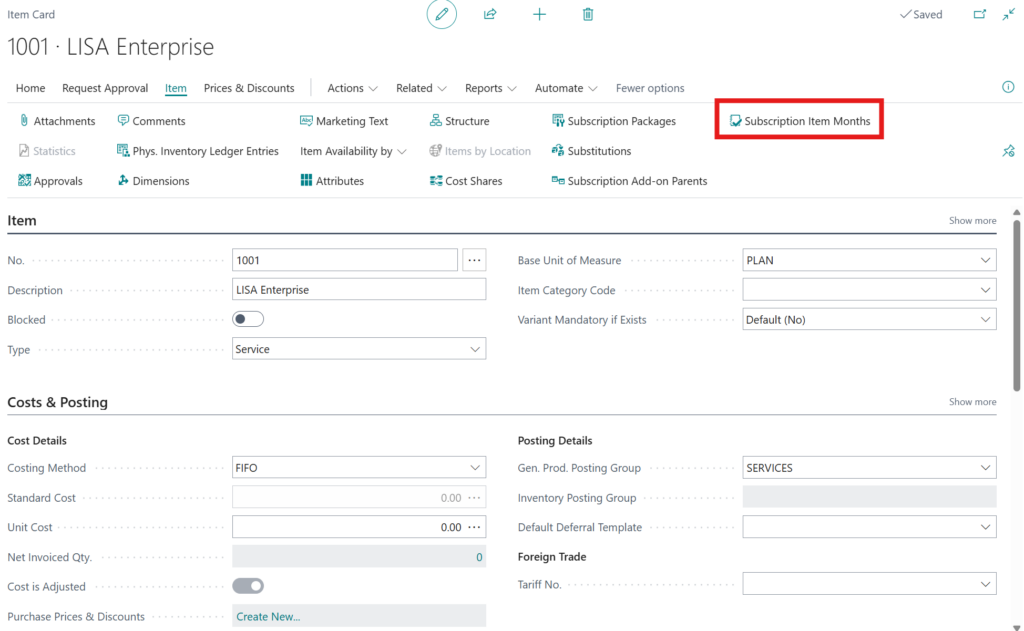
The fields are explained below:
- Item No – this is the item number this particular configuration record is related to and is populated automatically from the caller record when a new record is created.
- Variant Code – If the item has variants and you want this configuration record to only apply to a specific variant, select a variant in this field.
- Months – Select the number of months that are applicable as a subscription cycle for this item.
- Sales Order Default – Auto default to a quotation line or sales line when the item/item variant is selected on the line.
Configure Deferral Templates (optional)
Deferral templates can be configured as per standard Microsoft Dynamics 365 Business Central. For more information on what the fields do please refer to this article.

Configure Default Deferral Templates (optional)
This configuration allows you to linked the Deferral Templates from standard Microsoft Dynamics 365 Business Central to billing period lengths in LISA Business so that they are automatically applied for lines containing the length configured.
The fields are explained below:
- Billing Period – specify whether the billing period lengths is in Months or in Days.
- Billing Period Length – specify the length of the billing period as a numerical value.
- Customer Posting Group – if specified, then this configuration only applies to lines pertaining to this specific Customer Posting Group.
- Deferral Template – select the standard deferral template from the standard Microsoft Dynamics 365 Business Central configuration
- Active – specify whether this record is active or not. Inactive records are ignored.

Configure MEA Templates (optional)
LISA Business allows you to predefine Multiple Element Arrangements (MEA) that you can reuse when allocating revenue across bundled items. MEA Templates can be accessed from the LISA Business Setup tab in the main menu of the Subscription Manager role.

The fields are explained below:
Multiple Element Arrangement Number – provide a unique human-readable identifier to this MEA template.
Description – provide a human-readable description.
Deferred Contract Revenue Account – configure the ledger account that should hold contract revenue until it’s recognized when revenue is deferred due to revenue recognition logic.
Configure Default MEA Templates (optional)
This configuration allows you to link the MEA Templates from LISA business (explain above) to billing period lengths in LISA Business so that they are automatically applied for lines containing the length configured.
The fields are explained below:
- Billing Period – specify whether the billing period lengths is in Months or in Days.
- Billing Period Length – specify the length of the billing period as a numerical value.
- Customer Posting Group – if specified, then this configuration only applies to lines pertaining to this specific Customer Posting Group.
- MEA Template – select the MEA template to be applied
- Active – specify whether this record is active or not. Inactive records are ignored.
Configure Standalone Selling Prices (optional)
LISA Business allows you to define the standalone price for each item (or bundle components) so that the MEA logic can allocate revenue in line with ASC 606 / IFRS 15. Standalone Selling Prices for items can be accessed from the LISA Business Setup tab in the main menu of the Subscription Manager role.

The fields are explained below:
- Item No – The item that the standalone selling price is being configured for.
- Standalone Selling Price Origin – Select whether the Standalone Selling Price Origin comes from the Base Price configured on the item or from a custom Amount defined in the Standalone Selling Price field on this record.
- Standalone Selling Price – If Amount is selected in the field then the custom Standalone Selling Price should be configured in this field.
- Revenue Amount – This is a read-only field and populated based on the configuration on the fields above i.e. either from the Base Price of the Item or from the Standalone Selling Price field on this record itself.
Configure Promotions (optional)
A promotion means a temporary discount which expires after a fixed number of cycles. On the item card, one is able to configure such a promotion.

When the value of that field is non-zero, the Subscription Processor will automatically remove any discounts after the number of cycles configured have been processed.
Configure Price Indexing (optional)
Please refer to this article.