
In this article, we walk through the steps to generate an Adyen Pay by Link from a Business Central sales document, allowing customers to pay online using a secure payment link.
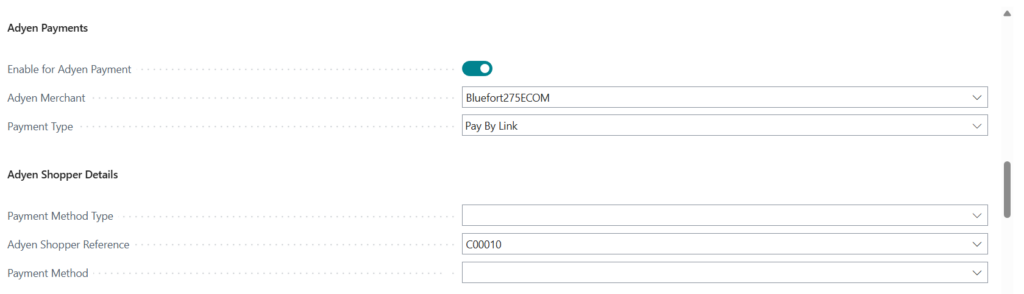
Adyen Sales Document Fields
| Field | Description |
|---|---|
| Enable for Adyen Payment | Enables the sales document for processing payments through Adyen. When enabled, Adyen payment actions such as Pay by Link become available. |
| Adyen Merchant | Specifies the Adyen merchant account that will be used to process the payment. This determines which Adyen configuration and credentials are applied. |
| Payment Type | Defines the Adyen payment flow used for the transaction, for example Payment or Pay by Link. |
| Adyen Shopper Details | Displays the shopper information that will be sent to Adyen as part of the payment request. |
| Payment Method Type | Specifies the type of payment method used by the shopper, for example Card or SEPA, depending on the selected payment type. |
| Adyen Shopper Reference | A unique identifier used to represent the shopper in Adyen. This reference is used for shopper recognition and for storing payment methods. |
| Payment Method | Displays the selected or stored payment method associated with the shopper, if available. |
Steps
Step 1: Create a sales document
Step 2: Turn on the Enable for Adyen Payment
If Use Default Merchant is enabled in the Adyen parameters, then the Adyen Merchant field will be automatically populated.
Step 3: Selecting a payment type (Payment Or Pay By Link).
Step 4: Fill in the Shopper Reference. If the BC Customer already has a default Adyen Shopper associated, this field will be auto-populated.
Step 5: Post the document.
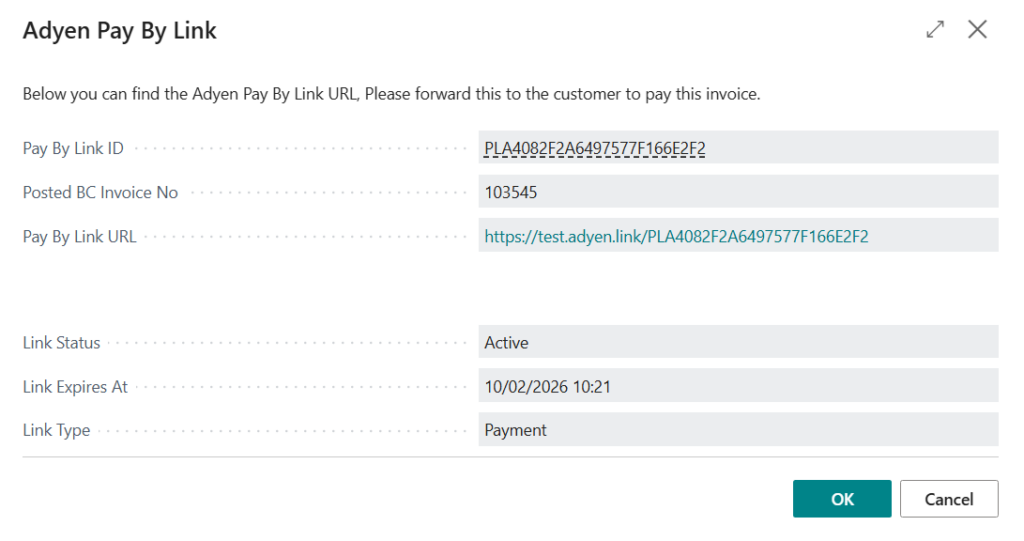
The Pay By Link URL can now be sent to the customer.