
This guide walks through three ARVO Studio features from start to finish: the ARVO Studio coding standards and business skills, which need no GitHub and work for every project, and the GitHub integration. The GitHub part has two walkthroughs. Part A starts a new app and delivers it to GitHub. Part B keeps working on an app that ARVO built and developers have changed in GitHub since. Each step says what to do and what you see, and links to the article that covers it in full.
Coding standards and business skills (no GitHub needed)
Both features work for every project, whether or not it is linked to a GitHub repository, and with GitHub Integration off.
S1. Turn them on
Do: in ARVO Studio Setup, in the Standards & Skills group, turn on Use Coding Standards, Use Business Skills, or both.
You see: ARVO Studio Coding Standards and Business Skills beside them, each reading 0 active document(s) until you upload.
S2. Upload your coding standards
Do: choose the ARVO Studio Coding Standards value, then Upload one or more Word (.docx), Markdown (.md) or text (.txt) files.
You see: a line for each document, with Version 1, Status Active, its words and estimated tokens, and the number of Conflicts.
S3. Check where they disagree with ARVO
Do: choose Conflicts.
You see: one line per disagreement: the topic, what the document says, and what ARVO does. The field or ARVO’s built-in rule always wins, for example The Object Range fields in ARVO Setup decide the ids: 59000 to 60000. The fields win.
S4. Upload your business skills
Do: in ARVO Studio Setup, choose the Business Skills value and upload the skills the same way. View each skill and tick the steps under Sent With These Compass Steps.
You see: each skill goes only with the compass steps you ticked.
S5. Choose per project
Do: open a project card’s Standards & Skills tab.
You see: Use Coding Standards and Use Business Skills, on for every new project, with ARVO Studio Coding Standards and Company Skills counting the active documents. Turn a switch off to leave this project out.
S6. Generate, and see what was used
Do: generate as usual, then open the run’s Checkpoint trail and print the project’s receipt.
You see:
- in the trail, coding standards: 1 document(s) carried – Harbourline AL Coding Standards v2 and business skills: 1 document(s) carried – …;
- when the AI could not follow a rule, coding standards: 3 deviation(s) reported by code generation – listed on the ARVO Studio Coding Standards page under Conflicts;
- on the receipt, STANDARDS IN EFFECT and SKILLS IN EFFECT, each version with who uploaded it.
S7. Change a document
Do: select the document and choose Upload New Version.
You see: version 2 Active from the next run, and version 1 Superseded. Runs that carried version 1 keep it on their record. Retire takes a document out altogether.
When a project is linked to GitHub, the same coding standards also go into each pull request, as the standards file Copilot reviews against (Part A).
Read more: ARVO Studio Coding Standards and Business Skills.
GitHub at a glance
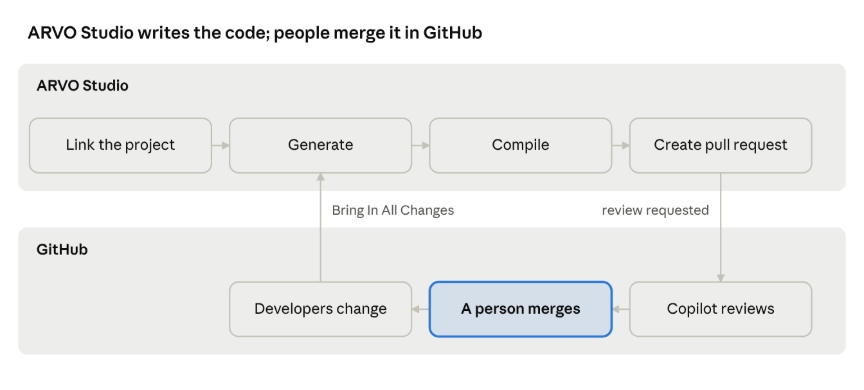
round trip · ARVO Studio and GitHub, 7 steps
Developers’ changes come back into ARVO Studio with Bring In All Changes. After a merge, the next generation starts from the merged code.
GitHub: before you start
Do these once. Everything from here on needs GitHub Integration.
- An administrator runs the GitHub Setup Guide, from Assisted Setup (Connect ARVO Studio to GitHub) or GitHub > GitHub Setup Guide on ARVO Studio Setup. It covers the organisation, how developers sign in, and the organisation’s app, installed on the repositories ARVO may use. Sign In and Test shows who is signed in and what ARVO can reach. Finish turns on GitHub Integration.
- Turn on the GitHub features the team will use, in the GitHub group of ARVO Studio Setup: Ask Copilot to Review, Bring In GitHub Changes and Use GitHub Repository Coding Rules. Turn on Keep Code History too, in the Generation group. It needs no GitHub either, and keeps every version of each run’s code to compare.
- Each developer signs in once. On a project card’s GitHub tab, choose Your GitHub Sign-in > Sign In with the Organisation > Open GitHub, then enter the code and approve.
You see: Signed in to GitHub as <your login>, through the organisation’s app – renews by itself.
Read more: Connect ARVO Studio to GitHub.
Part A: Start a new app and deliver it to GitHub
A1. Prepare the repository
Do: in GitHub, create a repository in your organisation, usually private, and add a first commit: a README is enough. If developers sign in through the organisation’s app, an owner adds the repository to the app’s repository access.
Why: ARVO refuses an empty repository, because a pull request needs a commit to start from: The branch main of contoso-dev/sales-extras has no commit GitHub can show: it does not exist, or the repository is still empty. On GitHub, add a first commit (a README is enough) or choose another branch.
A2. Create the project
Do: create the ARVO project as usual, with its app identity (Description, Output Name, Publisher, Object Prefix) and its design document. See Create a project.
A3. Link the project to the repository
Do: on the project card’s GitHub tab, choose GitHub Repository and pick the repository.
You see:
- GitHub Branch: the default branch, usually main;
- Repository Folder: app. If app already holds another app, ARVO gives this app a folder of its own and says so: The folder app of contoso-dev/sales-extras already holds another app – Sales Tools – so this project’s app will go in the folder 120-sales-extras. To use another folder, change Repository Folder.;
- Last Seen Commit: the commit the branch is at.
A public repository is linked only after you confirm. If the repository holds developers’ rule files for AI tools, a blue notice names them (see GitHub Repository Coding Rules).
A4. Generate and compile
Do: choose Generate Source on the project card and accept the AI-spend question. When the status box says No background job is running, choose Open run, then Compile on the run card.
You see: the run’s status goes to Compiled, and its Checkpoint trail names the coding standards and rules the run carried. A Standard project compiles from the run card or the compass’s Build station. Pre-Sales and Express projects compile by themselves.
A5. Create the pull request
Do: on the run card, choose GitHub > Create Pull Request, and Yes to the question.
You see:
- the question first: Create a pull request in contoso-dev/sales-extras from run 802? ARVO writes the app to the folder app on a new branch, arvo/119/run-802, and opens a pull request into main. Nothing is merged until someone merges it in GitHub.;
- then Pull request #9 created. Copilot code review requested.;
- on the run’s GitHub tab, Pull Request State Open and the branch;
- in GitHub (Open in GitHub), one commit with the app in its folder and .github/instructions/arvo-standards-app.instructions.md, the standards file Copilot reviews against.
A6. Let Copilot review it
Do: wait a few minutes, then open the run card again or choose Refresh GitHub Status.
You see: Copilot Review goes from Requested to Reviewing to Reviewed, with Copilot Headline, for example Approved. Pull Request Conversation shows the review as GitHub does. When Copilot leaves comments, choose Apply Copilot’s Review, which costs AI tokens: ARVO fixes what it agrees with, adds one commit and answers each comment. Or choose Add Copilot’s Comments to Feedback to keep them for the next version.
A7. Merge it in GitHub
Do: in GitHub, choose Merge pull request > Confirm merge. Then open the run card and the project card again.
You see: Pull Request State Merged. On the project card, Last Seen Commit is the merge commit, and there is no Developers changed… notice: ARVO recognises its own delivery.
A8. Make the next version
Do: on the run card, choose Feedback for Next Generation and write what should change. Then choose Generate Source on the project card.
You see: in the new run’s trail, upgrade mode: 8 file(s) of run 802 – its pull request #9 is merged into main, so this is the code on GitHub – carried over as the starting content. With Bring In GitHub Changes on, the new version starts from the merged code. With it off, a generation starts from the installed version, as it always did. Compile it, check it with Compare Code against run 802, and go back to A5.
Read more: Pull Requests and Copilot Review, Code History and Compare Code.
Part B: Keep working on an app that is already in GitHub
Use this when the app in GitHub is this project’s own app, built and delivered by ARVO, and developers have changed it in GitHub since: fixed a message, added a codeunit, a layout or a picture.
Not supported yet: an app ARVO didn’t build is not currently supported by ARVO Studio at time of writing. A project can’t take over an app that ARVO didn’t build, or one another ARVO project built. Linking refuses its folder: The folder app of contoso-dev/sales-extras already holds another app – Sales Tools (…) – not this project’s. Such an app has its own version numbers and object numbers, which ARVO would rewrite with its own.
Taking over existing apps is on the ARVO Studio roadmap.
B1. Turn on Bring In GitHub Changes
Do: in ARVO Studio Setup, in the GitHub group, turn on Bring In GitHub Changes.
B2. Open the project card
You see, when developers changed the app’s files: a notice, Developers changed 3 file(s) of the app in GitHub that ARVO Studio has not brought in yet., with Review, and Changes in GitHub 3 in red. When nothing changed, there is no notice, and Check GitHub for Changes says No changes outside ARVO Studio.
B3. See what changed
Do: choose Review.
You see: Repository Changes: Commit 725579b, the last one ARVO saw, with commit bba9cd1, where the branch is now, and 3 file(s) added, changed or removed by developers. Each file shows Added, Changed or Removed, who changed it, in how many commits, and the last commit’s message. Open in GitHub shows the file.
B4. Bring the changes in
Do: choose Bring In All Changes, and Yes to Bring in all 3 file(s) developers changed? ARVO makes a new run of the folder app of contoso-dev/sales-extras, branch main, at commit bba9cd1, and compiles it as it is, with no AI.
You see: …so ARVO compiles it as it is – no AI repairs it. The new run opens and compiles. Its GitHub tab shows Code From From GitHub, Starts From Commit and the developer’s commit, and its Code History starts with Brought in from GitHub.
Objects developers add should use numbers inside the project’s object range. ARVO moves any object outside it into the range when it compiles.
B5. Build on their work
Do: write what should change in Feedback for Next Generation, then choose Generate Source. If developers changed more files since, ARVO asks first: Bring them in and generate, Generate without them, or Cancel.
You see: in the trail, upgrade mode: 8 file(s) of run 776 – the developers’ code brought in from GitHub, commit 355ed69 by jdoe: Add a second sentence to the delivery note – carried over as the starting content. Compare Code between the brought-in run and the new one shows only the changes you asked for; the developers’ work stays as they wrote it.
B6. Deliver it
Do: compile the run, then Create Pull Request and merge it in GitHub, as in A5 to A7.
You see: a pull request that starts from the commit brought in, so GitHub merges it cleanly over the developers’ work.
If developers keep rule files for AI tools in the repository, such as AGENTS.md, ARVO names them and, with Use GitHub Repository Coding Rules on, follows them too. They never count as changes to bring in.
Read more: Bring In Developers’ Changes from GitHub, GitHub Repository Coding Rules.
Read more
| Article | What it covers |
| Connect ARVO Studio to GitHub | The setup guide, the switches, signing in, linking a project |
| ARVO Studio Coding Standards and Business Skills | The company’s own standards and skills, versions and conflicts |
| GitHub Repository Coding Rules | The developers’ rule files for AI tools, and the warning |
| Code History and Compare Code | Every version of a run’s code, compared side by side |
| Pull Requests and Copilot Review | Delivering a run to GitHub, Copilot’s review, merging |
| Bring In Developers’ Changes from GitHub | Developers’ changes, brought in and built on |