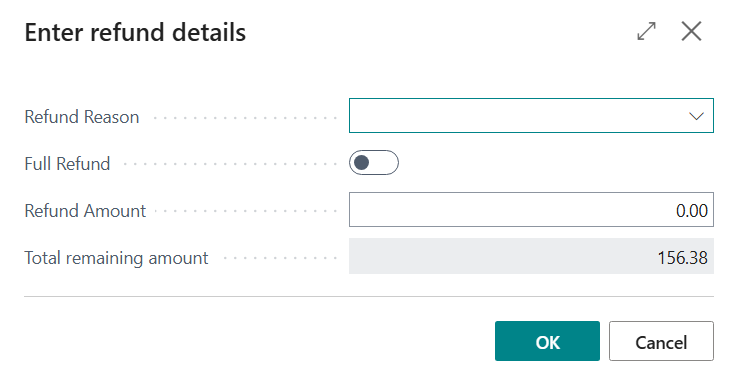
In this article, we explain how to issue a refund for an Adyen payment in Business Central. This process allows you to return funds to the customer for a previously processed Adyen transaction.
There are two main ways to issue refunds in TAPP Adyen:
- From a credit memo.
- Directly from the payment.
From a credit memo
Step 1: Create a credit memo for a posted invoice that has an associated Adyen payment.
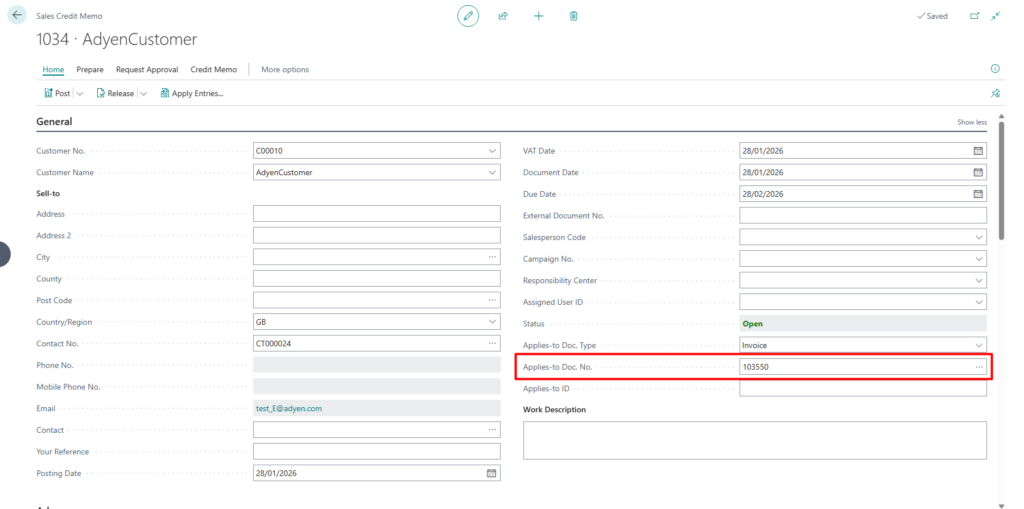
When the Applies-to Doc. No. field is populated, the Adyen refund fields are automatically completed and linked to the correct payment.
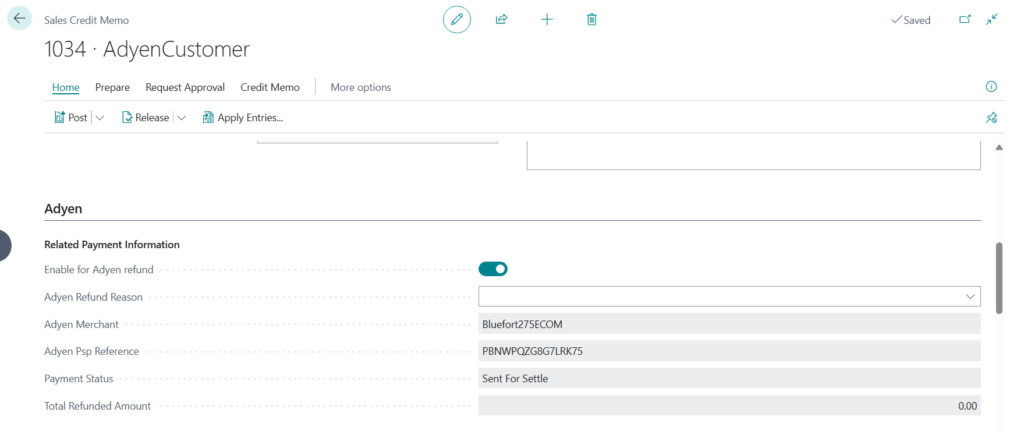
Optional: You can also specify a refund reason using one of the available Adyen options:
- FRAUD
- CUSTOMER REQUEST
- RETURN
- DUPLICATE
- OTHER
Directly from the payment
Step 1: Navigate to the Adyen Payments list and Click on the Sent For Settle (shows payments where the funds are captured and the customer has been charged on their payment method) tab
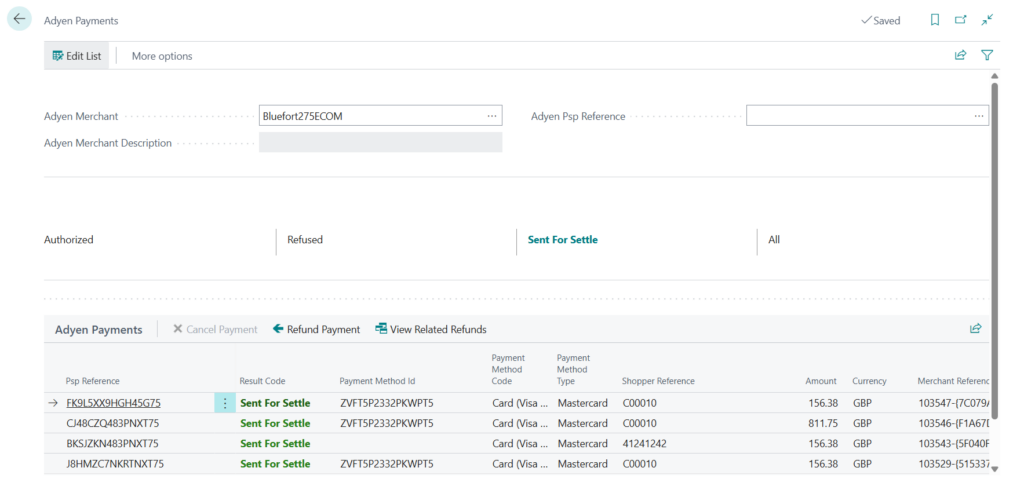
Step 2: Click the Refund Payment action. The dialog shown below will open.
You may select a Refund Reason, although this is optional.
To refund the full amount, enable the Full Refund option.