Setting up LISA Business on Microsoft Dynamics 365 Business Central
Get LISA Business extension from AppSource
To get the LISA Business extension, first from the search find ‘Extension Management’. Then
from the ‘Manage’ tab, click on ‘Extension Marketplace’. Lastly, from the AppSource search
for LISA Business Custom.
Assign Permissions to Admin user and to any other users accessing LISA Business
Navigate to the ‘Users’ page and double click on the admin user
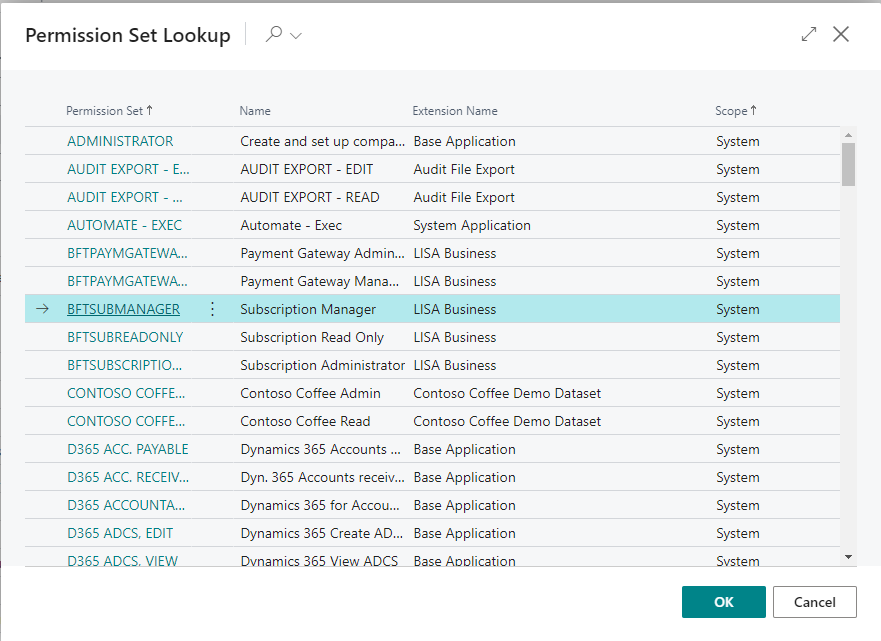
Click the ‘New line’ button next to permission sets
Select the permission set called BFTSUBMANAGER and click on the ‘OK’ button
Repeat the above steps for any other users who need access to LISA Business, assigning them the appropriate role.
Enable the New sales pricing experience feature
For LISA business to work correctly, this feature must be enabled in the company/companies where LISA Business will be used. Data Update must also be completed.

Optional: Set user role to Subscription Manager
For user to change own role
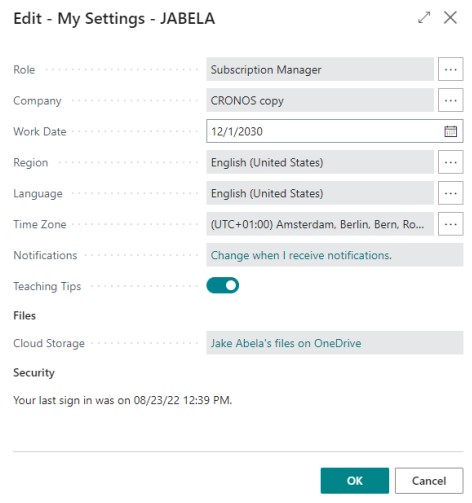
1. Click on the settings icon and choose ‘My Settings’.
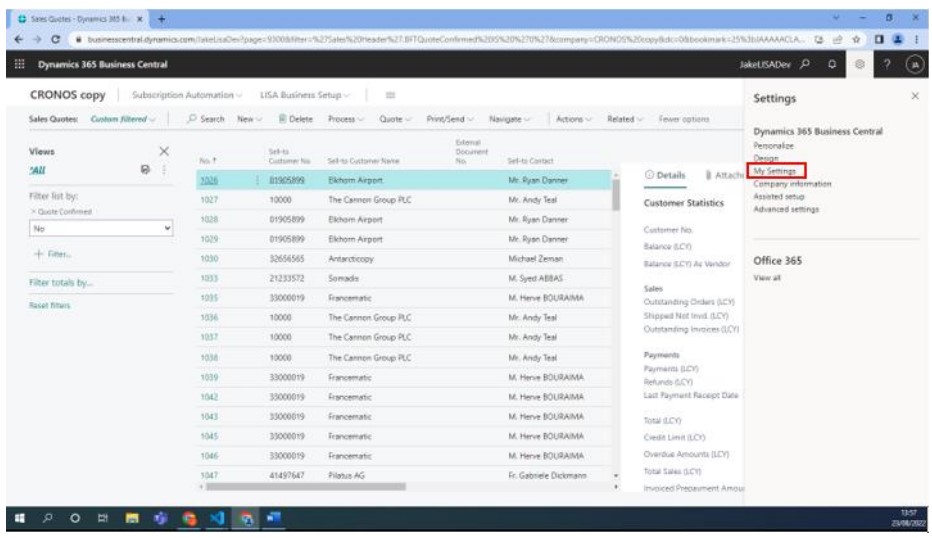
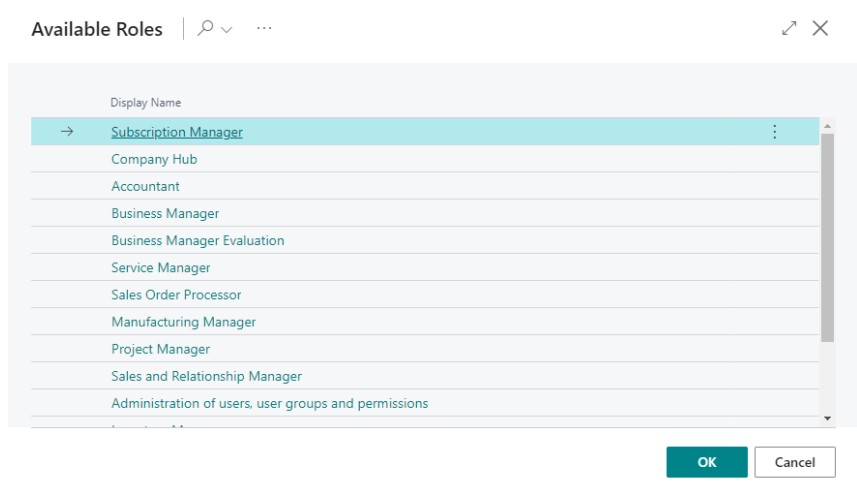
2. From ‘Role’ field choose the role needed.
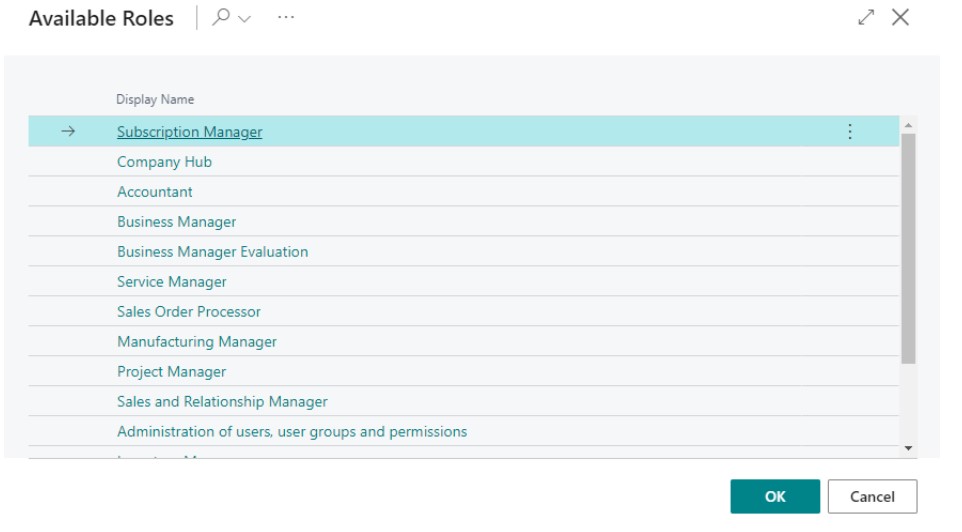
3. All the available roles are shown in this page.
For admin to change any user’s role
1. From search, go to ‘User Settings’.
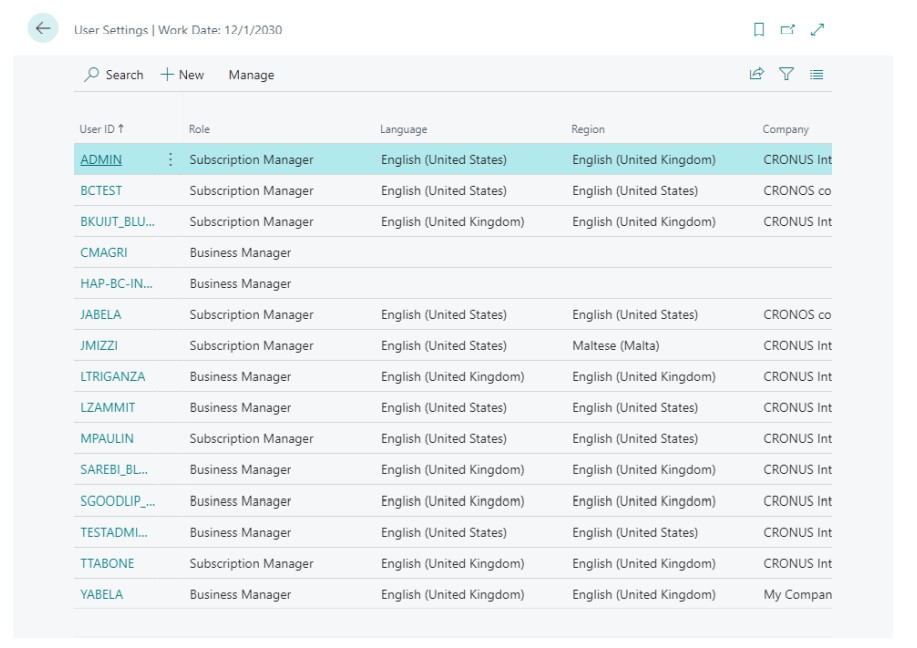
2. In the user’s page select the required role from the ‘Role’ field.
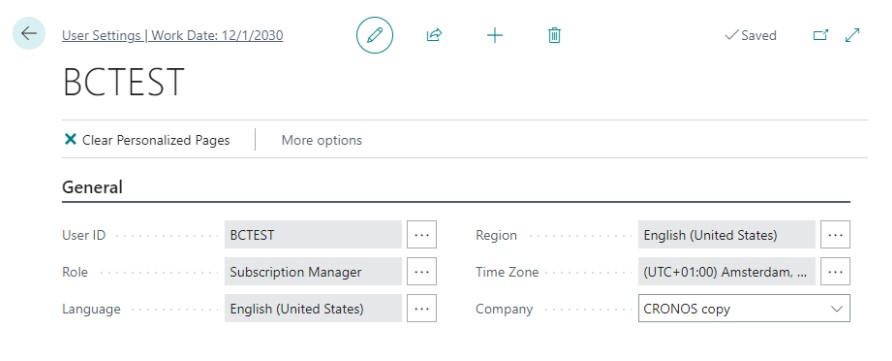
3. All the available roles are shown in this page.