
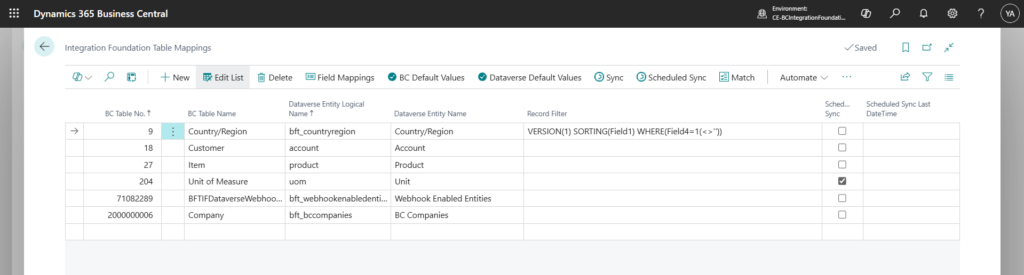
Table Mappings define how data is synchronized between Business Central and Dataverse within the BC–Dataverse Integrator. This is where users configure the relationship between Business Central tables and Dataverse entities to determine how records should flow between the two systems.
The integrator supports flexible mapping structures:
- A single Business Central table can be mapped to one or multiple Dataverse entities.
- A single Dataverse entity can also be mapped to one or multiple Business Central tables.
This flexibility allows the integration to accommodate different data models and business requirements.
Users can also apply record filters on the Business Central side to restrict synchronization to only those records that meet specific criteria. This ensures that only relevant data is sent to Dataverse, improving performance and maintaining data accuracy.
Additionally, table mappings can be configured to run on a scheduled synchronization rather than instant sync. Scheduled sync is particularly useful for entities where records are created in high volumes and do not need to be immediately available in Dataverse. This approach helps optimize system performance while maintaining controlled and predictable data exchange.
This article explains how to configure table mappings, apply filters, and set up scheduled synchronization to align with your operational requirements.
Configure Table Mappings
- Navigate to the Integration Foundation Setup page
- Under the Mappings menu tab, click on Table Mappings
- Fill in the Business Central Table No. with the table number to be mapped
- Fill in the Dataverse Entity Logical Name with the Dataverse entity name to be mapped
Apply Record Filters
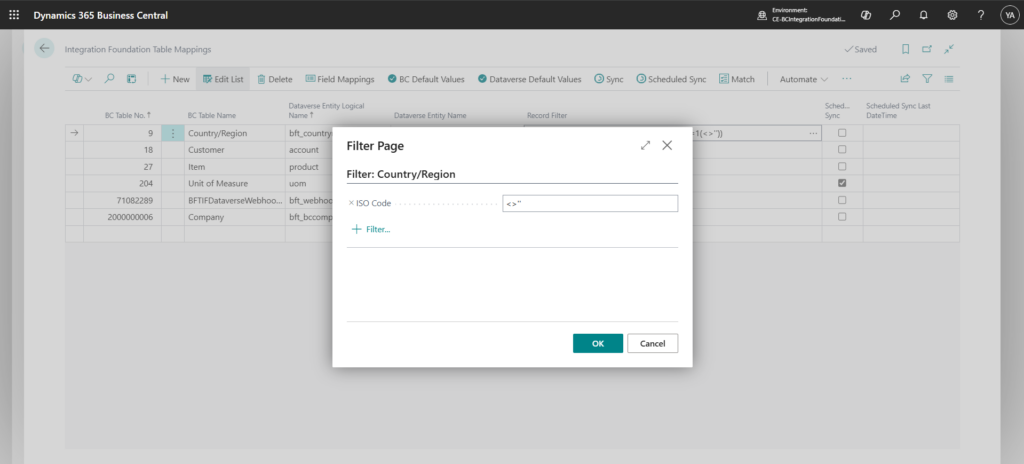
Record Filters can be applied on Business Central Tables to determine the criteria to use when syncing records from Business Central to Dataverse.
- Navigate to the Integration Foundation Setup page
- Under the Mappings menu tab, click on Table Mappings
- Locate the Table Mapping to filter and click on the Assist Edit of the Record Filter field
- Set the required filters
Scheduled Synchronization is described in further detail here.