
This article serves as a step-by-step guide on how the LISA Business Contract Copilot Agent works.
Step 1
An email is received in the mailbox that is configured to be monitored by the copilot agent selected in LISA Business Setup -> Subscription Parameters. The email should contain the subscription order details from the customer either within the body of the email or as an attachment.
A sample document that can be used for testing can be found below. You can use the download button to download it. Note: the item names in this sample document are based on the items imported as part of the LISA Business RapidStart Configuration.
The style, content, format, structure and other document properties do not need to be exactly like this document as the generative A.I. features of Microsoft Copilot can understand various document types. In fact, the sample document contains a lot of supplemental/legal information which is smartly ignored by the agent. However, specifically for the LISA Business Contract meta-data mapping it is important that the document contains the information below:
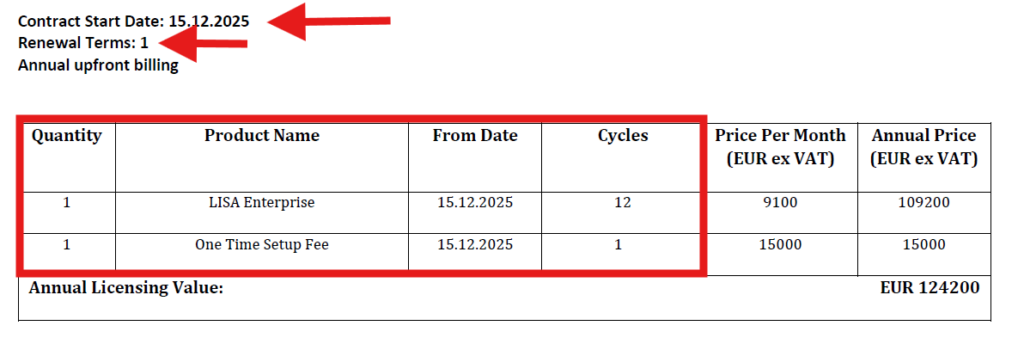
The Contract Start Date and Renewal Terms should be provided it the contract copilot agent is to create a subscription contract. If you want to generate an open-ended subscription, these fields can be omitted.
The Quantity, Product Name, From Date and Cycles fields need to always be provided as part of the document. It also supports multiple line items.
Identifying customers/contacts and related documents
The agent ensures that a request from one customer can’t be about another customer’s requests. When the agent processes a request, it first identifies the customer in Business Central using the sender’s email address. The agent searches for the email among the registered Business Central contacts, sales quotes and orders, and then looks up the customer linked to that email:
- If a customer is found, the agent filters to use only sales quotes and orders that belong to the customer. This behavior ensures that the agent only creates and updates documents belonging to the customer that sent the email
- If a contact is found but it’s not a customer, the agent filters to use only documents belonging to the contact. Quotes can be sent to contacts that aren’t registered as a customer.
- If no contact is found, the agent filters out all documents, and it might request user intervention because it can’t find the document.
To prevent the agent from requesting intervention, the agent verifies whether the contact is registered. If it isn’t registered, the agent displays a notification on the incoming message review page. To resolve this issue, you can either register a new contact/customer or update the contact information of an existing contact/customer. The agent generates the notification to indicate that the contact email wasn’t found.
Step 2
The copilot agent analyses the contract received in the mailbox and automatically creates a quote and converts it to a sales order. It checks for the conditions below:
- The sales order has been created by the copilot agent selected in the Contract Agent field of the Subscriptions Parameters form.
- The Auto-Post Subscription Order field on Subscription Parameters page has to be set to true.
- The Auto-Post Subscription Order field on Customer Card page has to be set to true.
- At least one of the items within the contract document must be a LISA Business Subscription Item as per the Configure Subscription Items section found here.
Step 3
If the the conditions are all true, the contract copilot agent also automatically:
- invoices the sales order,
- creates a posted sales invoice
- creates a LISA Business Subscription Plan (contract or open-ended). If the contract is updating an existing subscription plan, and
- creates a Subscription Action related to the first billing cycle.
Step 4
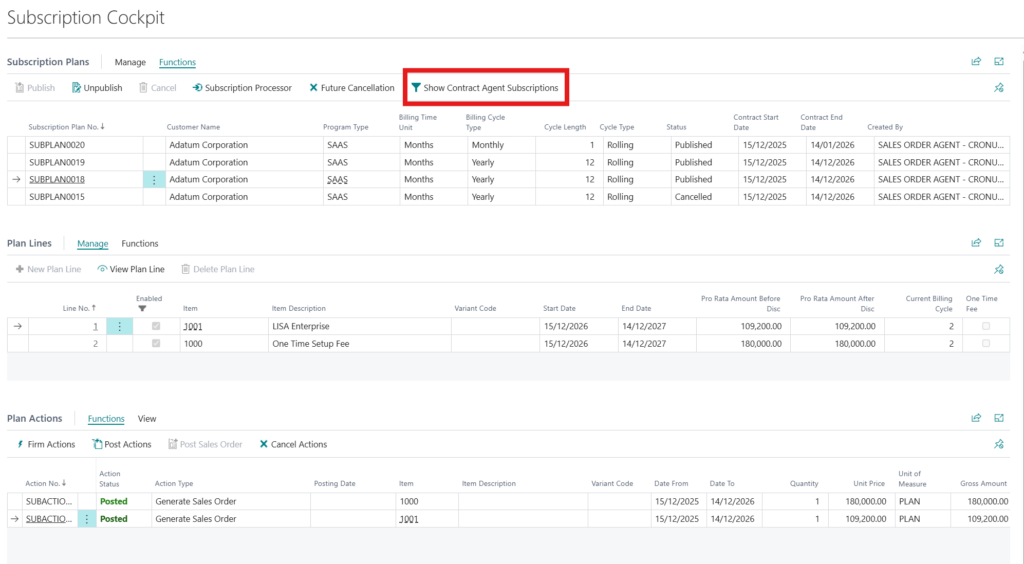
The subscription plan is automatically Published and the Automated Subscription Process (if enabled from Subscription Parameters) will subsequently generate further subscription actions (such as billing, renewals etc). Actions can subsequently also be generated manually from the Subscription Cockpit and viewed there or in the Subscription Actions page.
Step 5
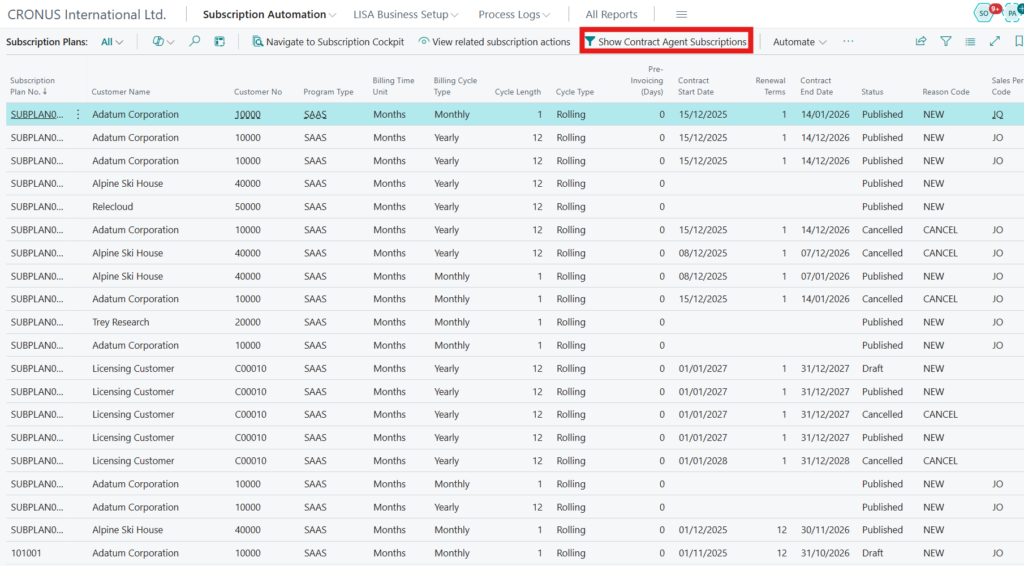
Subscription plans created specifically by the contract copilot agent can be filtered upon, using a toggle in the Subscription Cockpit page and the Subscription Plans page.
Contract Changes
Just like the LISA Contract Copilot Agent can create new subscriptions/contract it can also be used to make changes to subscriptions/contracts. More information on the type of contract changes supported by LISA Business can be found here.
Below one can find some sample documents that can be used for contract changes. Since contract changes are based on existing records it is recommended to copy/paste or convert to word with your specific IDs in order for the contract change process to work.