
An Instant Bank Pay (IBP), as offered by GoCardless can be generated via GoCardless for Dynamics 365 Business Central – TAPP.
This article explains;
- how an IBP can be generated for both Sandbox and Production
- how an IBP can be simulated for testing purposes in Sandbox.
Creating an Instant Bank Pay
Instant Bank Payments generate a URL that is to be shared with the customer to pay the requested amount.
Below are the steps to follow to generate a Instant Bank Payments via GoCardless for Dynamics 365 Business Central – TAPP.
- Create a Sales Invoice as per standard Business Central
- Switch on Enable for GoCardless Instant Bank Pay
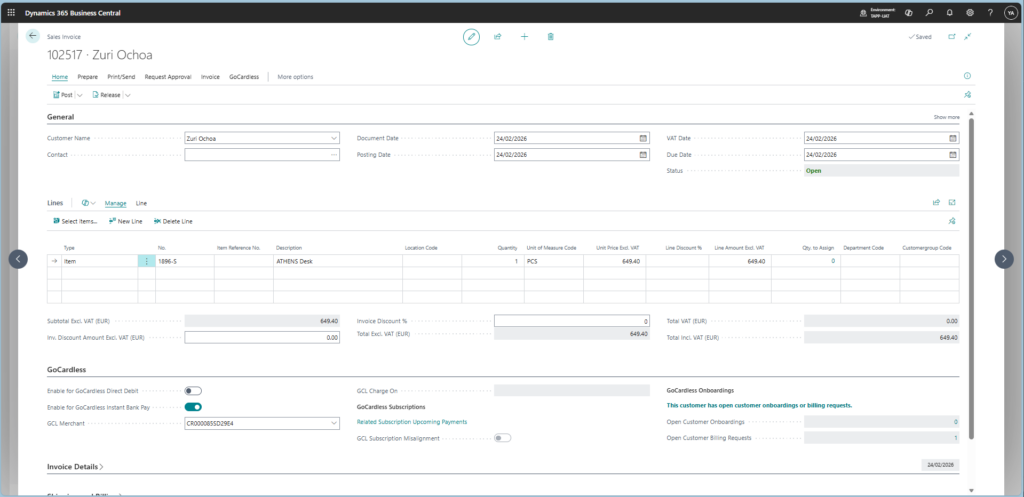
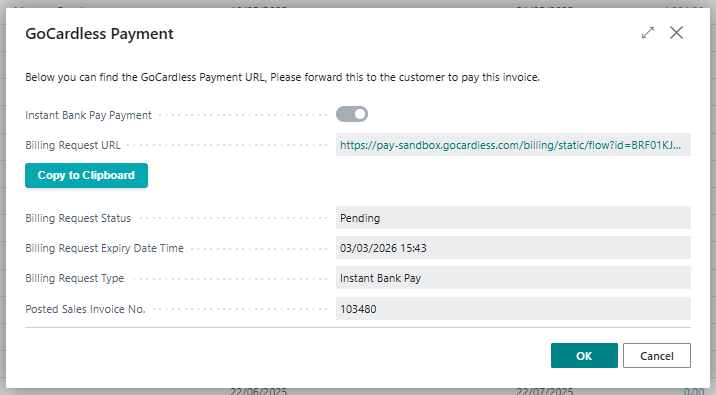
- Post the Sales Document as per standard Business Central. If posting is successful and the payment request is successfully generated, the payment information is returned.
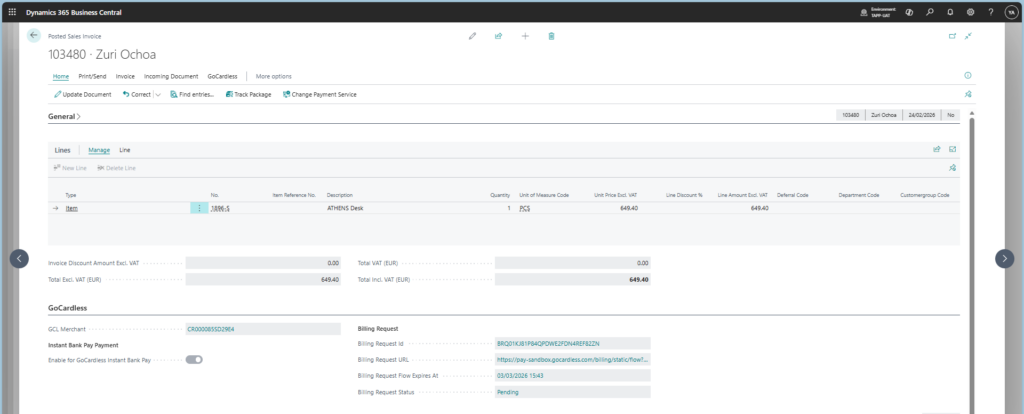
The payment information is carried over to the Posted Sales Invoice for future reference.
Instant Bank Payments – Simulation Steps
In step 3 above, a billing request is created in GoCardless and therefore this is to be fulfilled for the payment to be eventually created and simulated as paid out or failed.
Data Required for Simulation: Billing Request ID
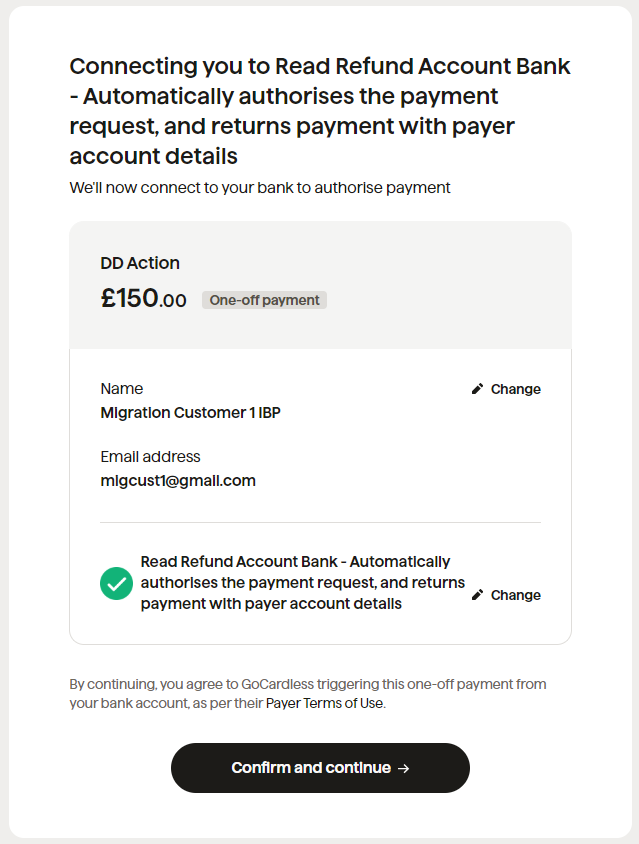
- Run the Billing Request URL in the browser and fill in the customer details and choose the correct bank depending on the required outcome of the simulation. Click on Confirm and Continue
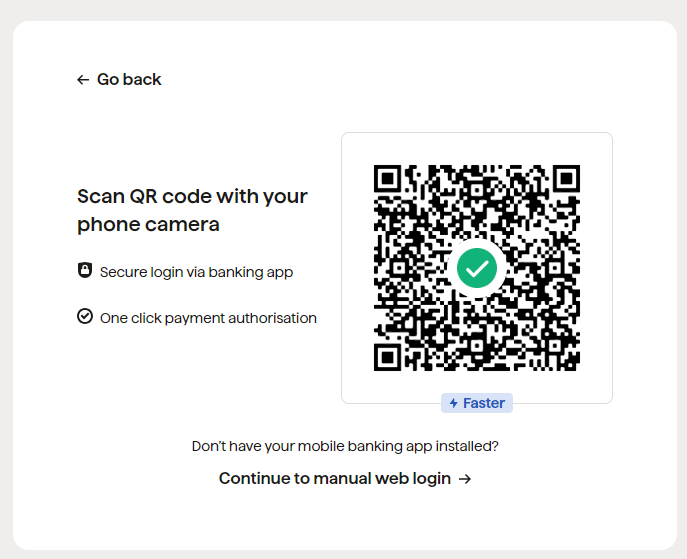
- Click on Continue to manual web login
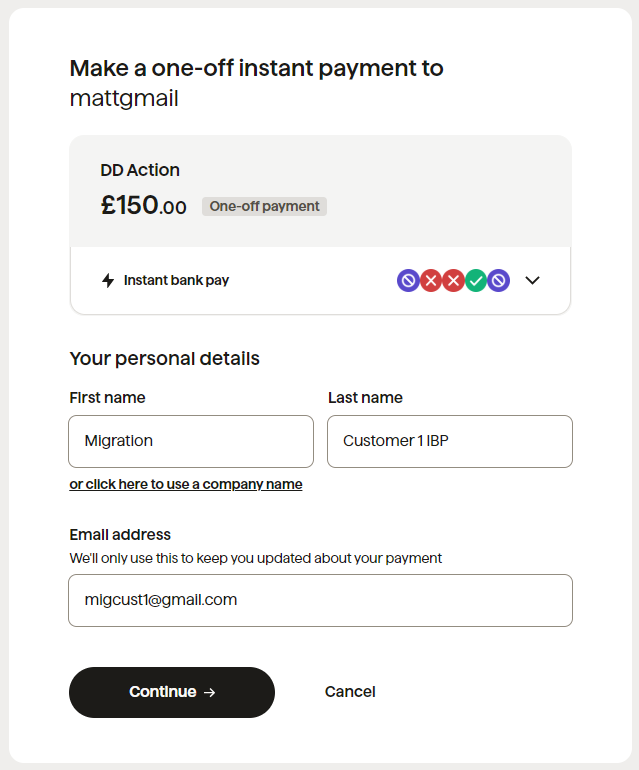
- A payment is created in GoCardless and the payment status is updated in Business Central.
- Simulate the payment process
- For successful processing see: Fulfill a Billing Request and pay out the payment
- For failed processing see: Fulfill a Biling Request and fail the payment